Settings

Manage your approved product list

Load your firm's approved products into Alcova from a spreadsheet, then keep the list up to date.

Alcova uses the approved product list to transcribe product names and codes correctly and to write better meeting notes. You load and update the list by uploading a CSV file. You cannot add a single product by hand.

Before you start

  • You must be an admin of your organisation. Members do not see Product List in the settings menu. If a member opens a link to it, Alcova opens their Profile settings instead.
  • Prepare a CSV file with a header row. It needs a name column. It can also have code and notes columns.

For example:

name,code,notes
Bluegum Australian Shares Index ETF,BGA,Core Australian equities for growth portfolios
Saltbush Wrap Platform,SLT-WRAP,Preferred platform for new clients
Tidewater Income Protection,TDW-IP,Approved for self-employed clients

Give each product a code if you plan to update the list later. Alcova matches rows in later uploads to existing products by code.

Open the product list

  1. Open Settings. See Open settings.
  2. Under Features, select Product List.

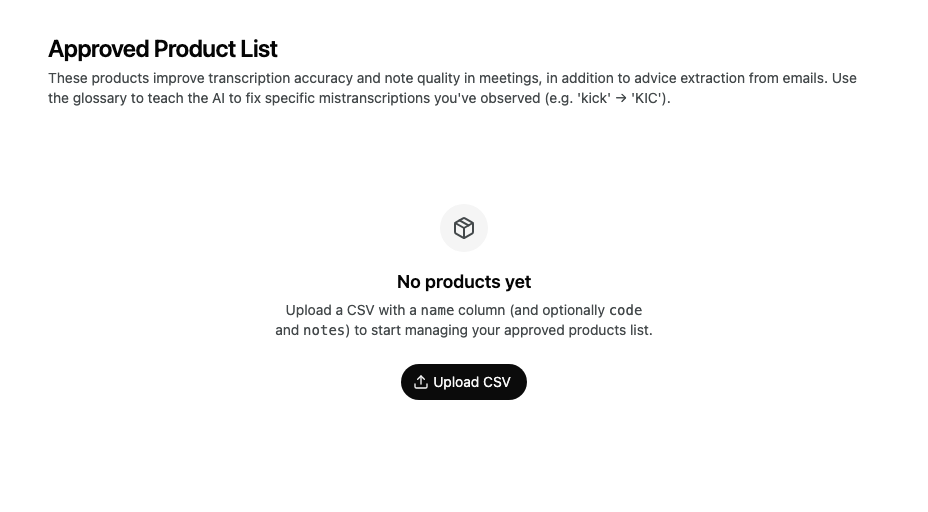
The page is called Approved Product List. If you have not loaded any products, it says No products yet.

Enlarge screenshot: The Approved Product List page with no products, showing No products yet and the Upload CSV button

Upload a CSV file

  1. Select Upload CSV.

  2. Select Click to upload and choose your file. You can also drag the file onto that area.

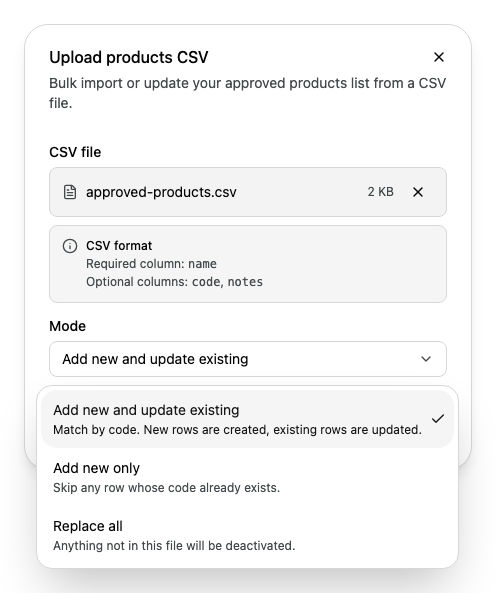
  3. In Mode, choose how the file changes your list:

    ModeWhat happens
    Add new and update existingRows with a new code become new products. Rows with a code already on the list update that product. This is the default.
    Add new onlyRows with a new code become new products. Alcova skips any row whose code is already on the list.
    Replace allAlcova loads the file, and marks every product that is not in the file as Inactive.
    Enlarge screenshot: The Upload products CSV dialog with approved-products.csv chosen and the Mode list open, showing Add new and update existing, Add new only and Replace all
  4. Select Upload.

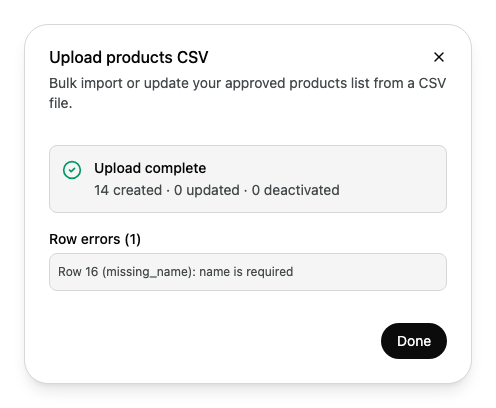
When the upload finishes, the dialog says Upload complete and shows how many products were created, updated and deactivated. If some rows could not be loaded, Row errors lists each one with its row number and the reason. Fix those rows in your file and upload it again.

Enlarge screenshot: The upload result showing Upload complete, 14 created, 0 updated and 0 deactivated, and one row error saying row 16 is missing a name

A large file can take a while. The dialog says Processing import… and shows how many rows it has loaded so far. You can wait, or select Done and check the list later.

Select Done to see your products.

Find a product

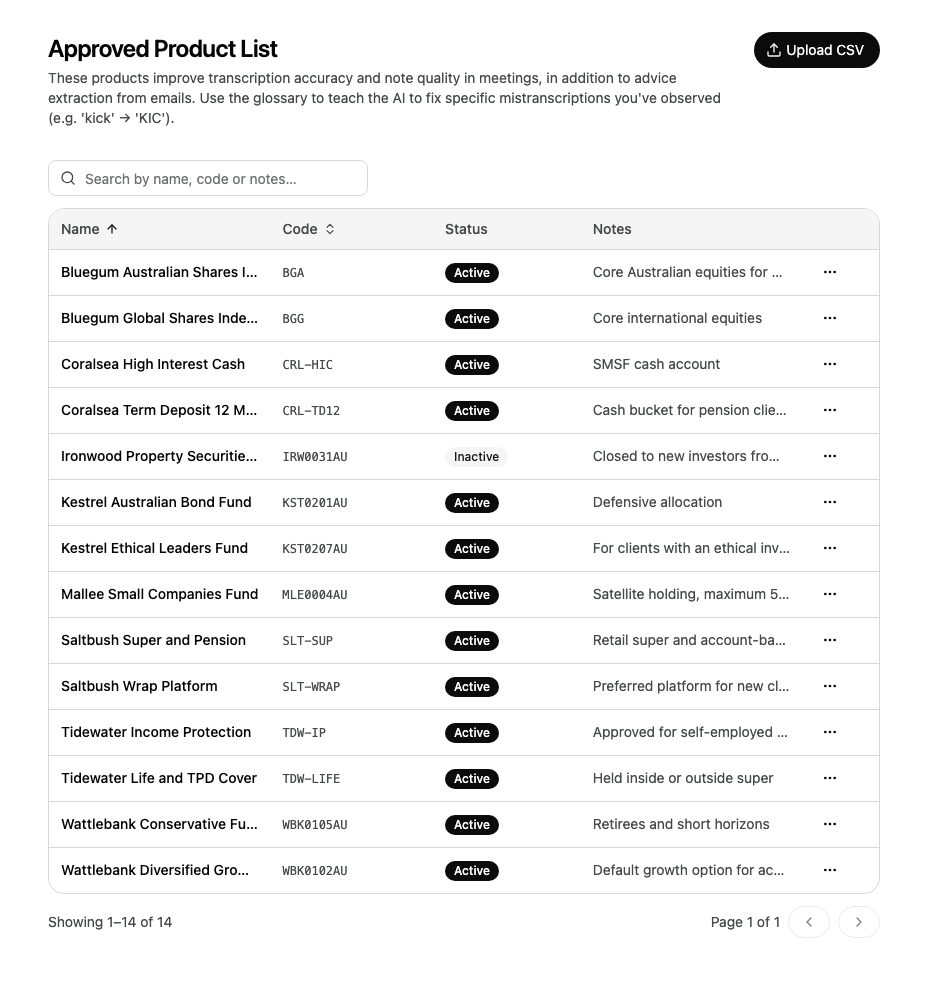
The list shows each product's Name, Code, Status and Notes, 25 products to a page.

Enlarge screenshot: The Approved Product List showing 14 products sorted by name, with codes, Active or Inactive status, and notes
  • To search, enter part of a name, code or note in Search by name, code or notes….
  • To sort, select the Name or Code column heading. Select it again to reverse the order.
  • To move between pages, use the arrow buttons below the list.

Active means the product is currently approved for use. Inactive means it is not, but it stays on the list.

Change a product

  1. On the product's row, select the menu button (...).
  2. Select Edit.
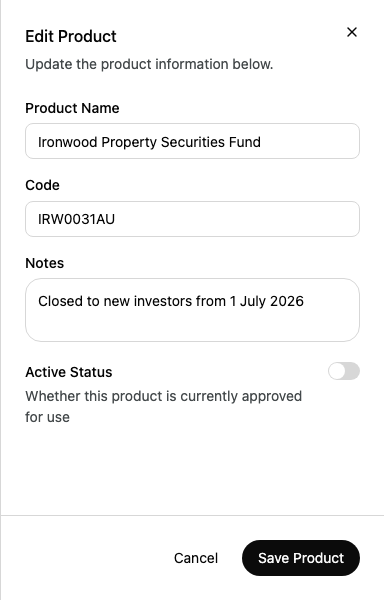
  3. Change Product Name, Code or Notes.
  4. To approve or withdraw the product, turn Active Status on or off.
  5. Select Save Product.
Enlarge screenshot: The Edit Product panel for Ironwood Property Securities Fund, with its code, a note saying it is closed to new investors, and Active Status turned off

To withdraw a product but keep a record of it, turn off Active Status rather than deleting it.

Delete a product

  1. On the product's row, select the menu button (...).
  2. Select Delete.
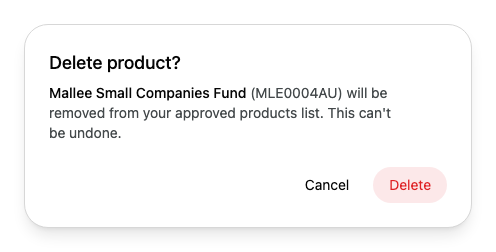
  3. In the confirmation, select Delete.
Enlarge screenshot: The confirmation asking Delete product?, warning that Mallee Small Companies Fund (MLE0004AU) will be removed from the approved products list and that this can't be undone

You cannot undo a deletion. To bring the product back, upload it again.

If something goes wrong

  • Failed to upload CSV. Check the file and try again.: Alcova could not read the file. Check that it is a CSV file with a name column, then upload it again.
  • Upload failed: the import stopped. The dialog shows the reason. Fix the file and upload it again.
  • Couldn't check upload status: the import is still running, but Alcova lost track of its progress. Close the dialog and check the list shortly. If the new products do not appear, refresh the page.
  • Failed to save the product. Check the values and try again.: your change was not saved. Check the fields and select Save Product again.
  • Failed to delete the product.: the product was not deleted. Select Delete again, or close the dialog and refresh the page.