
Manage your organisation
Change your organisation's name and logo, and switch between organisations if you belong to more than one.
Change your organisation's name or logo
Before you start
You must be an admin of the organisation. If you are a member, General shows the name and logo, but you cannot change them.
Steps
Open Settings. See Open settings.
Under Organisation, select General.
Enlarge screenshot: 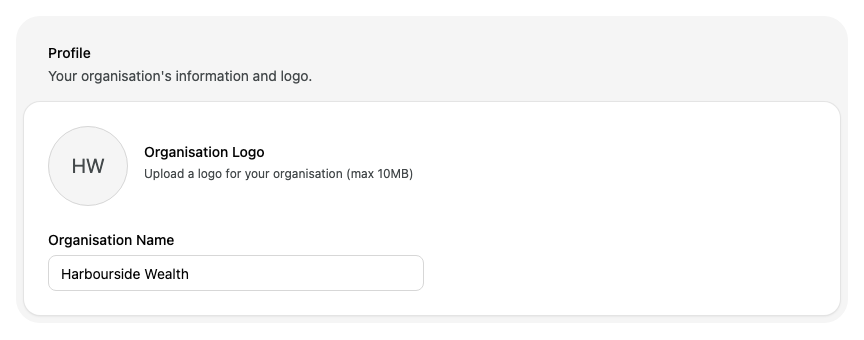
To change the name, enter it in Organisation Name. Alcova starts each word with a capital letter as you type.
Select Save in the bar at the bottom of the page. To undo your changes, select Reset.
To change the logo:
- Select the logo, or the organisation's initials if it has no logo.
- Choose an image file. It must be smaller than 10 MB.
- Select Upload.
To remove the logo, select Remove next to it.
What happens next
Everyone in your organisation sees the new name and logo, including in the organisation menu at the bottom of the sidebar.
What members see
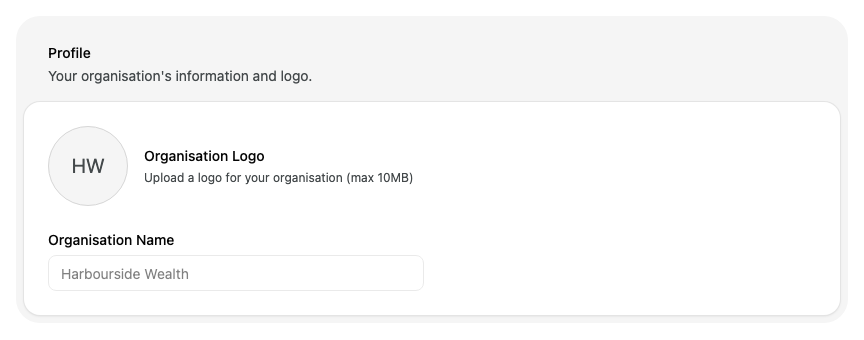
Members see the same card, but Organisation Name is unavailable and there are no logo buttons.
Switch to another organisation
If you belong to more than one organisation, you can move between them from the sidebar.
At the bottom of the sidebar, select your organisation's name. It sits just above your own name.
Select the organisation you want.
Enlarge screenshot: 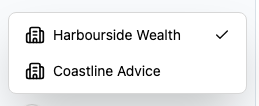
A tick marks the organisation you are in now. Alcova opens the Operator home page of the organisation you selected.
If you belong to only one organisation, its name is not a menu and does not show the up and down arrows.