
Check your subscription and billing
See your organisation's plan, how many team members it covers and how you pay, and open the billing portal to make changes.
Before you start
You must be an admin of your organisation. Members do not see Billing in the settings menu. If a member opens a link to it, Alcova opens their Profile settings instead.
Open billing
- Open Settings. See Open settings.
- Under Organisation, select Billing.
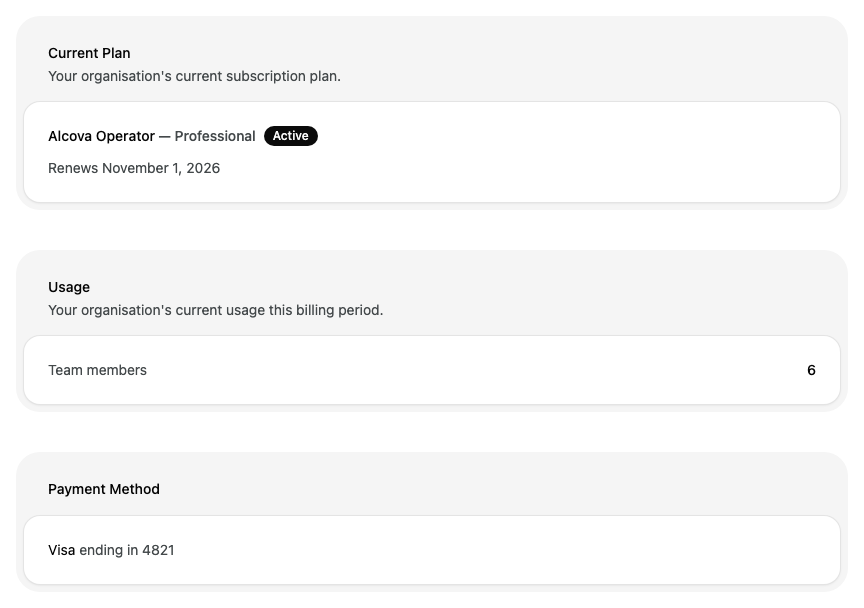
Billing has three cards: Current Plan, Usage and Payment Method.
Current plan
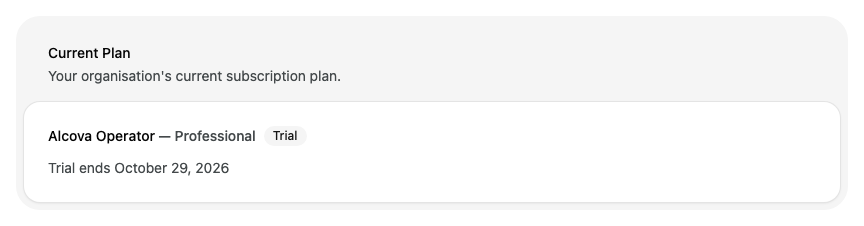
Current Plan shows your product and plan name with a status:
- Active means your subscription is current.
- Trial means you are in a trial period.
Depending on your subscription, the card also shows:
- the price for each seat, and how often you pay
- Trial ends and a date, during a trial
- Renews and a date, when the subscription continues
- Cancels and a date, in red, when the subscription is set to end
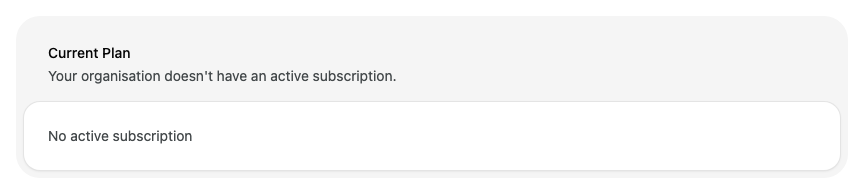
In any other case, the card says No active subscription and offers Subscribe. This includes a subscription that is cancelled, paused or has an overdue payment.
Usage
Usage shows how many Team members your organisation has this billing period.
Payment method
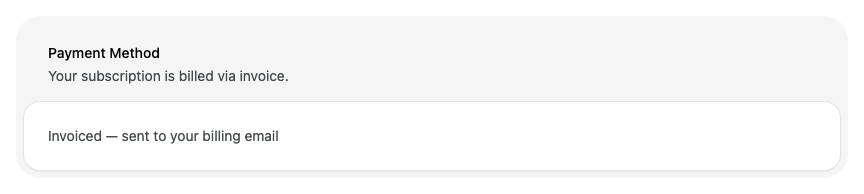
Payment Method shows how your organisation pays:
| What you see | What it means |
|---|---|
| A card brand and ending in the last four digits | Your organisation pays with this card. |
| Payment method on file | Your subscription has a payment method, but Alcova does not show its details. |
| No payment method on file | No payment method is saved. |
| Invoiced | Your organisation pays by invoice, sent to your billing email. |
Change your plan or payment details
You make changes to your subscription and payment details in the billing portal. Each button below opens it in a new browser tab.
| To do this | Select |
|---|---|
| Manage your subscription | Manage Billing on Current Plan |
| Start a subscription | Subscribe on Current Plan |
| Update your card | Update on Payment Method |
| Check a saved payment method | Manage on Payment Method |
| Add a payment method | Add Payment Method on Payment Method |
| See your invoices | View Invoices on Payment Method |
When you finish, return to the Alcova tab. If Billing does not show your changes, reload the page.