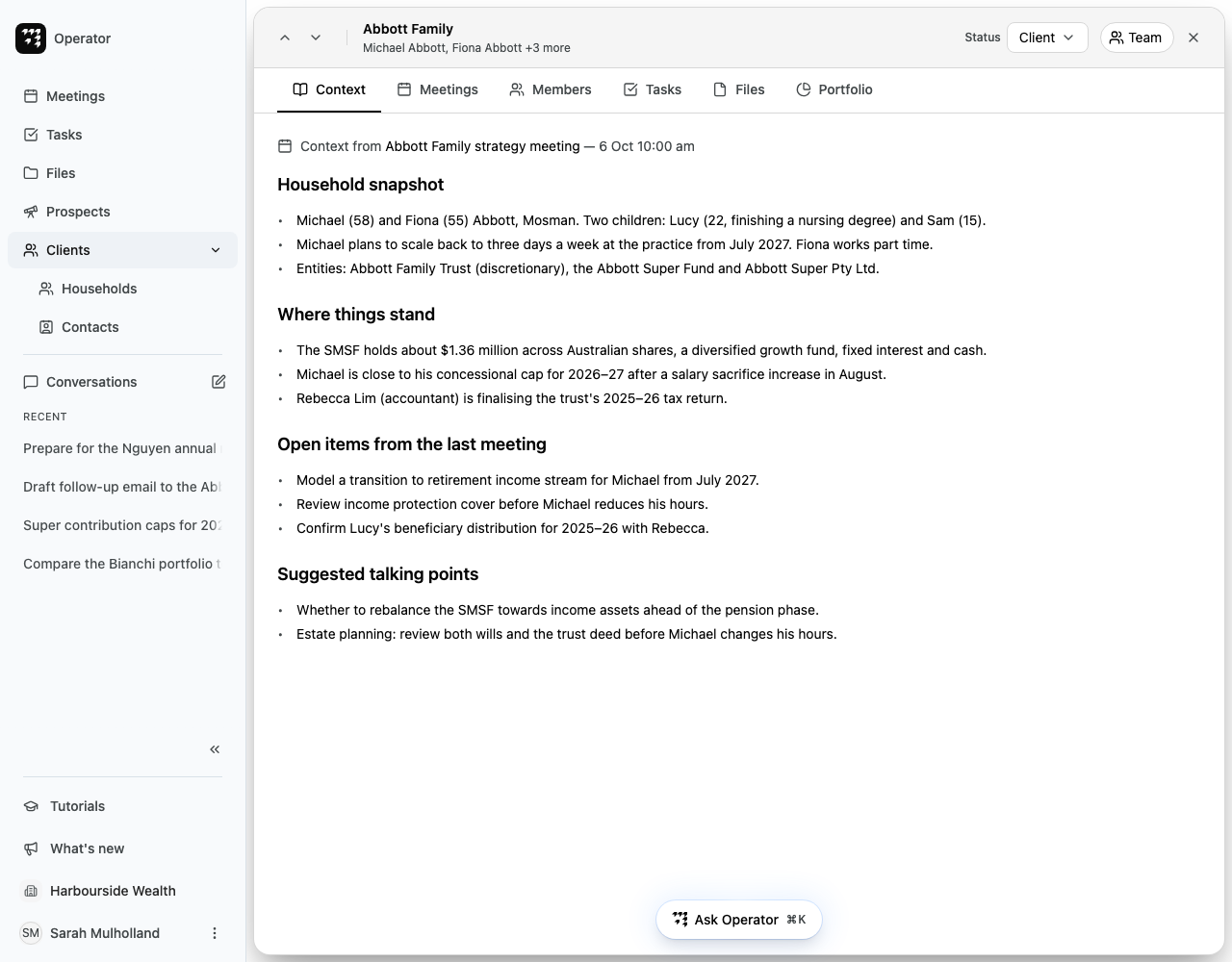
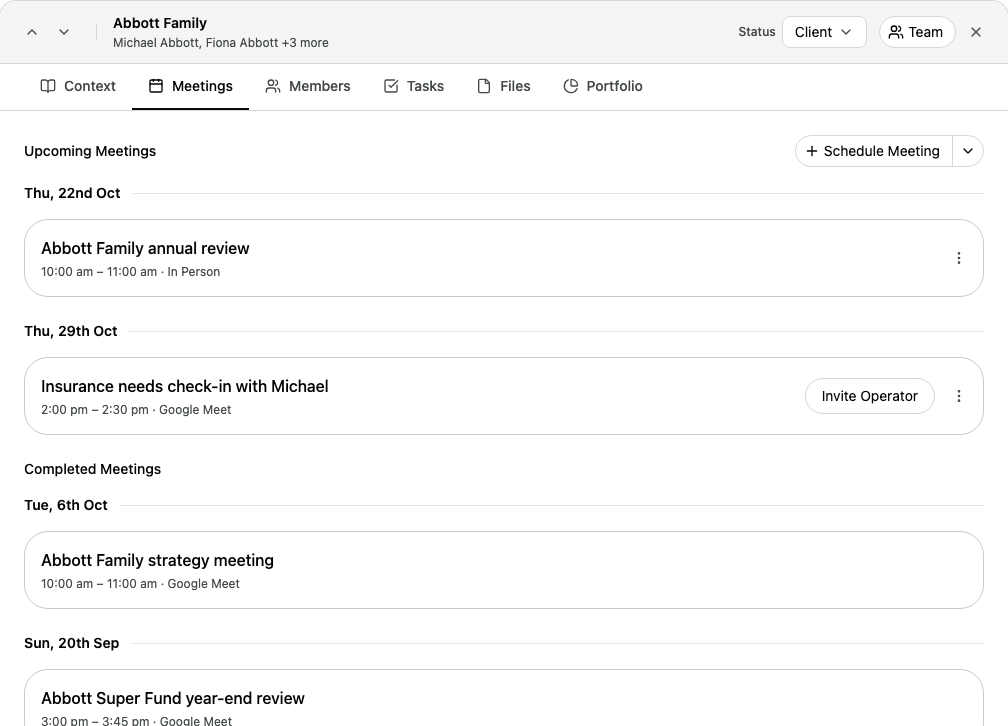
A household's page brings together everything Alcova knows about the household: its latest briefing, meetings, members, tasks, files and portfolio. From the top of the page you can also change the household's status and choose which colleagues work on it.
Closes the household's page and takes you back to the households list.
If you opened the household from a link in an Operator conversation, a button with the conversation's name shows at the top left. Select it, or the close button, to go back to the conversation.
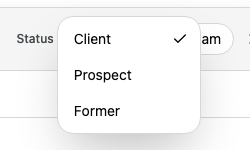
Alcova saves the change straight away, and the All Clients list shows the new status.
To change a status, you need Admin or Editor access on the household. If you do not have it, or your organisation's households come from a connected CRM, the status shows as a label that you cannot change.
If the change does not save, a message shows under the menu:
You don’t have permission to change this status. Ask a colleague with Admin or Editor access on the household to change it, or to give you that access.
Couldn’t change the status. Try again. Select the status again.
Choose who works on a household
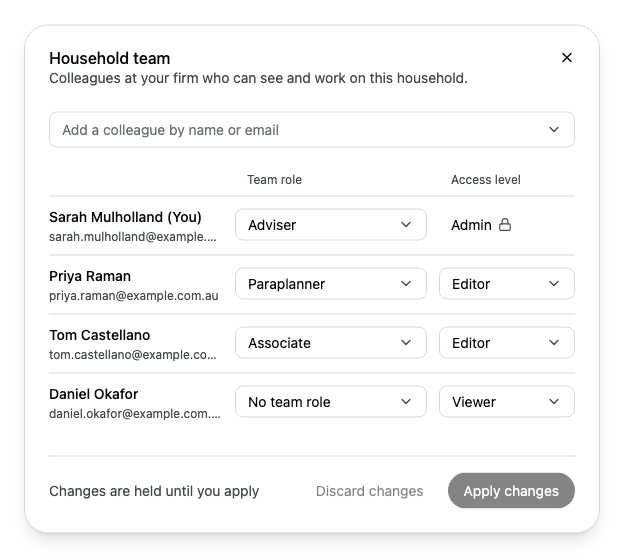
The household's team is the colleagues at your firm who can see and work on the household. Each colleague has a team role, which says what they do for the household, and an access level, which says what they can do in Alcova.
To add a colleague, select Add a colleague by name or email, then select the colleague. A colleague you add starts as Adviser with Editor access, and shows New beside their name.
To change what a colleague does, select a new role in their Team role menu.
To change what a colleague can do, select a new level in their Access level menu.
To take a colleague off the team, select Remove access in their Access level menu. Their row shows Will be removed. To undo this, select Keep access.
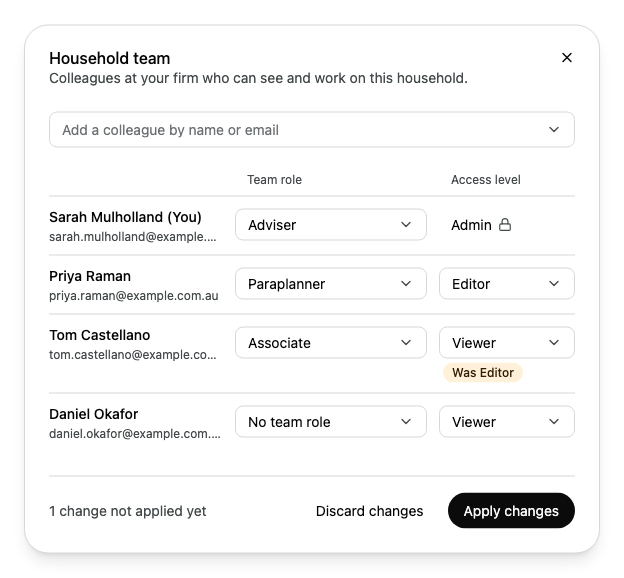
Alcova holds your changes until you apply them. A changed value shows what it was before, for example Was Editor.
To undo every change you have not applied, select Discard changes. If you close the dialog with changes not applied, Alcova asks whether to discard them. Select Keep editing to go back to them.
You cannot lower or remove your own access.
The colleague with the Adviser team role shows as the household's adviser in the All Clients list.
Team roles and access levels
The team roles are Adviser, Associate, Assistant, Relationship manager, Portfolio manager and Paraplanner. A colleague can also have No team role: they have access to the household, and the Members tab counts them under Team rather than listing them.
Access level
What the colleague can do
Admin
See and change the household, including its members and its team.
Editor
See and change the household, including its members and its team.
Viewer
See the household, but not change it.
When you cannot change the team
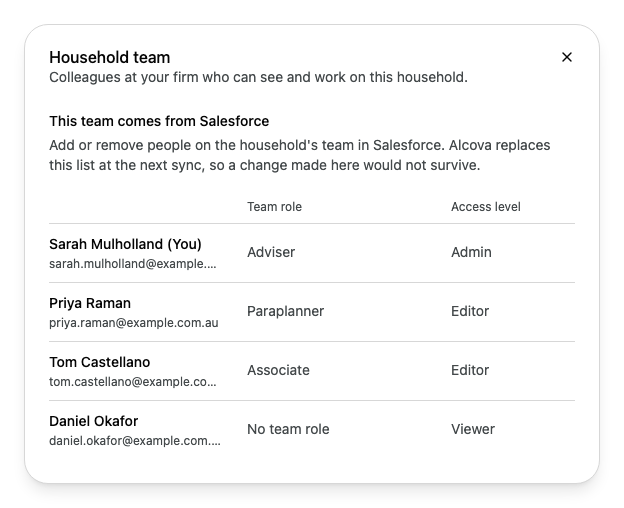
The dialog shows the team, with a note that explains why you cannot change it:
You can see this household's team, but not change it: you need Admin or Editor access on the household. Ask a colleague who has it.
This team comes from Salesforce (or the name of your CRM): your organisation's CRM owns the team. Make the change in the CRM. Alcova replaces the list at the next sync, so a change made in Alcova would not last.
The Context tab shows the briefing from the household's most recent meeting that has a completed briefing. The line at the top names the meeting and its date. Select the meeting's name to open it.
If your organisation's households come from a connected CRM, such as Salesforce or Dynamics 365, you change a household's status, members and team in the CRM, not in Alcova:
Status shows as a label.
The Members tab has no buttons to add, edit or remove.