Clients

Contacts

The Contacts list holds the people your firm knows: the members of your households, contacts who are not in a household yet, and people from your meetings who are not contacts yet. Use it to find a person, see which households they belong to, and add people from your meetings as contacts.

Open the list

In the sidebar, select Clients, then Contacts.

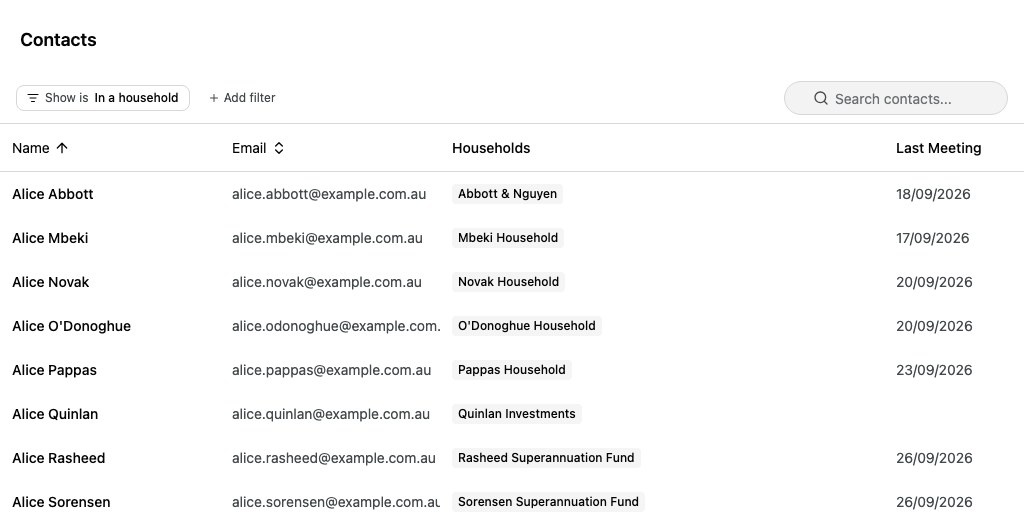
The list opens on contacts who are in a household, in order of name.

Enlarge screenshot: The Contacts list, showing contacts in a household with their email address, household and last meeting date
ColumnWhat it shows
NameThe contact's name.
EmailThe contact's email address.
HouseholdsThe households the contact belongs to.
Last MeetingThe date of the contact's most recent meeting.

To sort the list, select Name or Email, then Asc or Desc.

Choose which people to show

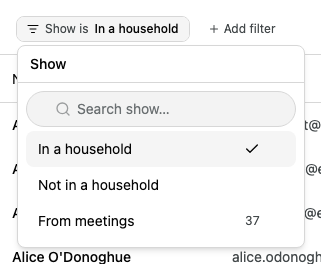
The Show filter is always on. It decides which people the list shows.

  1. Select the Show filter.

  2. Select one of these:

    • In a household: contacts who belong to at least one household.
    • Not in a household: contacts who do not belong to a household yet.
    • From meetings: people from your meetings who are not contacts yet. The number beside it is how many are waiting for you to review.
    Enlarge screenshot: The Show filter open, with In a household ticked, Not in a household, and From meetings with 37 people

To go back to contacts in a household, and remove every other filter, select Clear filters.

Find a contact

  • To search, enter part of a name or email address in Search contacts....
  • To show the contacts of particular households, select Add filter, then Household. Search for and select the households, then select Apply filter.
  • To show contacts you met in a period, select Add filter, then Met. Choose a period such as Last 30 days, or a date with On or after or Before.

The Household and Met filters are not available when Show is From meetings.

Open a contact

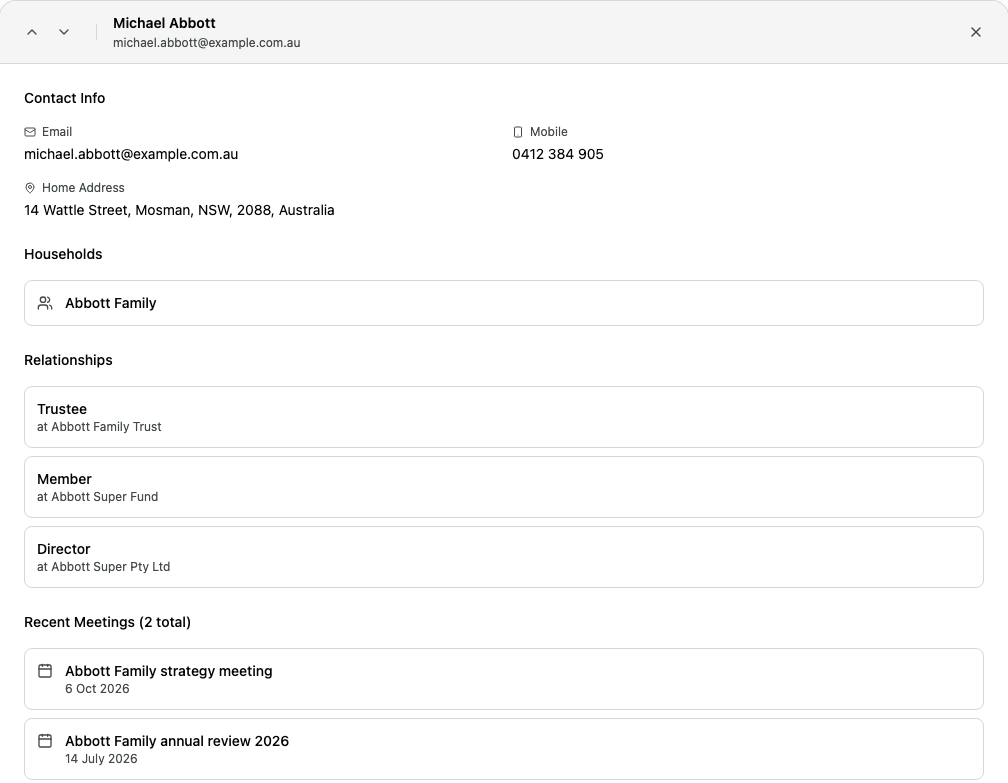
Select a contact's row. Their details open over the list.

Enlarge screenshot: Michael Abbott's contact page, with his contact info, his household, his roles in three entities and his two most recent meetings

The contact page shows only the sections that have details:

SectionWhat it shows
Contact InfoEmail address, phone and mobile numbers, and home, work and postal addresses.
HouseholdsThe households the contact belongs to. Select one to open it.
RelationshipsThe contact's role in each entity, for example Trustee at a family trust.
Recent MeetingsThe contact's recent meetings, and how many meetings they have had in total. Select a meeting to open it.
  • To move to the previous or next contact in the list, use the up and down arrows at the top left.
  • To go back to the list, select the close button. The list keeps your search and filters.

The contact page is read-only. To change a household member's details, open their household and use the Members tab. See See or change a person's details.

Add people from your meetings

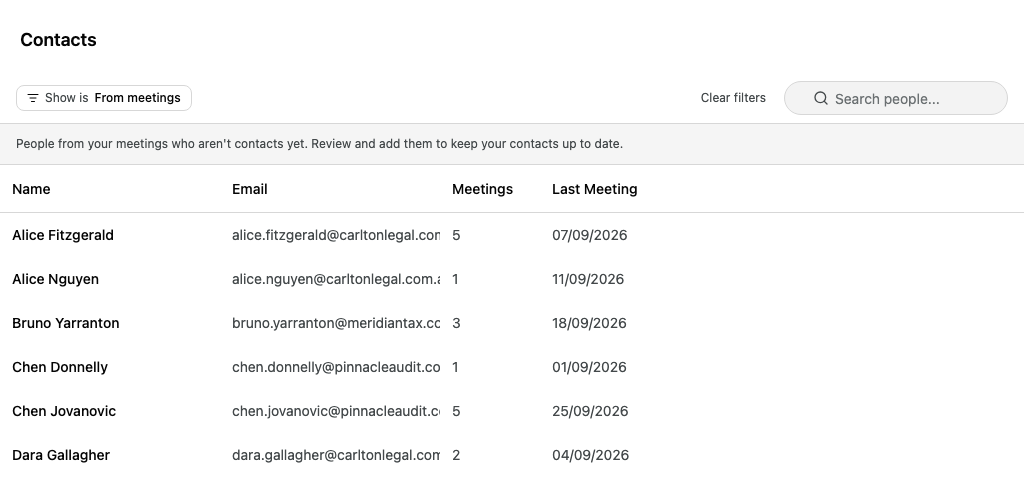
People who join your meetings but are not contacts wait in the From meetings view for you to review them.

  1. Select the Show filter, then From meetings.

    The list shows each person's email address, how many of your meetings they have joined, and when they last joined one.

    Enlarge screenshot: The From meetings view, with a note that these are people from your meetings who aren't contacts yet, and six people listed
  2. Select a person. Their page shows their email address and the meetings they joined.

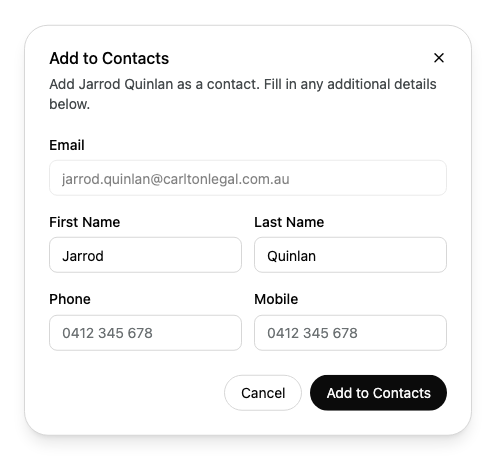
  3. Select Add to Contacts.

  4. Enter or check their First Name and Last Name. If you know them, enter a Phone and a Mobile number. You cannot change the email address.

    Enlarge screenshot: The Add to Contacts dialog for Jarrod Quinlan, with the email address filled in and first and last name entered
  5. Select Add to Contacts.

The person becomes a contact who is not in a household yet. Alcova opens their contact page in the Not in a household view.

If a person's page has no Add to Contacts button, you cannot add them from here.

If the list is empty

MessageWhat it means
No contacts in a householdNone of your contacts belong to a household yet. Contacts show here once they are added to a household.
Every contact is in a householdAll your contacts belong to a household.
Everyone has been reviewedNo one from your meetings is waiting for review. New people show here after your meetings.
No contacts match this view or No people match this viewChange the search or filters.