Settings

Connect and choose your calendars

Connect your Google or Microsoft calendar, choose which calendars Operator watches for meetings, and fix a connection that has stopped working.

Operator looks for meetings only in the calendars you turn on here. To choose which of those meetings Operator joins to take notes, see Choose when Operator joins your meetings.

Open Calendars

  1. Open Settings. See Open settings.
  2. Under Features, select Calendars.

The page has two cards:

  • Connected Accounts lists the Google and Microsoft accounts you have connected.
  • Calendars to sync lists the calendars in those accounts, with a switch for each one.

Connect a calendar account

  1. In Connected Accounts, select Add.

  2. Select Google Calendar or Microsoft Outlook.

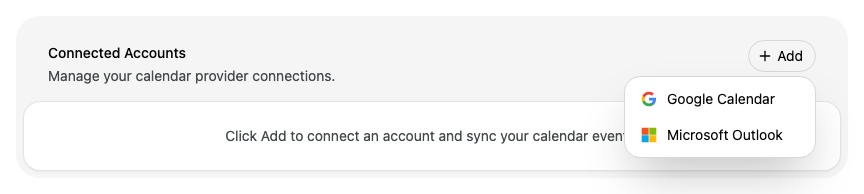
    Enlarge screenshot: The Connected Accounts card with no accounts connected and the Add menu open, offering Google Calendar and Microsoft Outlook
  3. Sign in to your Google or Microsoft account and allow the access it asks for. Alcova asks for access to your calendar and your email.

When you come back to Alcova, the account shows in Connected Accounts and its calendars show in Calendars to sync.

Add lists only the providers you have not connected yet. When you have connected both Google and Microsoft, Add does not show.

Choose which calendars sync

In Calendars to sync, calendars are grouped under the account they come from, for example Google Calendar · sarah.mulholland@example.com.au.

  • To sync a calendar, turn on its switch.
  • To stop syncing a calendar, turn off its switch.

Alcova saves each change straight away. There is no Save button.

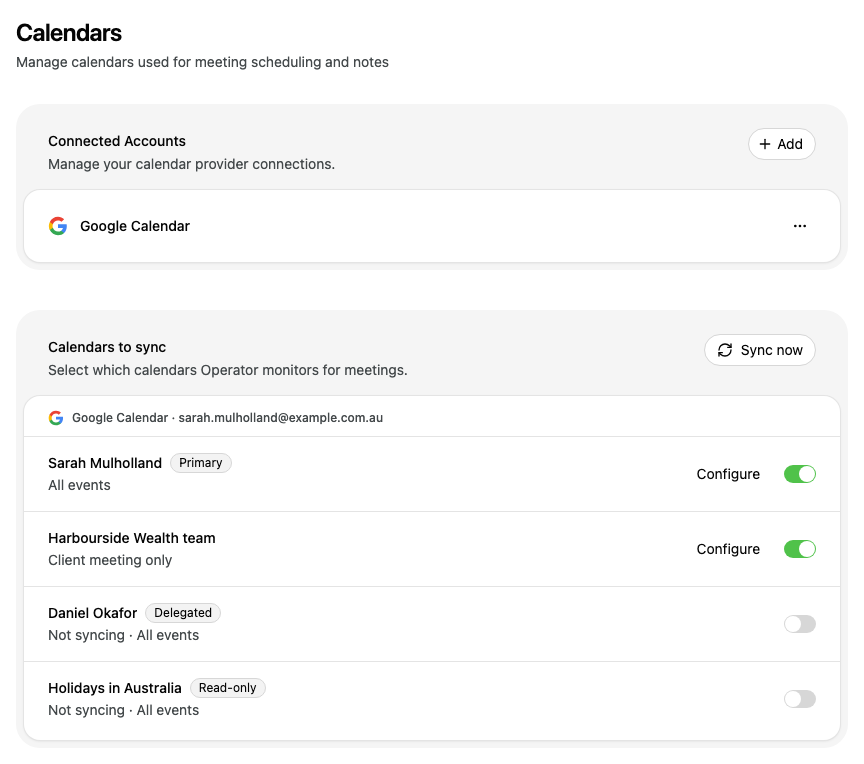
Enlarge screenshot: The Calendars page with Google Calendar connected. Sarah Mulholland and Harbourside Wealth team are turned on. Daniel Okafor, marked Delegated, and Holidays in Australia, marked Read-only, are turned off

The line under each calendar's name tells you what syncs:

Text under the nameMeaning
All eventsEvery event in the calendar syncs.
Annual review, Statement of Advice onlyOnly events with those labels or categories sync. See Sync only some events.
Not syncing · All eventsThe calendar is turned off. The rest of the line shows what will sync when you turn it on.
Labels unavailableAlcova could not load the calendar's labels. Select Retry.
Selected labels no longer availableThe labels you chose were removed from the calendar. Select Sync all events to sync every event again.

The labels beside a calendar's name:

LabelMeaning
PrimaryThe main calendar of the connected account.
DelegatedSomeone else owns the calendar and shares it with you.
Read-onlyAlcova cannot change events in this calendar.

Sync only some events

You can sync only the events that have certain labels (in Google Calendar) or categories (in Microsoft Outlook). For example, sync only your client meetings and leave out personal events.

Configure shows only for calendars that have labels or categories.

  1. Next to the calendar, select Configure.

  2. Under Events to sync, select Selected labels. For a Microsoft calendar, select Selected categories.

  3. Turn on each label or category you want to sync. You must turn on at least one.

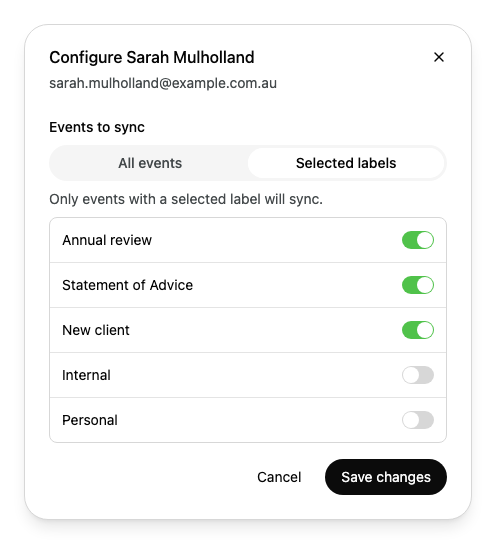
    Enlarge screenshot: The Configure Sarah Mulholland window with Selected labels chosen. Annual review, Statement of Advice and New client are turned on. Internal and Personal are turned off
  4. Select Save changes.

The calendar now shows the labels it syncs, for example Annual review, Statement of Advice, New client only.

To sync every event again, select Configure, select All events, then select Save changes.

If the calendar is turned off, the window says These settings apply when you enable this calendar. You can still save your choice.

Sync your calendars now

To bring in calendar changes straight away, select Sync now at the top of Calendars to sync.

The button shows Syncing... while it works. When it finishes, the card shows Calendar sync complete.

Enlarge screenshot: The top of the Calendars to sync card, with the Sync now button and the message Calendar sync complete

Sync now is unavailable when no calendar is turned on.

Reconnect a calendar

Alcova shows one of these signs when it cannot use your calendar.

The account shows "Needs access"

The account is connected, but Alcova does not have all the access it asks for.

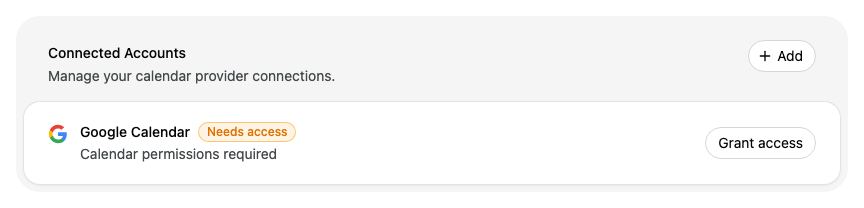
Enlarge screenshot: Google Calendar in the Connected Accounts card, marked Needs access, with the text Calendar permissions required and a Grant access button
  1. Select Grant access.
  2. Sign in to the account and allow all the access it asks for.

The calendar "needs attention"

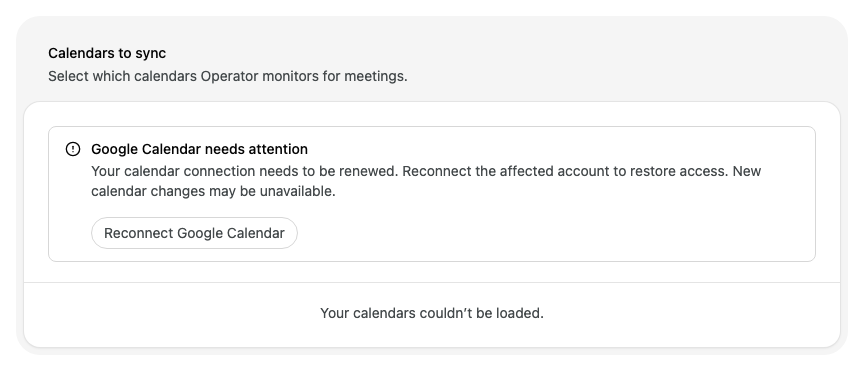
An alert at the top of Calendars to sync says, for example, Google Calendar needs attention. The message tells you what to do:

Enlarge screenshot: The Calendars to sync card with the alert Google Calendar needs attention, the message that the calendar connection needs to be renewed, a Reconnect Google Calendar button, and the text Your calendars couldn't be loaded
MessageWhat to do
Your calendar connection needs to be renewed.Select Reconnect Google Calendar or Reconnect Microsoft Outlook, then sign in again. When you come back, Alcova syncs your calendar again.
More than one account is connected.Select Manage accounts and disconnect the account you do not want to use. See Disconnect a Google or Microsoft account.
Your organisation role does not allow calendar access.Ask your organisation administrator to review your access.
Calendar changes could not be refreshed.Select Try again.

If the title says sync incomplete, some events synced and some did not. Your existing meetings are still available.

Sign in to an account again

If an account works but you want to sign in to it again, for example after you changed its permissions:

  1. In Connected Accounts, select the ... button next to the account.
  2. Select Reauthorize.
  3. Sign in and allow the access it asks for.

If something goes wrong

  • Couldn't save calendar selection. Please try again. The switch change was not saved. Turn the switch on or off again.
  • Couldn't save these settings. Please try again. The Configure window could not save your labels. Select Save changes again.
  • Couldn't update calendar settings. Please try again. Retry or Sync all events did not work. Select it again.
  • No calendars found. The connected account has no calendars Alcova can see. Check the account in Google Calendar or Outlook.
  • Couldn't start reconnection. Try again. Select the reconnect button again.