Settings

Connect Google Meet or Microsoft Teams

Connect Google Meet or Microsoft Teams so Alcova can create online meeting links when you set up a new meeting.

Google Meet uses your Google account, and Microsoft Teams uses your Microsoft account. These are the same connections as Google Calendar and Microsoft Outlook on the Calendars page. When you connect one, it shows as connected on both pages. See Connect and choose your calendars.

Open Online Meetings

  1. Open Settings. See Open settings.
  2. Under Features, select Online Meetings.

The Connected Providers card lists the providers you have connected.

Connect a provider

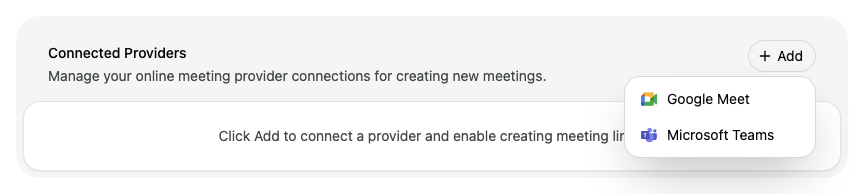
  1. In Connected Providers, select Add.

  2. Select Google Meet or Microsoft Teams.

    Enlarge screenshot: The Connected Providers card with no providers connected and the Add menu open, offering Google Meet and Microsoft Teams
  3. Sign in to your Google or Microsoft account and allow the access it asks for.

When you come back to Alcova, the provider shows in Connected Providers.

Add lists only the providers you have not connected yet.

Fix a provider that needs access

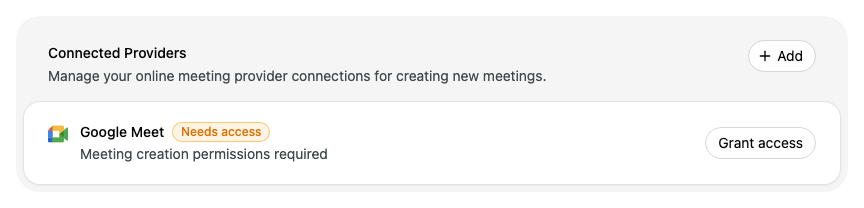
If a provider shows Needs access and Meeting creation permissions required, Alcova does not have all the access it asks for.

Enlarge screenshot: Google Meet in the Connected Providers card, marked Needs access, with the text Meeting creation permissions required and a Grant access button
  1. Select Grant access.
  2. Sign in and allow all the access it asks for.

Sign in to a provider again

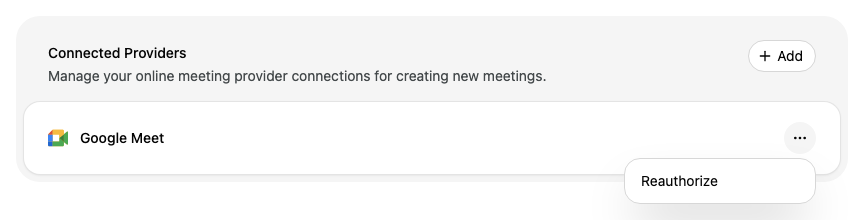
  1. Next to the provider, select the ... button.

  2. Select Reauthorize.

    Enlarge screenshot: Google Meet connected in the Connected Providers card, with its menu open showing Reauthorize
  3. Sign in and allow the access it asks for.