After a meeting is recorded, Operator writes meeting notes from the transcript. This page shows you how to read and edit those notes, write them from a different template, add your own notes and files, and read the client context Operator prepares before a meeting.
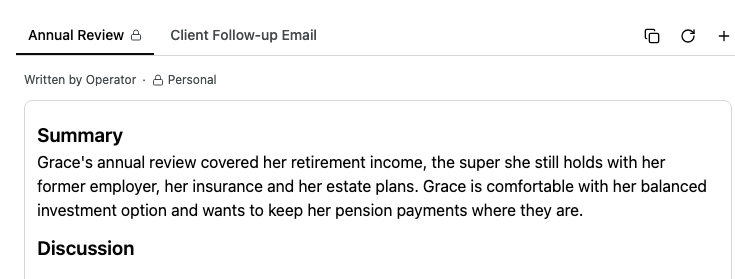
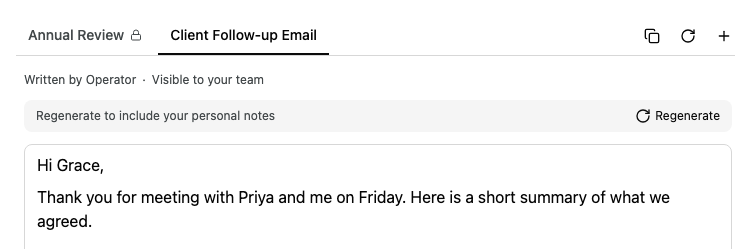
Each set of notes has a tab named after the template Operator used, for example Annual Review. After a meeting, Operator chooses the template that best fits the conversation, so a client review and a prospect meeting can get different notes without you choosing. To use another template as well, see Write notes from another template.
The line above the notes tells you who wrote them and who can see them:
Byline
What it means
Written by Operator
Operator wrote these notes and nobody has changed them.
Written by you and Operator
You edited Operator's notes.
Visible to your team
Colleagues who can open this meeting can read these notes.
Personal
These notes include your personal notes, or you edited them. A lock also appears on the tab.
While Alcova is turning the recording into a transcript, the section shows Processing recording…. While Operator writes the notes, it shows Generating notes…. If Operator could not write them, the tab shows Failed to generate notes. Please try again.
Edit the notes
Select anywhere in the notes and type. Alcova saves your changes as you go, and shows Saving… and then Saved above the notes.
After you edit notes, the byline changes to Written by you and Operator and the notes are marked Personal.
Copy the notes
Select the copy button at the top right of the notes. A tick shows that the notes are on your clipboard, ready to paste into an email or another system.
Write notes from another template
You can write more than one set of notes for the same meeting, one for each template. For example, write an Annual Review for your file and a Client Follow-up Email to send, or add a Record of Advice to a review where you gave further advice. The notes you already have stay as they are, and there is no limit to how many sets you add.
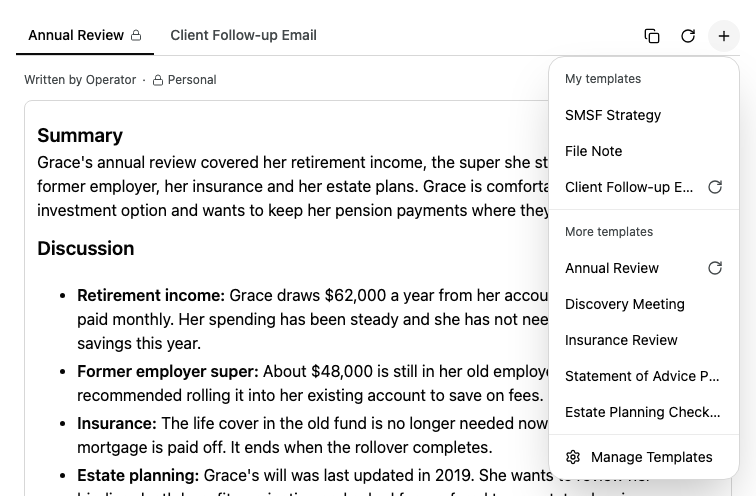
Select the + button at the top right of the notes.
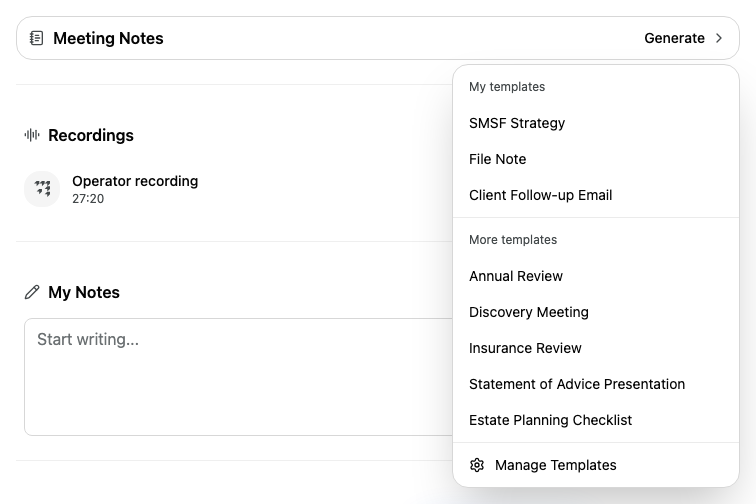
Select a template. My templates lists the templates you created or follow. More templates lists the rest.
A new tab appears with a spinner while Operator writes the notes. Templates that already have a tab show a circular arrow in the menu. Choosing one of those writes its notes again.
To write a set of notes again from the same template, open its tab and select the regenerate button (the circular arrow) at the top right of the notes.
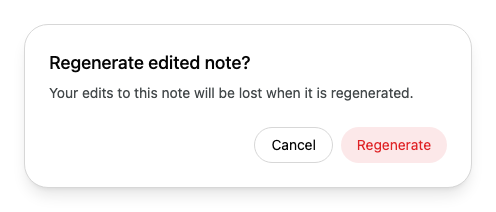
If you edited those notes, Alcova asks Regenerate edited note? first. Regenerating replaces your edits.
Select Regenerate to continue, or Cancel to keep your edits.
Include your personal notes
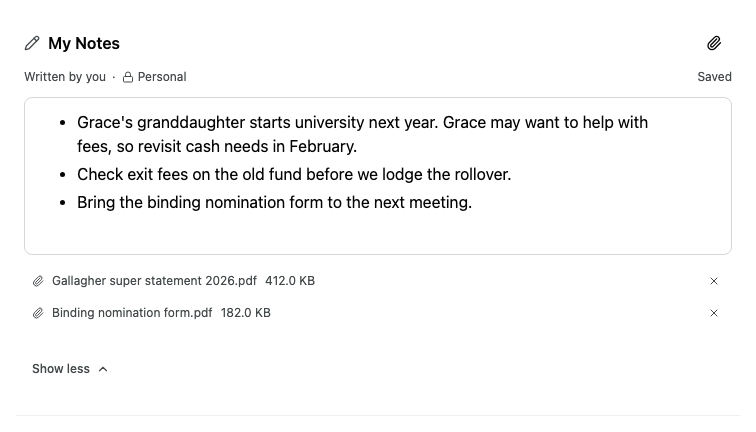
When you generate notes, Operator includes your personal notes and attached files from My Notes. Notes that include them are marked Personal.
If a set of notes was written before you added personal notes, a bar above it says Regenerate to include your personal notes. If you changed your personal notes after the notes were written, it says Your personal notes have changed since this note was created. Select Regenerate in the bar to write the notes again with your latest personal notes.
Use My Notes for your own notes about the meeting, such as points to follow up or things the client mentioned in passing. Only you see them, so they are marked Personal.
Scroll to My Notes. If the meeting already has notes from Operator, the section is folded. Select Show more to open it.
Select the box and type. Alcova saves as you go.
To attach a file, select the paperclip button in the My Notes heading and choose the file. You can also drag files onto the section. Alcova accepts documents, spreadsheets, presentations, text files and images up to 100 MB each, for example PDF, Word, Excel, PowerPoint, CSV, PNG and JPG files.
To remove an attachment, select the X at the end of its row.
Operator uses your personal notes and attachments the next time you generate meeting notes. See Include your personal notes.
Rate the notes
Below the notes, select the thumbs-up button if the notes were useful, or the thumbs-down button if they were not. After a thumbs-down, Alcova asks what was wrong. Choosing a reason is optional.
Read the client context before a meeting
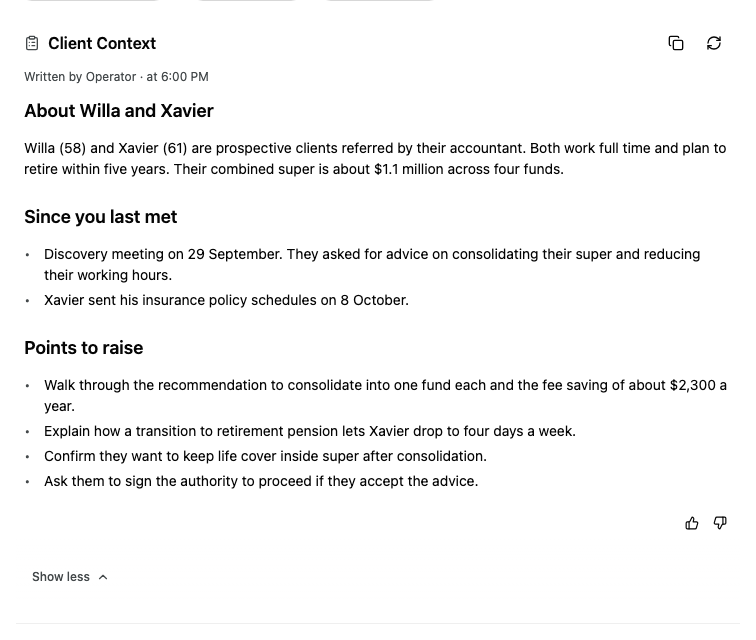
Before a meeting with external attendees, Operator can prepare Client Context: a briefing on the household, what has happened since you last met and points to raise.