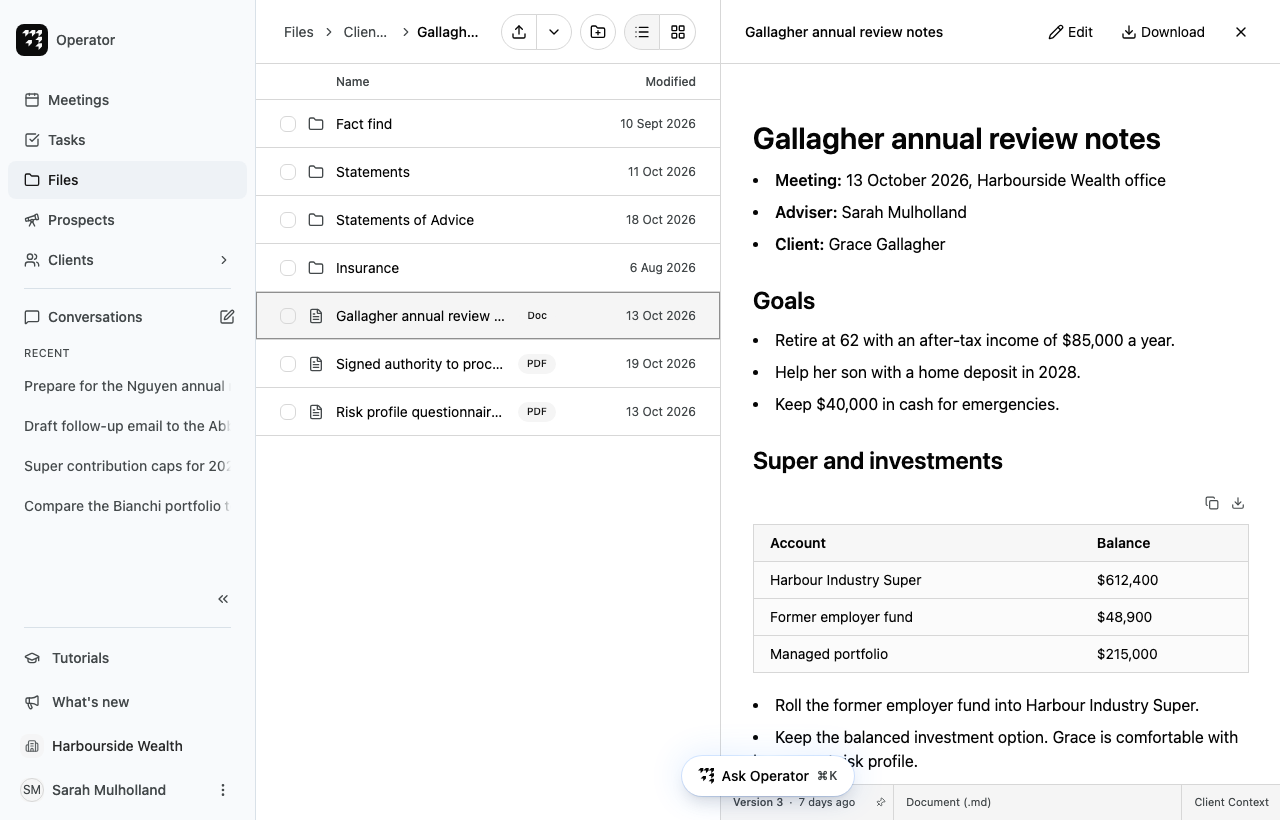
Alcova previews PDFs, images, text files and Markdown documents. Some other files, such as Word documents, can show as a PDF copy. If a file cannot be previewed, the pane shows Preview not available for this file type and a Download button. For a Word, Excel or PowerPoint file, it suggests opening the file in that app instead.
To read another file, select it in the list. The pane changes to that file.
To make the pane wider or narrower, drag its left edge.
To close the pane, select the close button at its top right.
If your window is narrow, the file opens in a panel over the page instead.
On the Files page, the page address includes the file you are reading. If you reload the page or share the link, the same file opens.
You can also right-click a file and select View details to open it.
Edit a file
The buttons at the top of the pane depend on the file and on your permissions.
Edit shows for Markdown documents you can change. Select it to edit the document in Alcova.
Open in Word, Open in Excel or Open in PowerPoint shows for Office files you can change. Select it to open the file in the app on your computer. When you come back to Alcova, it may ask you to save your changes and close the app before you continue. Select Continue when you have.
See earlier versions
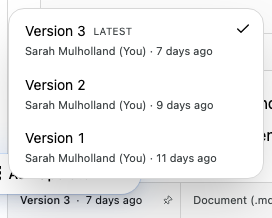
Each time a file is saved again, Alcova keeps the earlier version. The bar at the bottom of the pane shows the version you are reading and when it was saved, for example Version 3 · 7 days ago.
Select the version in the bar. The list of versions opens, with who saved each one and when.
While you read an older version, Newer available shows in the bar. Select it to go back to the latest version.
The pane follows new versions as they are saved. To stay on the version you are reading, select the pin button beside the version. Select it again to follow the latest version.
The right end of the bar shows the space the file is in, such as Client Context. Point to it to see the file's full location.
Download a file
With the file open in the pane, select Download at the top of the pane.
Download several files
In the folder, tick the files you want.
In the bar at the bottom of the page, select Download.
Alcova downloads the files as one zip file. You can download up to 100 files at a time. Zip downloads are for files only: if you tick a folder, Download is turned off.
Ask Operator about a file
On the Files page, open a file or a folder, then select Ask Operator. The open file, or the folder if no file is open, is added to your request so Operator knows what you mean. In a household's Files tab, the folder you are in is added. You can remove it before you send.
If something goes wrong
Failed to load file: select Try again.
Download failed. Please try again.: the zip download did not finish. Try again.
You don't have permission to download some of these items: you cannot download one or more of the files you ticked.