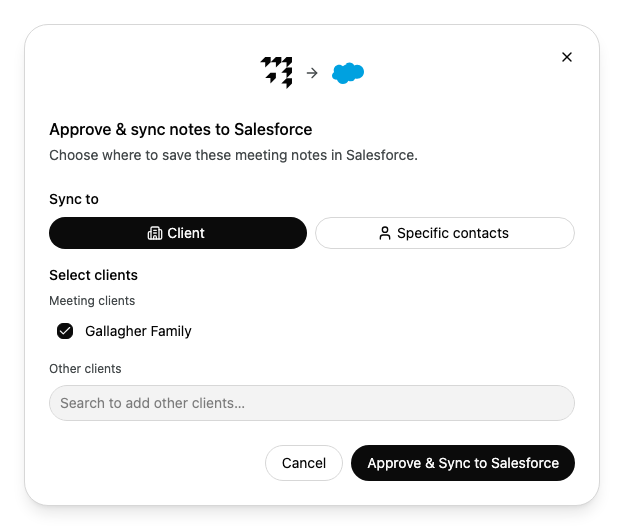
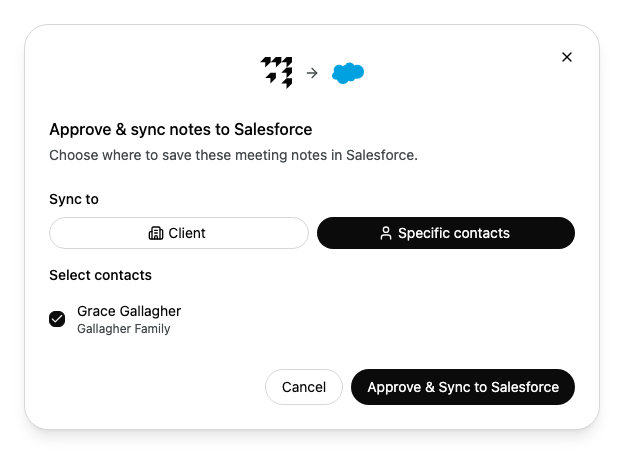
Approve a set of meeting notes and save them to your firm's CRM, against the client's household or against specific contacts.
Syncing sends the notes out of Alcova. They are saved in your CRM against the households or contacts you choose.
Before you start
Your organisation must use Salesforce or Dynamics 365 with Alcova. The steps below use Salesforce as the example. For Dynamics 365, the buttons name Dynamics 365 instead.
Client saves them against households. Under Meeting clients, the households linked to the meeting are ticked already. To add another household, select Search to add other clients… under Other clients and choose it.
Specific contacts saves them against individual people. Alcova lists the attendees who are contacts in a household. The first one is ticked already.
The button shows Syncing… while Alcova saves the notes. When the sync finishes, the dialog closes.
If some records could not be updated, a message says Partial sync completed and names the ones that failed. If none could be updated, it says Sync failed. You can sync again to retry.
If something goes wrong
Message
What to do
Connect your Salesforce account to sync meeting notes.