Settings

Share your inbox with a colleague

Let a colleague ask Operator about your email, and see whose inboxes you can ask about.

When you share your inbox, your colleague can ask Operator to search and read your email and attachments. They cannot send email from your inbox. You can share only with people in your organisation.

Before you start

Connect the Google or Microsoft account that holds your email, and allow email access. If Alcova cannot read your email, the page shows how to fix it. See Connect your email.

Open Inbox sharing

  1. Open Settings. See Open settings.
  2. Under Features, select Inbox sharing.

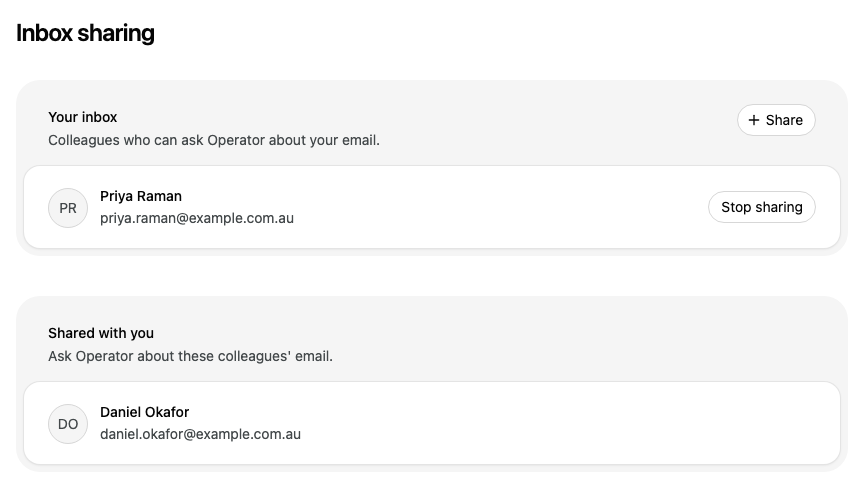
The page has two cards:

  • Your inbox lists the colleagues who can ask Operator about your email.
  • Shared with you lists the colleagues whose email you can ask Operator about.
Enlarge screenshot: The Inbox sharing page. Your inbox lists Priya Raman with a Stop sharing button. Shared with you lists Daniel Okafor

Connect your email

Share shows only when Alcova can read your email. Until then, Your inbox shows one of these messages.

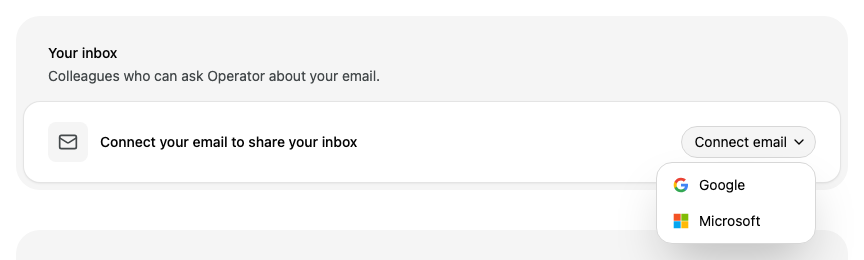
"Connect your email to share your inbox"

No Google or Microsoft account is connected.

  1. Select Connect email.

  2. Select Google or Microsoft.

    Enlarge screenshot: The Your inbox card with the message Connect your email to share your inbox, and the Connect email menu open, offering Google and Microsoft
  3. Sign in and allow email access.

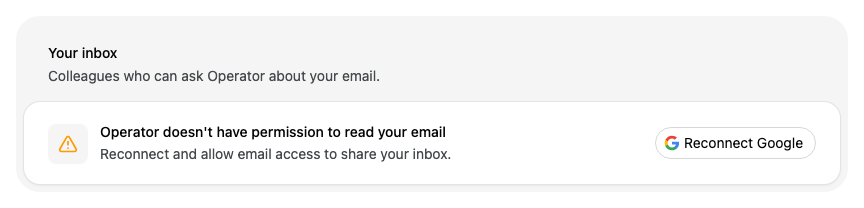
"Operator doesn't have permission to read your email"

Your account is connected, but you did not allow email access.

Enlarge screenshot: The Your inbox card with a warning that Operator doesn't have permission to read your email, and a Reconnect Google button
  1. Select Reconnect, for example Reconnect Google.
  2. Sign in and allow email access.

"Your email connection has stopped working"

Your email account is connected, but Alcova cannot read your email through it. Select Reconnect, then sign in again.

If colleagues already have access to your inbox, the message tells you that they cannot read it until you fix the connection.

When you connect or reconnect from this page, Alcova asks only for email access.

Share your inbox

  1. In Your inbox, select Share.

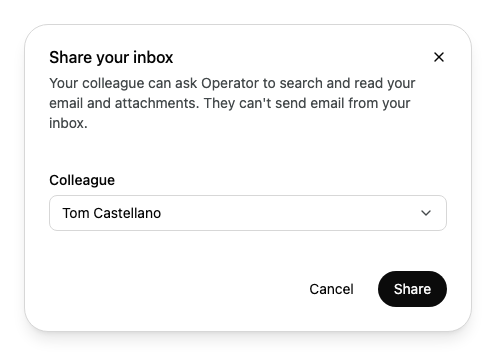
  2. Under Colleague, enter a name or email address in Search colleagues, then select your colleague. The list leaves out you and the colleagues who already have access.

  3. Select Share.

    Enlarge screenshot: The Share your inbox window, which explains that your colleague can ask Operator to search and read your email and attachments but can't send email from your inbox. Tom Castellano is chosen under Colleague

Your colleague is added to Your inbox.

Stop sharing your inbox

Next to the colleague in Your inbox, select Stop sharing.

Alcova removes the colleague's access and takes them off the list.

You cannot remove a colleague's inbox from Shared with you. Only the owner of an inbox can stop sharing it, so ask them.

If something goes wrong

MessageWhat to do
Connect your email before you share your inbox.Connect your email, then try again. See Connect your email.
You can only share with a colleague in your organisation. Choose someone else.The person may have left your organisation. Choose another colleague.
You don't have permission to share your inbox.Ask your organisation administrator about your access.
Couldn't share your inbox. Try again.Select Share again.
This colleague no longer has access.Someone already stopped the share. No action is needed.
Couldn't stop sharing. Try again.Select Stop sharing again.
Couldn't load your colleagues.Close the window and select Share again.
Couldn't connect your email. Try again. or Couldn't reconnect your email. Try again.Select the button again.