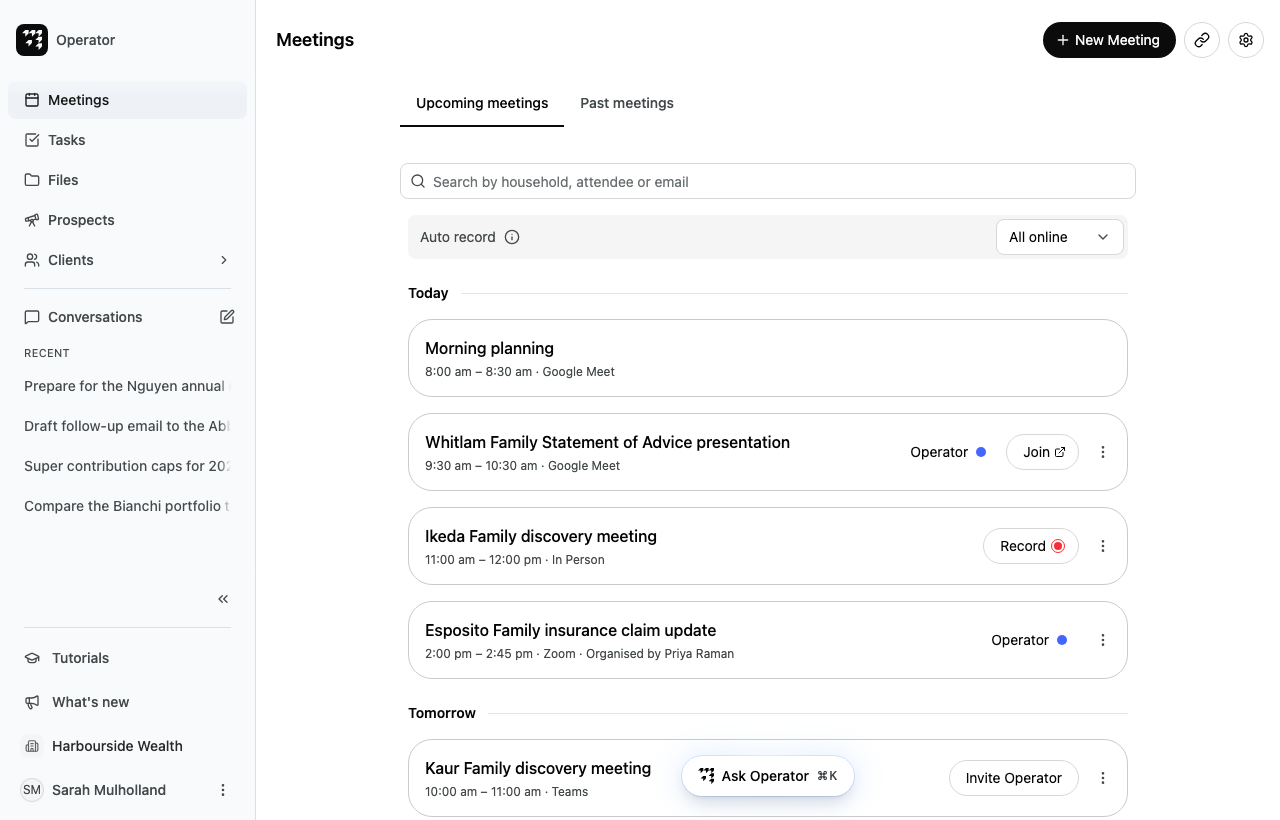
Use the Meetings page to see what is coming up, find a past meeting and open its notes.
Before you start
Alcova lists the meetings from the calendars you connect. If no calendar is connected, the page shows Connect a calendar. Select Connect and follow Connect and choose your calendars.
Open your meetings
In the sidebar, select Meetings.
Select Upcoming meetings or Past meetings.
The page opens on Upcoming meetings. When you come back to Meetings later, without reloading Alcova, it opens the tab you used last.
The Auto record box above the list sets which online meetings Operator records for you. See Have Operator take notes.
Meetings are grouped by day, such as Today, Tomorrow or Mon, 26th Oct. Each meeting shows its title, its time and how it takes place: Google Meet, Zoom, Teams, Online or In Person. If someone else organised the meeting, it also shows Organised by and their name.
Upcoming meetings shows today's meetings and the next 90 days. A meeting that finished earlier today stays under Today until tomorrow.
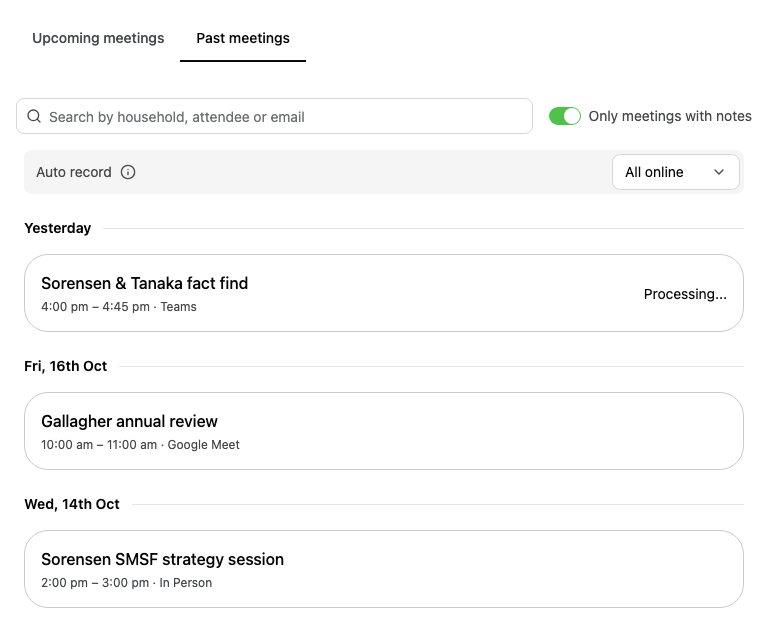
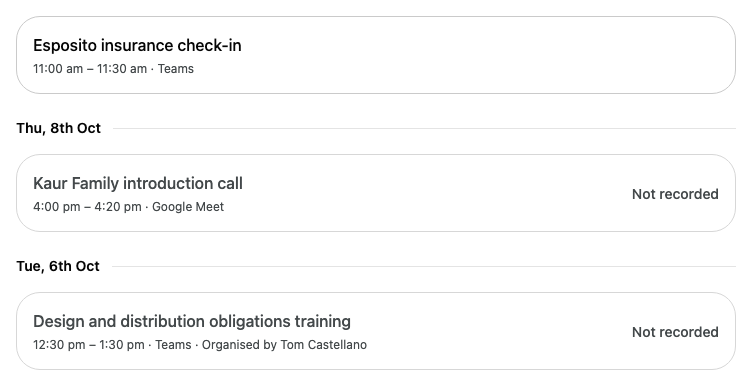
Past meetings shows meetings from before today, going back 90 days. The most recent meetings are at the top.
To open a meeting, select it. To go back to the list, select Meetings at the top of the meeting page.
Show past meetings without notes
Past meetings shows only meetings with notes. A meeting counts if it has a recording, or if you wrote your own notes on it.
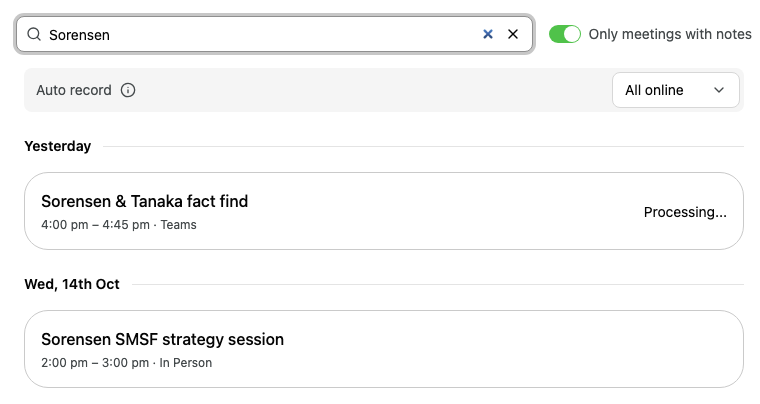
The search stays in place when you switch between Upcoming meetings and Past meetings. It is also part of the page address, so you can send the link to a colleague. To clear it, select the X in the search box.
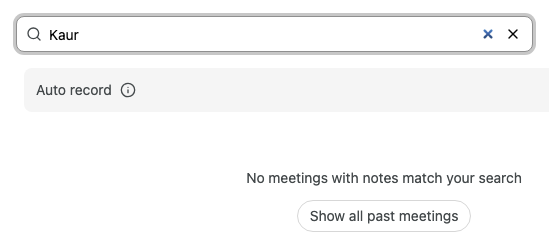
If Only meetings with notes hides every match, the page shows No meetings with notes match your search. Select Show all past meetings to include meetings without notes.
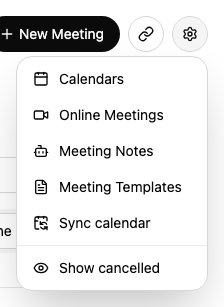
To hide them again, open the same menu and select Hide cancelled. Alcova remembers your choice.
Get the latest from your calendar
Alcova keeps your meetings in step with your calendar. To check for changes now, select the cog button, then select Sync calendar. The item shows Syncing... until it finishes.
Point to it to see the status or why Operator is joining. See Operator statuses.
Some meetings show a label instead of buttons:
Label
What it means
Processing...
Alcova is turning the recording into a transcript and notes.
Not recorded
The meeting has no recording.
Transcript deleted
The transcript was deleted, for example under your organisation's retention policy.
Cancelled
The meeting was cancelled. Shown only when Show cancelled is on.
Declined
You declined the meeting invitation.
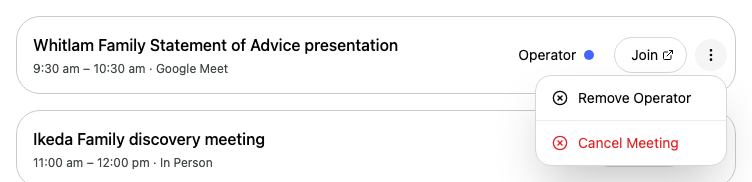
Select the three dots on a meeting for more options, such as Remove Operator or Cancel Meeting. Only the organiser can cancel a meeting. See Edit or cancel a meeting.