Accept an invitation to join your firm's organisation in Alcova, so you work in the same organisation as your colleagues.
Before you start
An administrator of your organisation must invite you. They do this from Settings > Members, and the invitation goes to your email address. See Members.
Accept your invitation
Open the invitation email and select its link.
Wait while Alcova shows Verifying your invitation....
What happens next depends on your account:
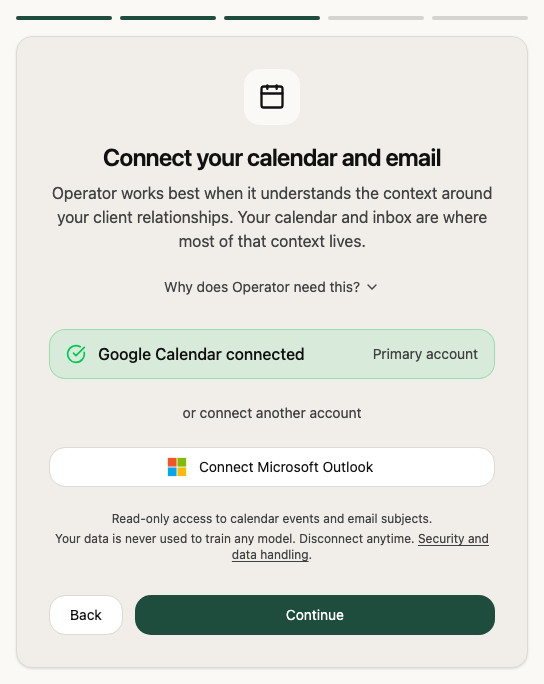
If you are new to Alcova, Alcova creates your account and opens the Connect your calendar and email step. Your organisation is already set up, so you skip the profile and organisation steps.
If you already have an Alcova account, Alcova signs you in and opens the Operator home page.
If you are already signed in, Alcova opens the Operator home page.
If you are new to Alcova, connect your calendar and select Continue.
Finish the remaining steps: choose your style, then select Get started. For the details of each step, see Setting up your account.
If you join as a member, you do not see the payment step. Only administrators add payment details.
Join from the set-up steps
If you created your account yourself, with the same email address the invitation went to, you can join from the set-up steps instead. This works only if you have not already joined or created an organisation.
Sign in to Alcova.
On the organisation step, check that it says Joining and your organisation's name, with You have a pending invitation to join this workspace.
Select Join and your organisation's name.
If you have invitations from more than one organisation, the step is headed You have multiple invitations. Select the organisation you want to join.
What happens next
You are now a member of your organisation in Alcova. Take a tour of Alcova to find your way around.
If something goes wrong
"Invalid invitation link. Please check your email for the correct link." The link is incomplete. Open the invitation email again and select the link. If you copy it, copy all of it.
"This invitation has expired. Please ask your organisation admin to resend the invitation." Ask your administrator to send a new invitation. If you already have an account, select Sign in.
"An unexpected error occurred while processing your invitation. Please try again or contact support." Select the link in the email again. If you already have an account, select Sign in. If it still fails, contact support.