Create your Alcova account and work through the set-up steps, so Operator knows who you are, which organisation you work for and where your meetings are.
The set-up takes a few minutes. A bar at the top of each step shows your progress. If you leave part way through, Alcova takes you back to the first step you have not finished the next time you sign in.
Before you start
Use your work email address, or the Google or Microsoft account you use for work.
If your firm already uses Alcova, ask an administrator to invite you. An invitation adds you to your firm's organisation and skips some of these steps. See Joining your team.
If you are setting up Alcova for your firm, have a payment card ready.
Create your account
Open the Alcova sign-up page. It is headed Create your Operator account.
Choose how to sign up:
Select Continue with Google or Continue with Microsoft, then sign in to that account.
Or enter your Email address and select Continue with email. Alcova sends you a six-digit code. Enter it under Verification code and select Verify email. If the code does not arrive, select Didn't receive a code? Resend.
If you already have an account, select Sign in instead.
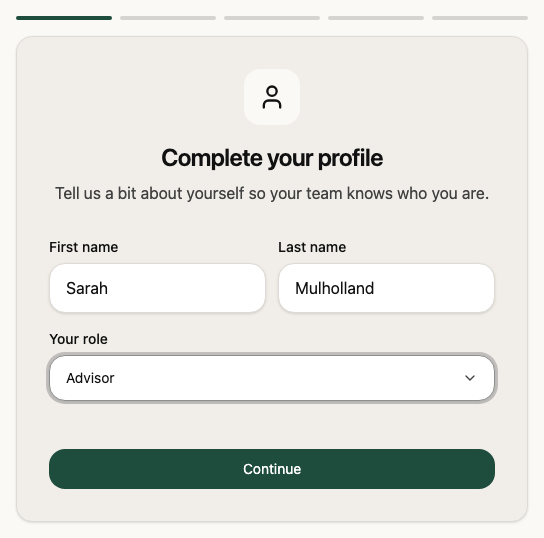
Step 1: complete your profile
Check your First name and Last name. Alcova fills them in from your sign-up details where it can.
Under Your role, select the role closest to yours. If none fits, select Other, then enter your Your role title.
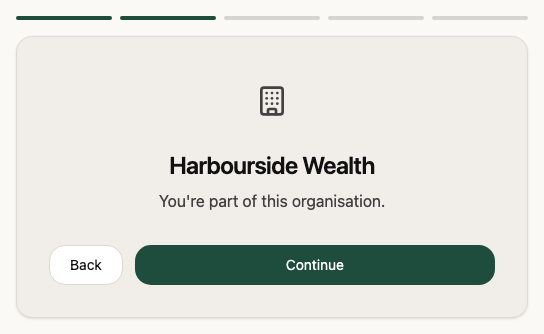
If you have an invitation, the step is headed Joining and the organisation's name. Select Join and the organisation's name. If you have several invitations, select the organisation you want to join.
If your email domain matches an organisation already in Alcova, the step asks whether you want to join it. Select Request to Join, or select Create a new organisation instead.
Otherwise, the step is headed Create your organisation. Check the Organisation name, which Alcova suggests from your email address, then select Create Organisation.
After you join or create an organisation, you may see Setting up your account for a moment while Alcova gets your account ready. If this screen stays for a long time, it changes to Setup is taking longer than expected. Select Sign out, then sign in again. If the problem continues, contact support.
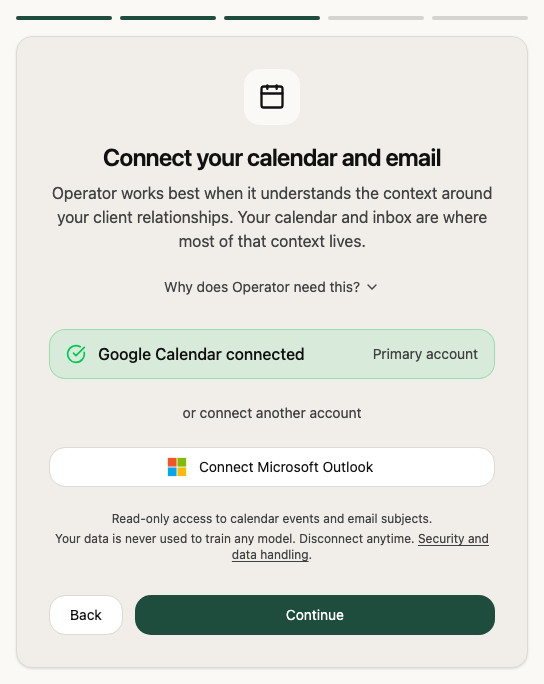
Step 3: connect your calendar and email
Operator uses your calendar to prepare you for meetings and to join your online calls. It uses your email to link messages to the right client and to draft follow-ups for you to review.
Select Connect Google Calendar or Connect Microsoft Outlook. Your organisation may allow only one of these.
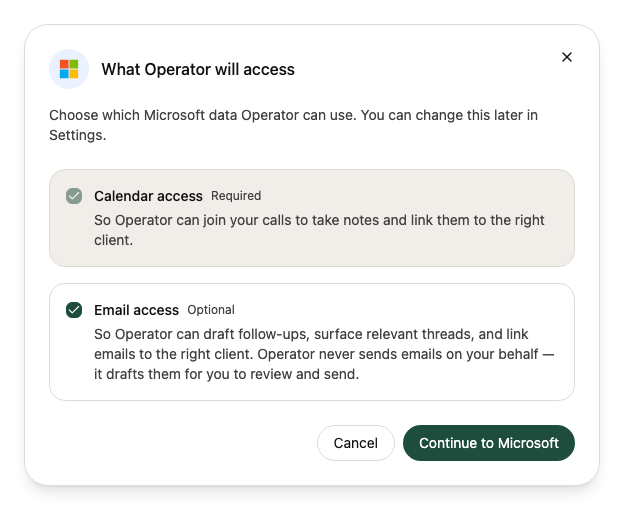
If you chose Microsoft, a dialog shows What Operator will access. Calendar access is required. Email access is optional unless your organisation requires it. Select or clear Email access, then select Continue to Microsoft.
Back in Alcova, check that the step shows your calendar as connected. If the account uses your main email address, it is marked Primary account. Otherwise, a Disconnect button shows beside it.
To connect a second account, select the other provider's button under or connect another account.
Select Continue.
To read why Operator asks for this access, select Why does Operator need this?. The Security and data handling link opens a page about how Alcova handles your data.
If you do not want to connect a calendar now, select Continue without calendar and email. This option does not show if your organisation requires a Microsoft calendar and email. In that case, the step says Your organisation requires Microsoft calendar and email access to continue.
Alcova starts syncing your calendar as soon as it is connected.
Step 4: add a payment method
This step shows only to organisation administrators, and only when the organisation does not already have a payment method on file. Members do not see it. If your organisation pays by invoice, you skip it too.
If the step offers Pay Monthly and Pay Yearly, select one. The price shows per adviser.
Enter your card details.
Select Save & Continue.
If your plan includes a free trial, the step is headed Start your free trial and shows how many days the trial lasts.
Your bank may ask you to confirm the card. If it does, follow its steps. Alcova then shows Confirming your payment method… and continues when the card is confirmed.
If your organisation already has an active subscription, the step shows Subscription active with your plan. Select Continue, or select Change payment method to use another card.
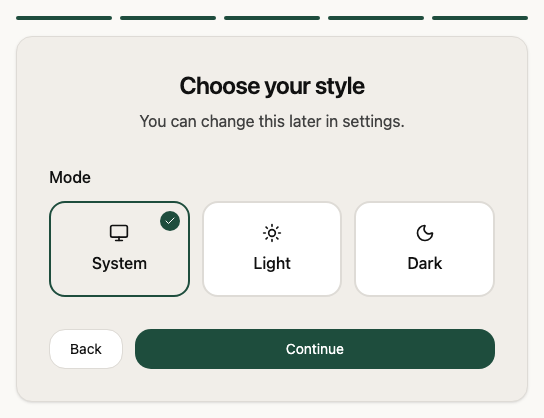
Step 5: choose your style
Under Mode, select System, Light or Dark. System follows your computer's setting.
If you are an administrator, invite your colleagues from Settings > Members. See Members.
If something goes wrong
A field shows "First name is required", "Last name is required" or "Please select a role". Fill in the field, then select Continue again. If you chose Other, you must also enter your role title.
The organisation step shows "Organisation name is required". Enter a name for your organisation.
The calendar step shows "Grant access". Alcova is connected to your account but cannot read your calendar. Select Grant access and allow calendar access.
The step shows "Your calendar couldn’t be synced". Follow the options on screen to try again, or select Continue without syncing. You can connect your calendar later in Settings.
The payment step shows "Your payment method could not be confirmed. Please try again." Enter your card details again, or use another card.
You need to stop part way through. On the screens that show Setting up your account or Syncing your calendar, select Sign out at the top right. The steps you have finished are kept.