
The meeting page
Each meeting has its own page with everything about it in one place: who attended, Operator's notes, recordings and transcripts, your own notes and follow-up tasks. This page describes each part.
To open a meeting, select it on the Meetings page or on a household's Meetings tab.
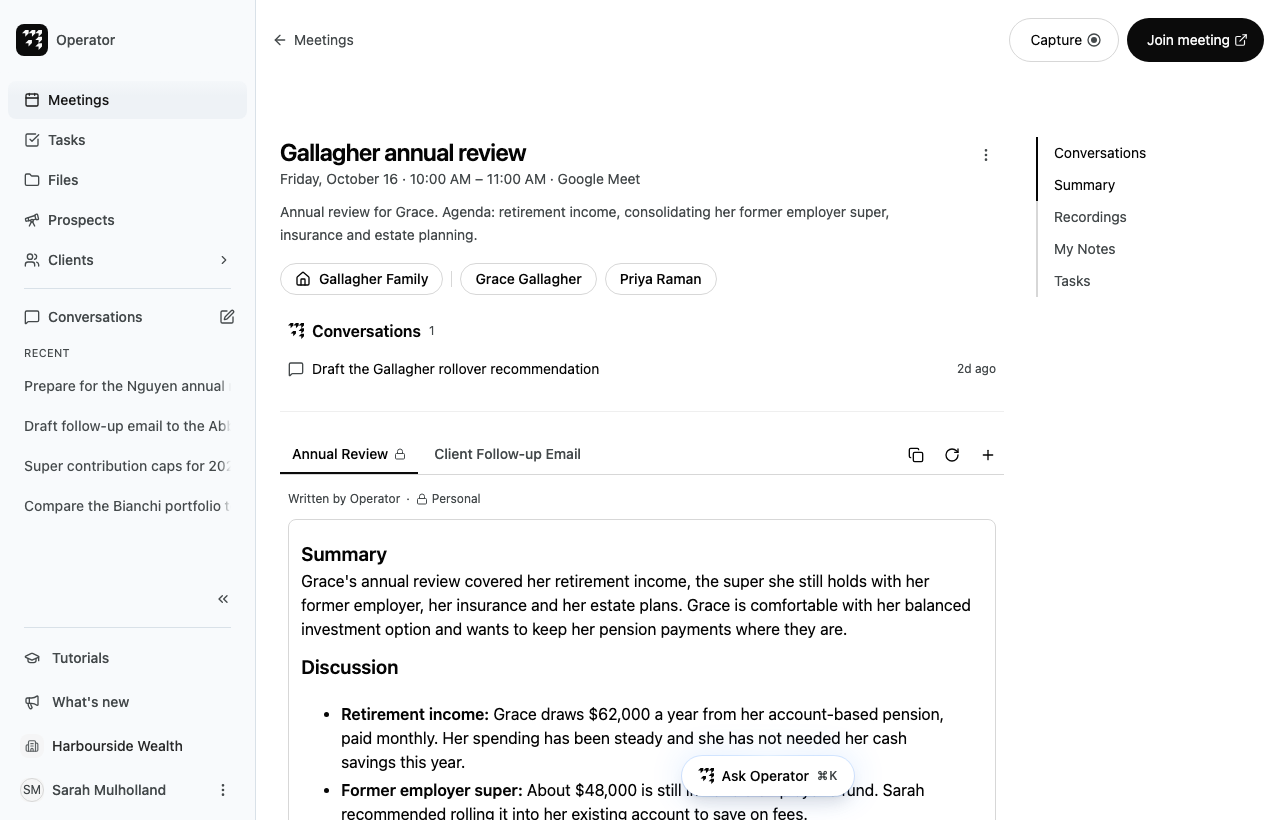
Top of the page
| Part | What it shows or does |
|---|---|
| Back link | Returns to where you came from, for example Meetings, a household (Client) or Contacts. |
| Capture | Opens Capture this meeting, where you send Operator to the call, record on this device or upload a recording. A coloured dot on the button means Operator is scheduled or in the call. See Have Operator take notes and Record or upload a meeting. |
| Join meeting | Opens the meeting link in a new browser tab. Shown only for online meetings. |
| Title and time | The meeting's title, date, time and how it takes place. If someone else organised it, Organised by and their name. |
| Three-dot button | Edit and Cancel meeting. See Edit or cancel a meeting. |
| Description | The agenda or notes from the calendar invitation. Long descriptions show Show more. |
| Household | The household the meeting is linked to, with a house icon. |
| Attendees | The people invited, apart from you. Point to a name to see their email address, whether they are external and their household. If more than two people attended, select the + button to show the rest. If nobody else is invited, select Add attendees. |
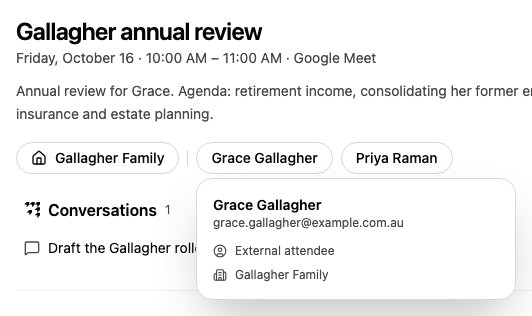
How a meeting links to a household
Alcova links a meeting to a household through its attendees. When an external attendee is a contact in a household, that household appears at the top of the meeting page. A meeting with members of two households shows both. You see only the households you have access to.
To link a meeting to a household, add a member of the household as an attendee. See Change who is invited.
Sections
The page shows these sections, from top to bottom. A section appears only when it has something to show, apart from My Notes and Tasks, which always appear.
| Section | What it holds |
|---|---|
| Conversations | Operator conversations about this meeting, for example ones you started from this page. Select one to open it. See Find and manage conversations. |
| Client Context | A briefing Operator prepares before a meeting with external attendees. Before the meeting starts it sits near the top of the page. After the meeting starts it moves to the bottom. See Read the client context. |
| Meeting notes | The notes Operator writes from the recording, with one tab for each template. See Work with meeting notes. |
| Recordings | Operator's status for the call, and each recording with its transcript. See Read a meeting transcript. |
| My Notes | Your own notes and attached files. See Write your own notes. |
| Tasks | Follow-up tasks from the meeting. Select Add task to add one. See Manage your tasks. |
On a wide window, a list of the sections appears on the right. Select a name to jump to that section. On a narrow window, the same links appear above the sections. In this list, the meeting notes are called Summary.
If a meeting was cancelled, the page shows This meeting has been cancelled below the title.