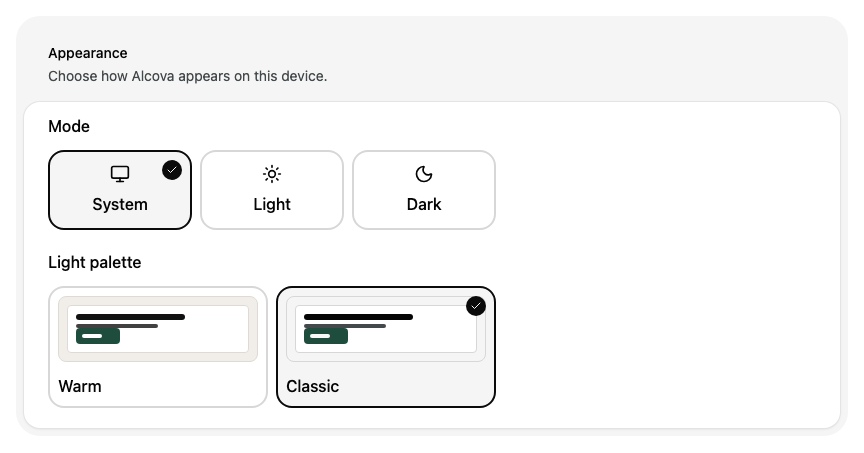
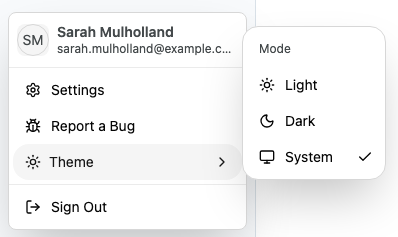
Settings Change how Alcova looks Choose light or dark mode, and the colour palette Alcova uses in light mode. Alcova saves your choice to your account, so it also applies when you sign in on another computer. Choose a mode and palette Open Settings and select Profile. See Open settings. Under Appearance, select a Mode: System follows your computer's light or dark setting. Light always uses light mode. Dark always uses dark mode. Under Light palette, select Warm or Classic. Enlarge screenshot: Alcova changes at once. You do not need to select Save. The light palette applies only when Alcova shows light mode. If your mode is Dark, or System while your computer is in dark mode, Alcova shows Light palette applies when Mode resolves to Light. Switch mode from the sidebar At the bottom of the sidebar, select your name. Select Theme. Select Light, Dark or System. Enlarge screenshot: To change the light palette, use Appearance in Profile. Related Update your profile ← Previous Update your profile Next → Keep your account secure