
How Operator works
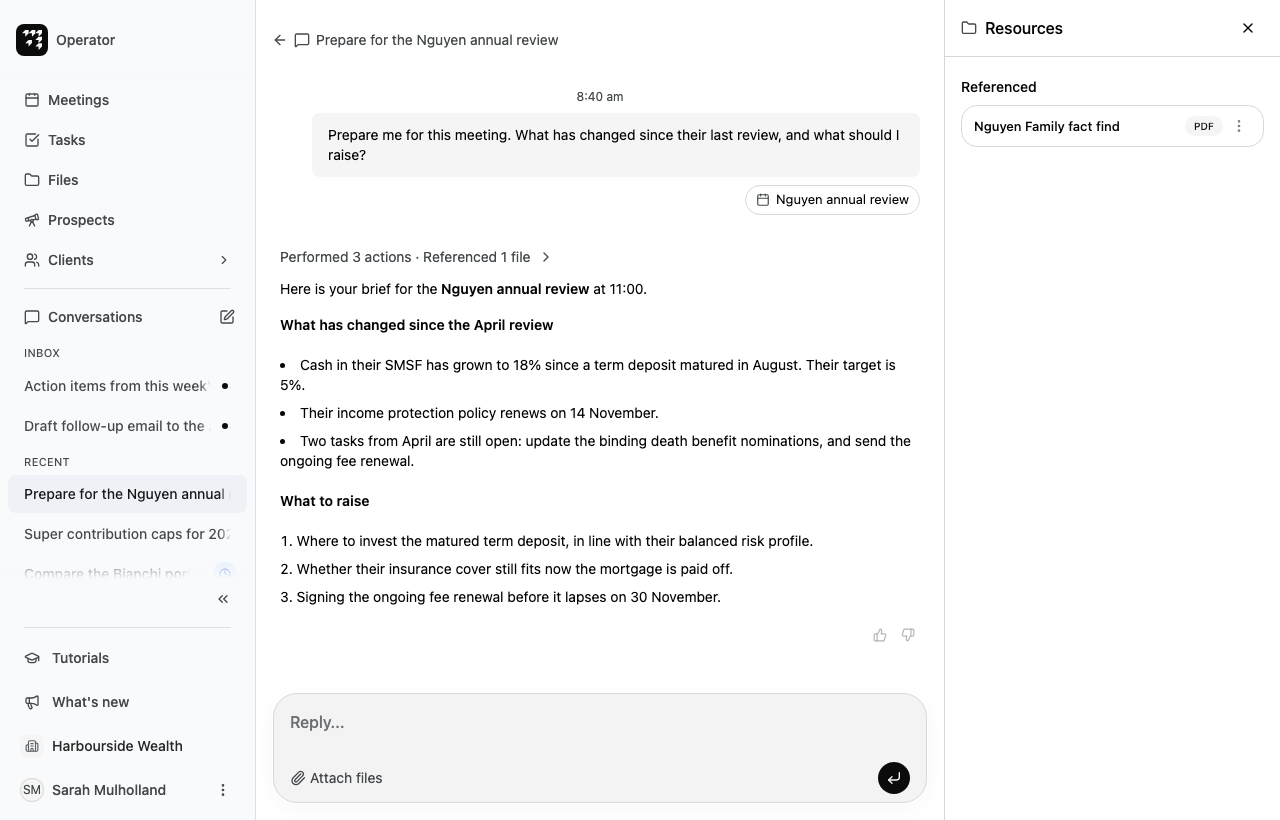
Operator is the AI assistant built into Alcova. You ask for something in plain English, and Operator works through it in steps, then replies. This page explains what Operator works with, how you can follow what it does, and why it sometimes stops to ask you first.
What Operator works with
Operator starts from your request. It can also use:
- Files you attach. Operator reads the documents you add to your request. See Attach files.
- The item on your screen. When you ask from a meeting, household, contact or file, Alcova attaches that item to your request. See Ask about the page you are on.
- Information in Alcova. While it works, Operator can look things up, such as your meetings, files, tasks and your clients' portfolios.
- The conversation so far. When you reply in a conversation, Operator carries on from what you have already discussed. A new request from the home page or the Ask Operator button starts a new conversation.
Follow what Operator is doing
Operator shows its work in the conversation, between your request and its reply.
Steps
Each thing Operator does, such as searching meetings or reading a file, is a step. A single step shows as one line. Several steps fold into one line, such as Performed 3 actions · Referenced 1 file. While Operator is still working, the line shows the step in progress.
Select the line to see every step. Each step shows what Operator did and, where it has one, a note on why.
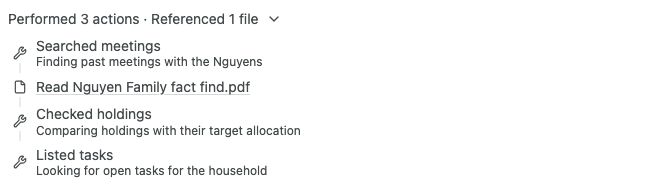
To open a file that Operator read, select its name in the list.
Thinking
Before it replies, Operator sometimes shows Thinking.... When it has finished, the line changes to Thought for a number of seconds. Select the line to read its reasoning.
Files in the conversation
On a wide screen, the Resources panel on the right lists the files in the conversation:
- In this conversation: files you attached and files Operator created.
- Referenced: files Operator read from elsewhere in Alcova.
Select a file to open it beside the conversation. To close the panel, select its close button. To open it again, select the folder button at the top of the conversation, which shows how many files there are. On a narrow screen, the folder button opens the files as a list.
Items you referred to
The items attached to your request show under your message, such as the meeting in the example above. Select one to open it. A meeting, household or contact opens its page. A file opens beside the conversation, and a folder opens in Files.
Why Operator asks before it acts
Some of Operator's actions reach outside the conversation, such as drafting an email or changing your calendar. Before it does these, Operator shows a Confirmation required card that says what it wants to do. Nothing happens until you decide.
You stay in control of each action:
- You can approve it once, or approve it for the rest of the conversation.
- You can give Operator a different instruction instead.
- You can cancel it.
An approval for the rest of a conversation applies to that conversation only. Operator does not remember a cancellation, so it may ask about a similar action again.
Operator also stops when it needs a detail it cannot work out, such as whether to count unused super contribution caps from earlier years. It asks a question and waits for your answer.
To learn how to respond, see Approve actions and answer questions.
Rate a reply
Under each finished reply, select Helpful (thumbs up) or Not helpful (thumbs down). If you select Not helpful, a form opens where you can choose what went wrong and add comments. Select Continue to send it.
Check Operator's work
Operator is an AI assistant, and it can make mistakes. Check its replies, drafts and figures before you rely on them or share them with a client. The steps it shows help you see where an answer came from.