
Operator statuses
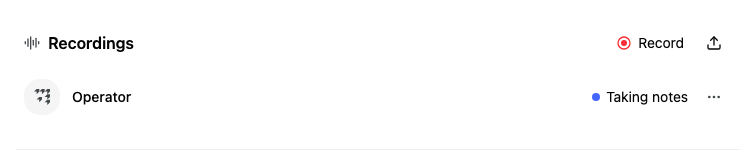
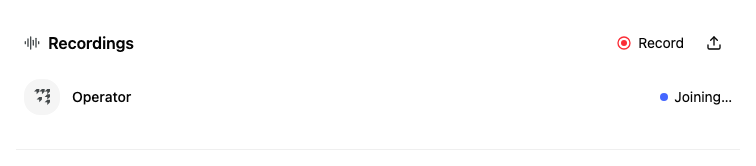
Operator shows its progress in three places: on the meeting in the Meetings list, in the Operator row under Recordings on the meeting page, and on the Operator card in the Capture dialog. This page lists what each status means.
For the steps to invite, send or remove Operator, see Have Operator take notes.
Statuses on the meeting page
| Status | What it means | What you can do |
|---|---|---|
| Join this meeting | Operator is not joining this online meeting. | Select Invite Operator. |
| Scheduled | Operator will join to record and take notes when the meeting starts. | Select the three dots for Don't join or Record now. |
| Joining… | Operator is on its way into the call. | Wait. |
| Waiting to be admitted | Operator is in the call's waiting room. | Admit Operator from your meeting app. |
| Taking notes | Operator is in the call and recording. | If you organised the meeting, select the three dots for Remove Operator and end recording. |
| Couldn't join, not admitted to the call | Nobody let Operator in. | Select Re-join meeting. |
| Ended, no recording | Operator left the call without recording anything. | Select Send Operator again. |
| Operator recording | Operator recorded the meeting. The recording has its own row. | Select View transcript. |
Statuses in the Capture dialog
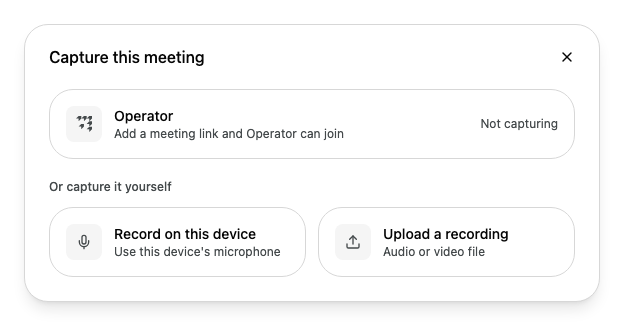
The Operator card in Capture this meeting describes the same states in a sentence:
| Card says | What it means |
|---|---|
| Add a meeting link and Operator can join | The meeting has no online meeting link, so Operator cannot join. |
| Send Operator to join the call and take notes | The meeting is more than 15 minutes away and Operator is not scheduled. |
| The meeting is live, with a prompt to send Operator in now | The meeting starts within 15 minutes or is under way, and Operator is not in it. |
| Joins automatically when the meeting starts | Operator is scheduled. The card shows the time it joins. |
| Operator is joining the call | Operator is on its way into the call. |
| Waiting to be admitted | Operator is waiting for someone to let it in. |
| Operator is in the call | Operator is recording. |
| Operator recorded this meeting | The call has ended and Operator has a recording. |
| Couldn't join the call | Operator was not let into the call. |
When Operator is not recording, the card also says Not capturing.
The dot on a meeting
On the Meetings page, a meeting that Operator is joining shows Operator and a coloured dot. While Operator is scheduled or in the call, the same dot appears on the Capture button on the meeting page.
| Dot | What it means |
|---|---|
| Blue | Operator is scheduled. |
| Blue, pulsing | Operator is joining the call or taking notes. |
| Amber, pulsing | Operator is waiting to be admitted. |
| Grey | Operator is done. |
| Red | Something went wrong. |
Point to Operator on the meeting to see the status in words, or why Operator is joining.
Why Operator joins a meeting
When you point to Operator on a meeting, a card can explain why Operator is joining.
| Reason | What it means |
|---|---|
| Scheduled manually | Someone invited Operator to this meeting. |
| Name auto-joins internal meetings | That person's settings send Operator to their internal meetings. |
| Name auto-joins external meetings | That person's settings send Operator to meetings with people outside the firm. |
| Name auto-joins meetings with anyone from domain | An attendee's email address matches a domain in that person's settings. |
| An attendee matches name's allow list | An attendee matches that person's list of domains. |
The name can be yours or a colleague's. If Alcova cannot show the name, it says A teammate. To change your own settings, see Choose when Operator joins your meetings.
