This tour shows you around Alcova in about ten minutes. You will open each part of the sidebar, ask Operator for help from any page, and find the tutorials, the latest updates and your account menu.
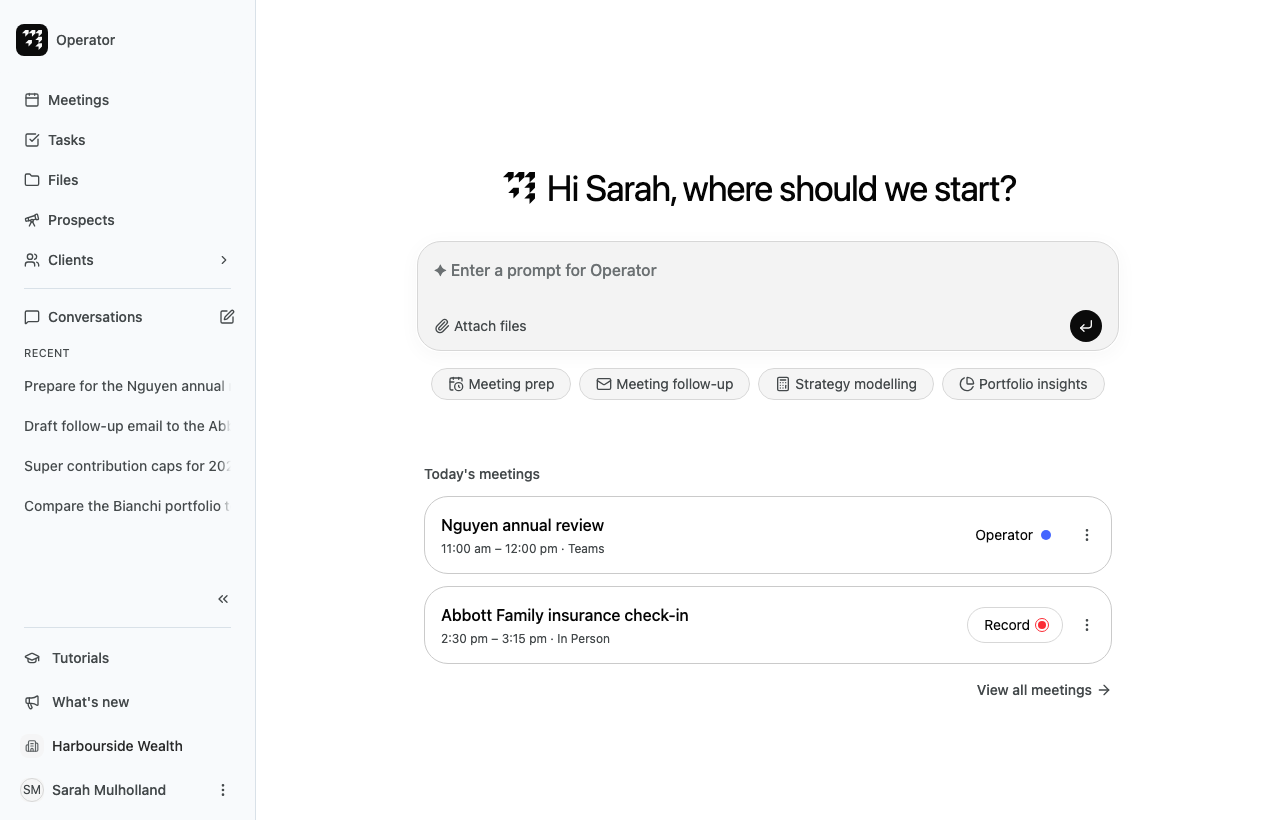
The prompt box. Enter a request for Operator here, then send it.
Suggestions. Select a topic, such as Meeting prep or Portfolio insights, to see example requests. Select an example to send it to Operator.
Today's meetings. Your meetings for today. An online meeting shows Operator when Operator is set to join it and take notes. An in-person meeting shows Record, so you can record it yourself. Select View all meetings to open your full meetings list.
To come back to this page from anywhere, select Operator at the top of the sidebar.
2. Open each part of the sidebar
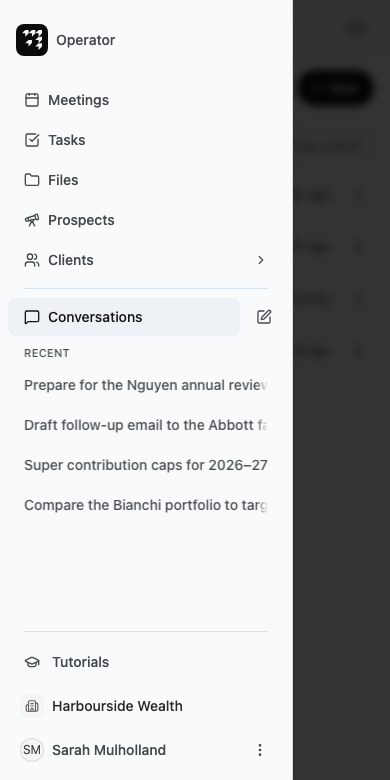
The sidebar on the left takes you to each part of Alcova.
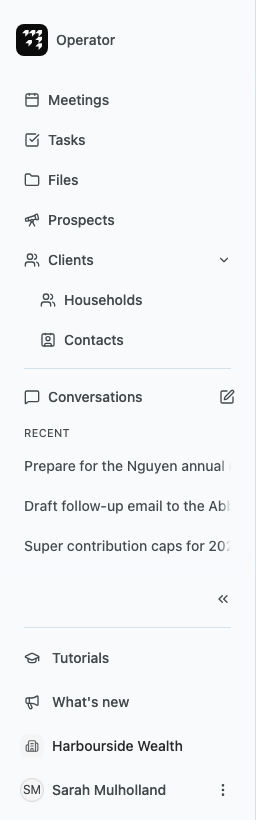
Select Clients. The group opens to show Households and Contacts.
Your upcoming and past meetings, with their notes and transcripts. See Meetings.
Tasks
The tasks you and your team are tracking. See Tasks.
Files
Folders of documents you keep in Alcova. See Files.
Prospects
Your prospect lists. This item shows only if your organisation has access to Prospects. See Prospects.
Households
The All Clients list of your firm's households. See Households.
Contacts
The people linked to your households. See Contacts.
Conversations
Every conversation you have had with Operator. See Conversations.
Look under Conversations in the sidebar. Recent lists your latest conversations with Operator. If Operator has replied in a conversation you have not read yet, that conversation shows under Inbox instead. If you have archived a conversation, an Archived link shows at the end of the list.
To start a new conversation, select the pencil button next to Conversations. A prompt box opens for your request.
3. Make the sidebar narrower or wider
You can give your page more room.
Select the double arrow button above Tutorials. Its label, Collapse, shows when you point to it. The sidebar shrinks to a narrow column of icons.
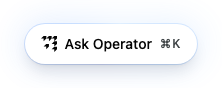
Select Ask Operator. A prompt box opens at the bottom of the screen, so you can ask a question without leaving the page.
Press Esc to close it.
You can also press ⌘K on a Mac, or Ctrl K on Windows, from any page. On the Operator home page, the shortcut takes you to the prompt box on the page.
The Ask Operator button does not show on the Operator home page or inside a conversation. It also hides while you are scrolled to the end of a page, so it never covers the last row. Scroll up to see it again.
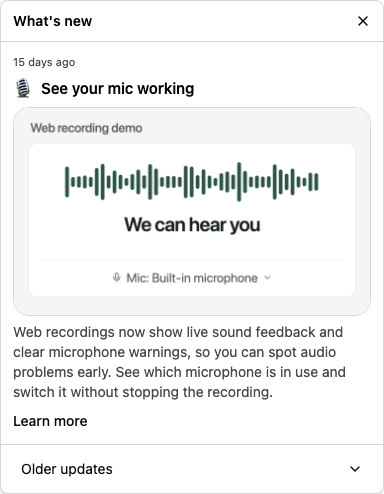
Select Older updates to see earlier announcements, then select one to read it.
Select the close button to close the panel.
When there is a new announcement, a red dot shows on the What's new icon, and the panel opens by itself once. Closing the panel marks the latest announcement as read.
7. Find your organisation and your account menu
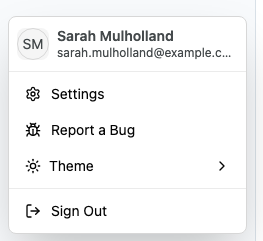
The bottom of the sidebar shows your organisation's name, then your own name.
If you belong to more than one organisation, select the organisation's name to switch to another one. Alcova then takes you back to the Operator home page.
Select an item. The menu closes and the page opens.
The menu has the same items as the sidebar, except What's new, which shows only on wider screens. The top bar also has the Operator logo, which opens the Operator home page, and your picture or initials, which open your account menu.
What you have learnt
You have now visited every part of the sidebar, opened Operator from a page, watched a tutorial and found your account menu. Next: