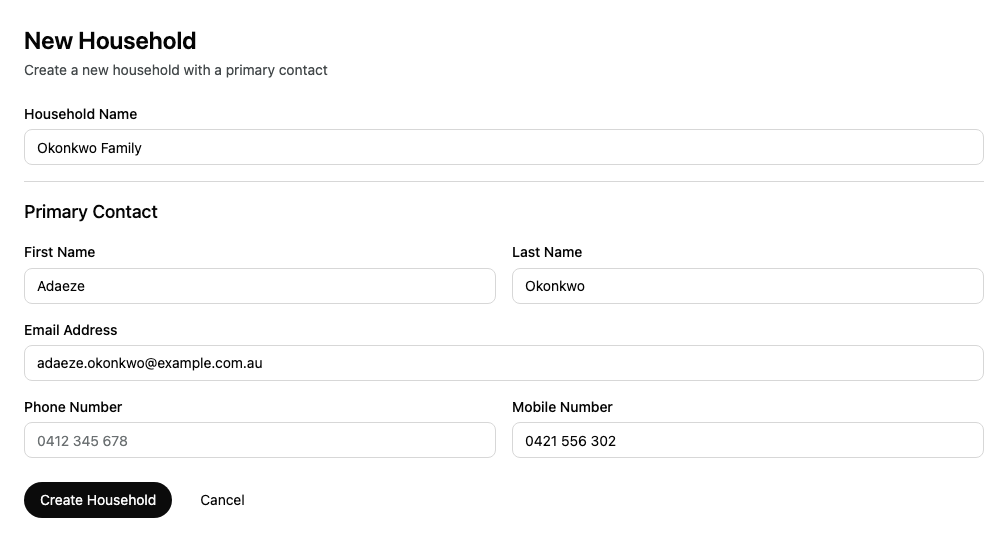
Add a household to Alcova with its first member, the primary contact. You can add the rest of the household afterwards.
Before you start
If your organisation's households come from a connected CRM, such as Salesforce, you cannot add households in Alcova. Add the household in the CRM instead.
Add the household
In the sidebar, select Clients, then Households.
Select Add Household.
In Household Name, enter the household's name, for example "Okonkwo Family".
Under Primary Contact, enter the person's First Name, Last Name and Email Address.
If you know them, enter a Phone Number and a Mobile Number. A number without a country code is read as an Australian number.
Alcova opens the new household's page. Check the household's status in the Status menu at the top of the page, and change it if you need to. See Change a household's status.
To leave without adding the household, select Cancel.
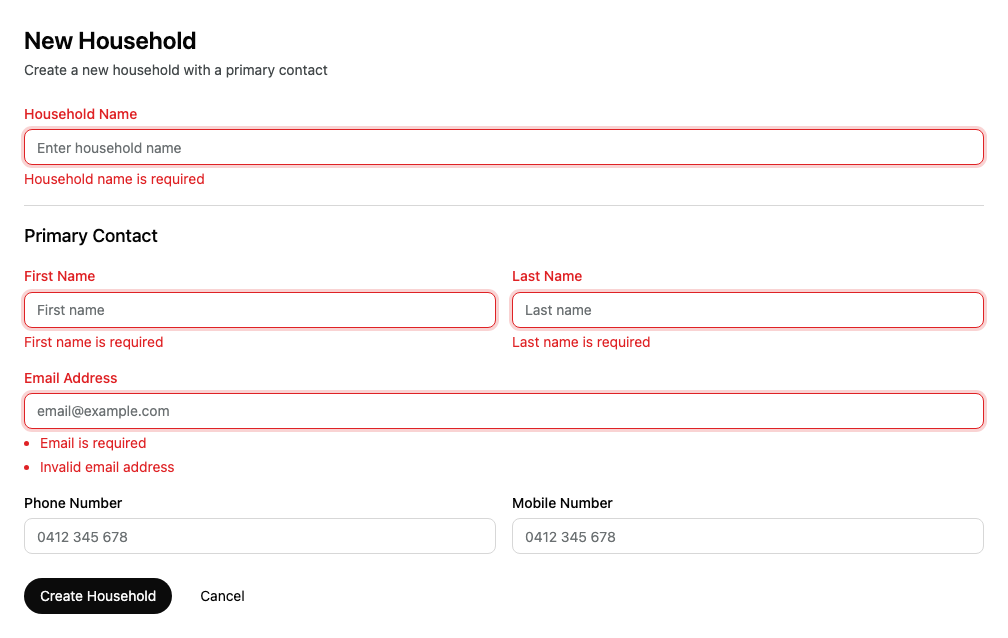
If a required field is empty or not valid, Alcova shows a message under the field when you select Create Household. Fix each field, then select Create Household again.