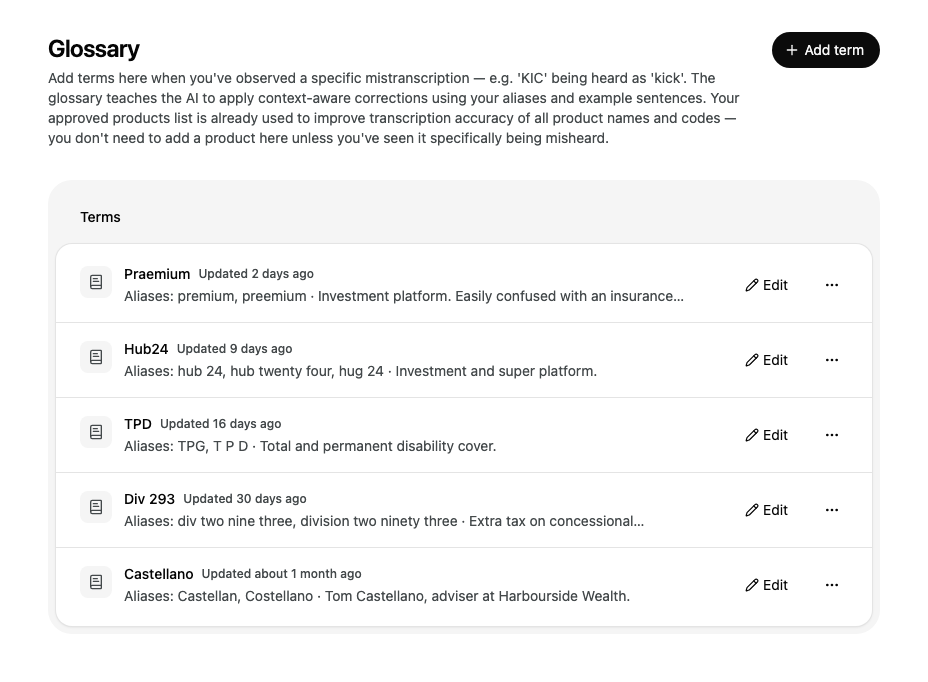
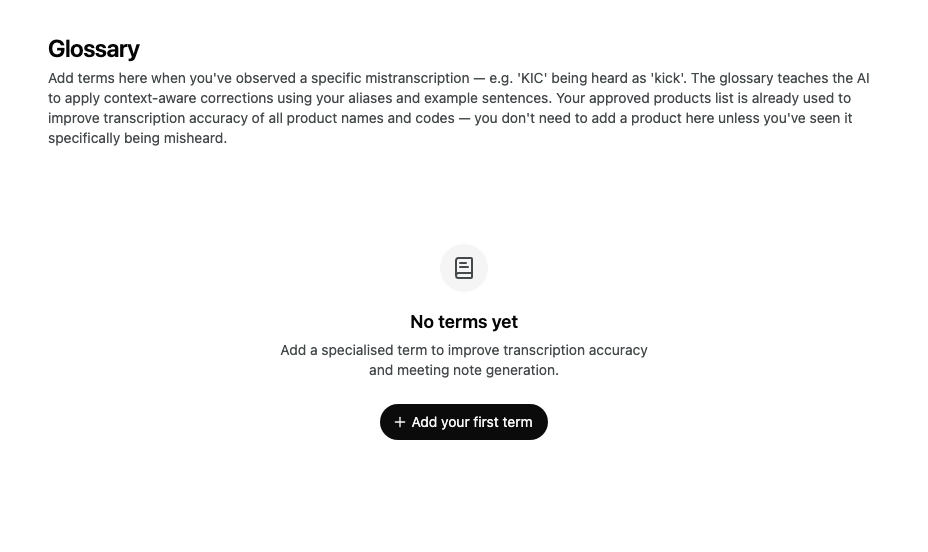
Add the names, products and jargon that Alcova mishears, so your transcripts and meeting notes spell them correctly.
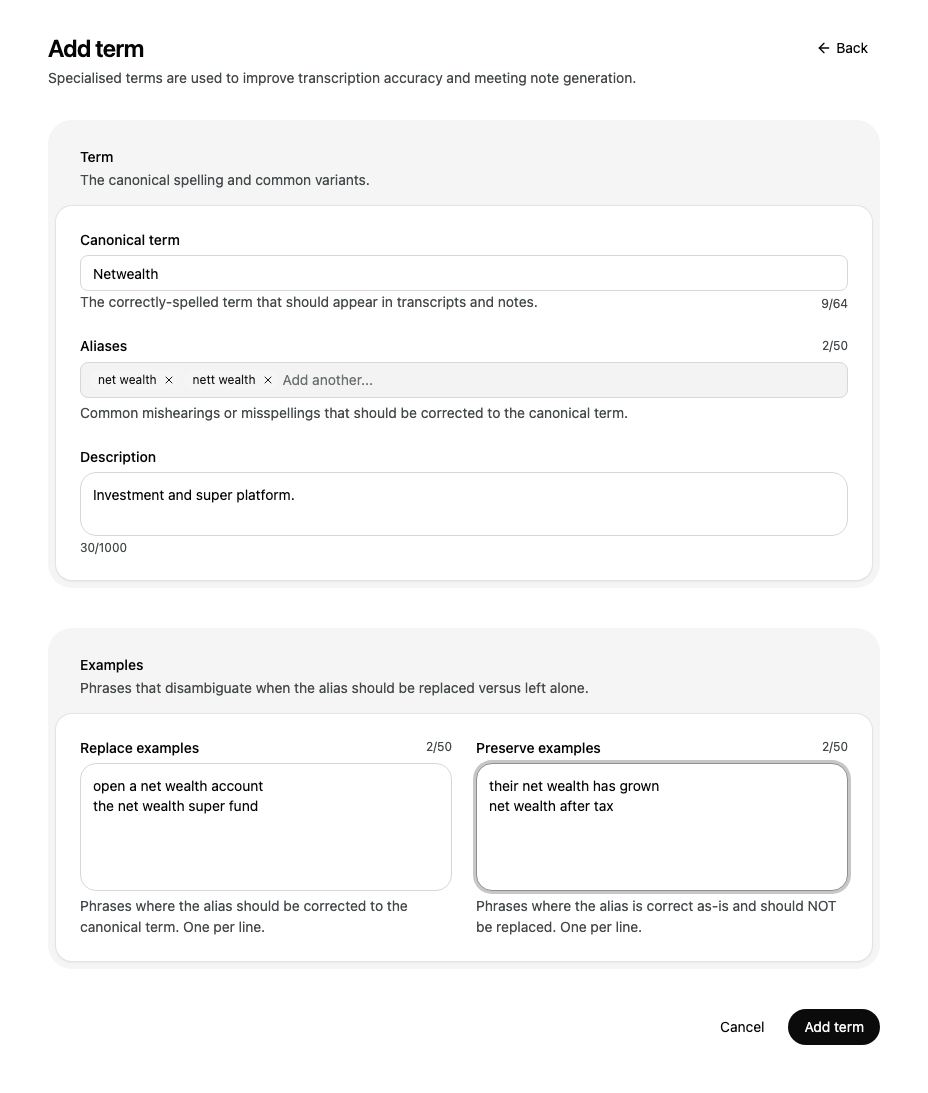
Each term in the glossary has a correct spelling and the ways it gets misheard. Alcova uses them to correct transcripts and to write meeting notes. Example phrases tell it when a word should be corrected and when it should be left alone.
Add a term when you have seen it transcribed wrongly. You do not need to add the products on your approved product list, because Alcova already uses that list for product names and codes. See Manage your approved product list.
Before you start
Everyone in your organisation can open the glossary, and the terms apply to the whole organisation. Clients cannot see it.
If you do not have permission to change the glossary, Alcova shows a message when you try to save or delete a term.
Alcova shows Term added and returns to the list with your new term.
Examples matter most when an alias is also an everyday word. For example, "premium" is the right word for insurance but the wrong word for the Praemium platform.
To remove an alias before you save, select the × beside it. You can also press Backspace in the empty alias field to remove the last one.
Limits
Field
Limit
Canonical term
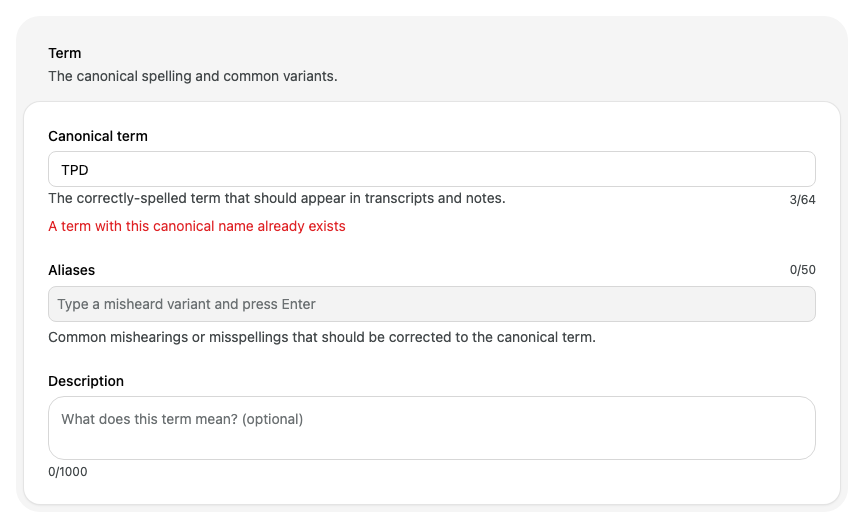
Required. Up to 64 characters. Each canonical term can appear only once in the glossary.
Aliases
Up to 50 aliases, each up to 256 characters. Alcova ignores an alias you have already added.
Description
Optional. Up to 1,000 characters.
Replace examples and Preserve examples
Up to 50 phrases each, one per line, each up to 256 characters.
Change a term
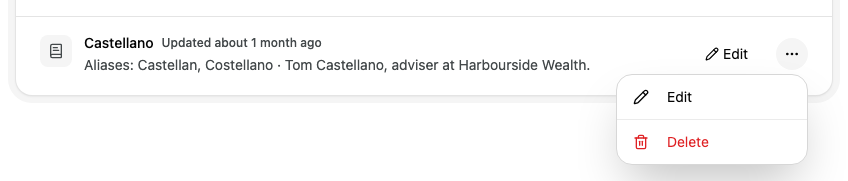
On the term's row, select Edit.
Change any field.
Select Save changes.
Alcova shows Term updated. If you did not change anything, Alcova returns to the list without a message.
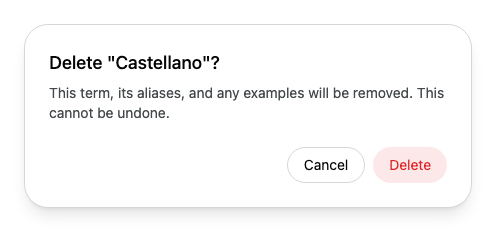
Deleting a term also removes its aliases and examples. You cannot undo it.
If something goes wrong
A term with this canonical name already exists: the glossary already has this term. Select Cancel, then find the term in the list and select Edit to add your aliases to it.