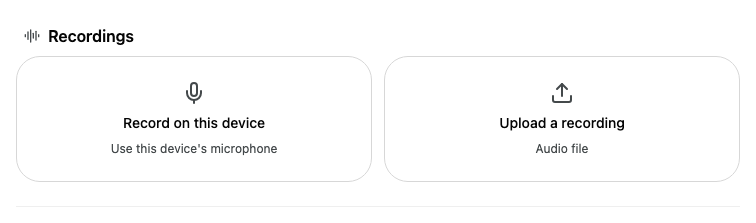
Record a meeting with your computer's microphone, or upload an audio recording you already have. Alcova transcribes the recording and Operator writes meeting notes from it, just as it does when Operator joins an online call.
Use this for meetings in person, phone calls, or any meeting Operator could not join.
Before you start
To record, use a computer with a microphone, and allow Alcova to use it when your browser asks.
To upload, have an audio file ready: MP3, M4A, WAV, WebM, AAC, OGG or FLAC, up to 100 MB.
Record a meeting on this device
Open the meeting. To record a meeting that is not on your calendar, create one first. See Capture an in-person meeting.
Start the recording in one of these ways:
For an in-person meeting that has nothing recorded yet, select Record on this device under Recordings.
Select Record in the Recordings heading.
Select Capture, then Record on this device.
On the Meetings page, select Record on an in-person meeting today.
A bar appears across the top of Alcova. It says Operator is getting ready to take notes, then Taking notes with a timer once recording starts.
While you record:
To pause, select Pause. To carry on, select Resume.
To use a different microphone, choose it in the bar.
To open the meeting from another page, select the meeting's name in the bar. The bar stays at the top of Alcova while you work on other pages.
For the first few seconds, you can select Cancel to throw the recording away.
To stop:
Select End.
In Finish taking notes?, select Finish.
The bar shows Finishing notes, then closes. The recording appears under Recordings as a Device recording. Alcova transcribes it, and Operator writes the meeting notes. See Read a meeting transcript and Work with meeting notes.
You can record only one meeting at a time. While a recording is running, Record is unavailable on other meetings.
Allow microphone access
If your browser has not given Alcova your microphone yet, the bar says Operator needs microphone access.
If the bar says Microphone blocked, your browser is set to refuse the microphone. Select the lock icon in your browser's address bar, reset the microphone permission, then try again.
To close the bar without recording, select the X.
Upload a recording
Open the meeting.
Upload the file in one of these ways:
Select Upload a recording under Recordings, or select Capture, then Upload a recording.
Select the upload button in the Recordings heading.
Drag the audio file onto the Recordings section and drop it when you see Drop audio file to upload.
If you used a button, choose the file. You can choose more than one.
The file appears under Recordings with its name and Uploading…, then Transcribing…. When Alcova has finished, the row shows View transcript, and Operator writes the meeting notes.
If something goes wrong
Unsupported file type: upload an audio file in one of the formats listed above. Video formats such as MP4 and MOV are not accepted.
File is too large: recordings can be up to 100 MB. Split a long recording into parts, or save it in a smaller format such as MP3.
If an upload stops with an error, the row says the upload failed. Upload the file again.
If a recording shows Failed, Alcova could not transcribe it.
If Record is not available, another recording is already running in this browser. Stop it first.