The Members tab holds who is in a household and how it is structured: its people, the trusts, companies and funds they hold roles in, its financial accounts, the professionals who act for it, and the colleagues at your firm who look after it.
Before you start
To add, change or remove anything on this tab, you need Admin or Editor access on the household. Without it, the tab is read-only. If your organisation's households come from a connected CRM, make these changes in the CRM instead.
The household's name. You rename the household here.
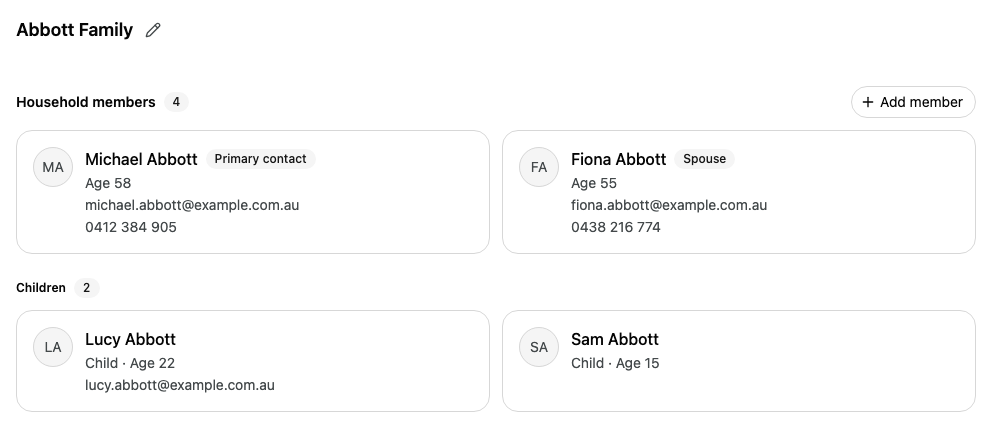
Household members
A card for each person the advice is for. Children are grouped under Children.
Entities
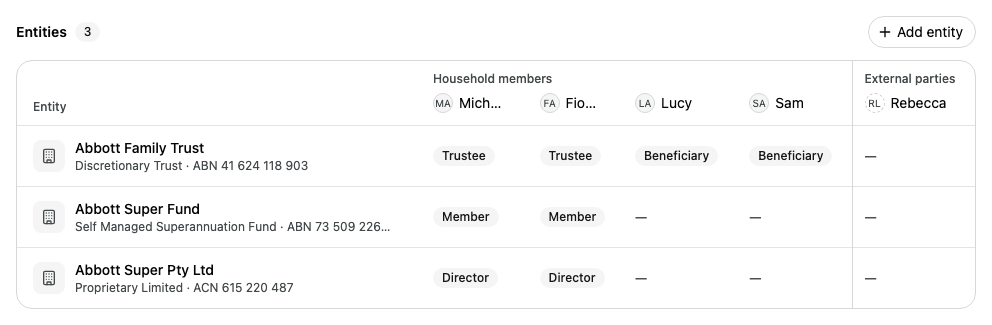
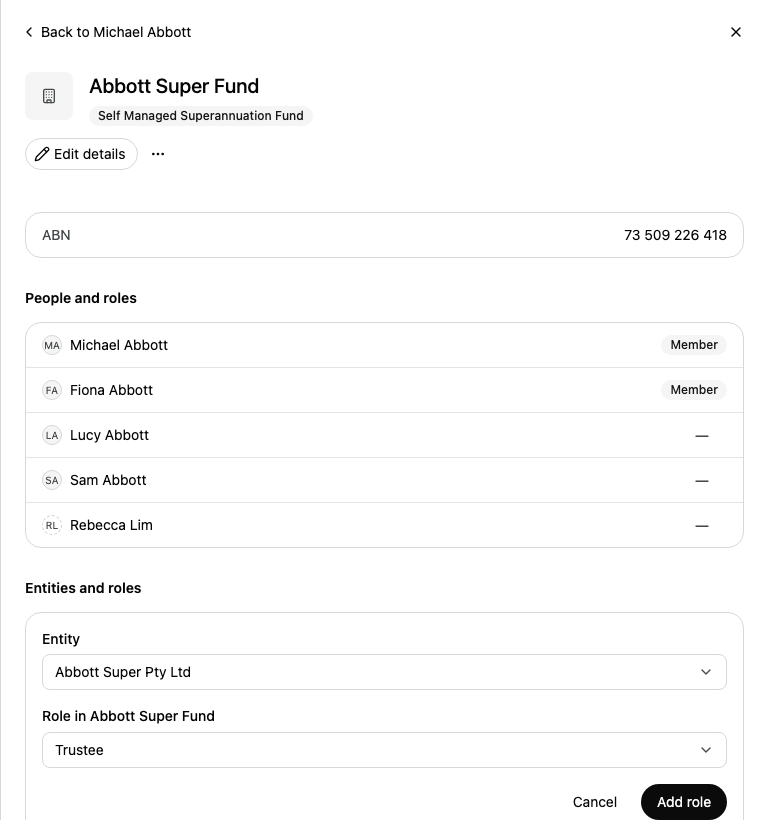
The household's trusts, companies and funds, and the role each person holds in each one.
Financial accounts
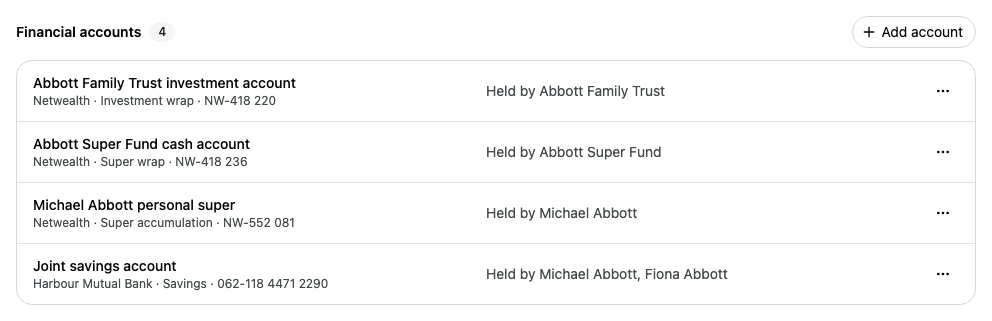
The household's accounts and who holds each one.
External parties
Accountants, solicitors and other professionals who act for the household without being part of it.
Team
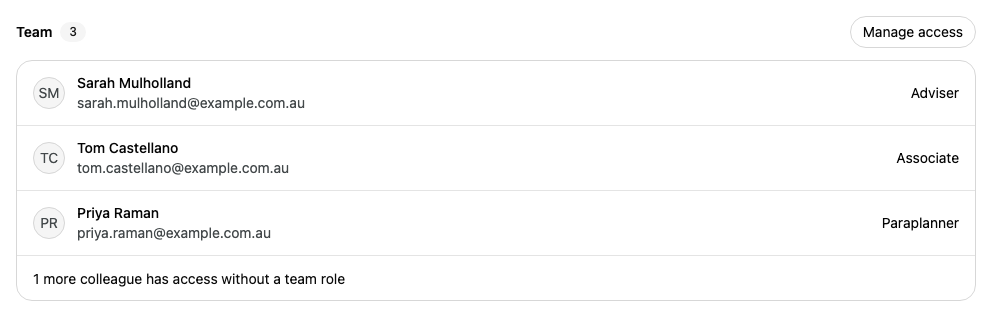
The colleagues at your firm with a team role on the household.
The number beside each section's name is how many items it holds.
Rename the household
Select the pencil beside the household's name.
In Household name, enter the new name.
Select Save.
This is the only place you can rename a household. If another household already has the name, Alcova shows Another household already has this name. Choose a different one.
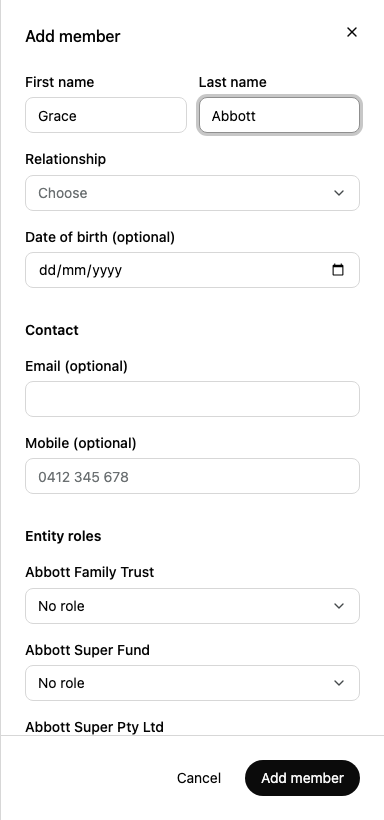
Add a member
Each person in the household has a card that shows their relationship, age, email address and phone number. The primary contact is marked Primary contact.
A person whose relationship is a child, such as Child, son, daughter, stepchild or dependant, shows under Children, whatever their age.
Add an external party
External parties are professionals who act for the household, such as its accountant or solicitor. They are listed in rows below the financial accounts, not as members.
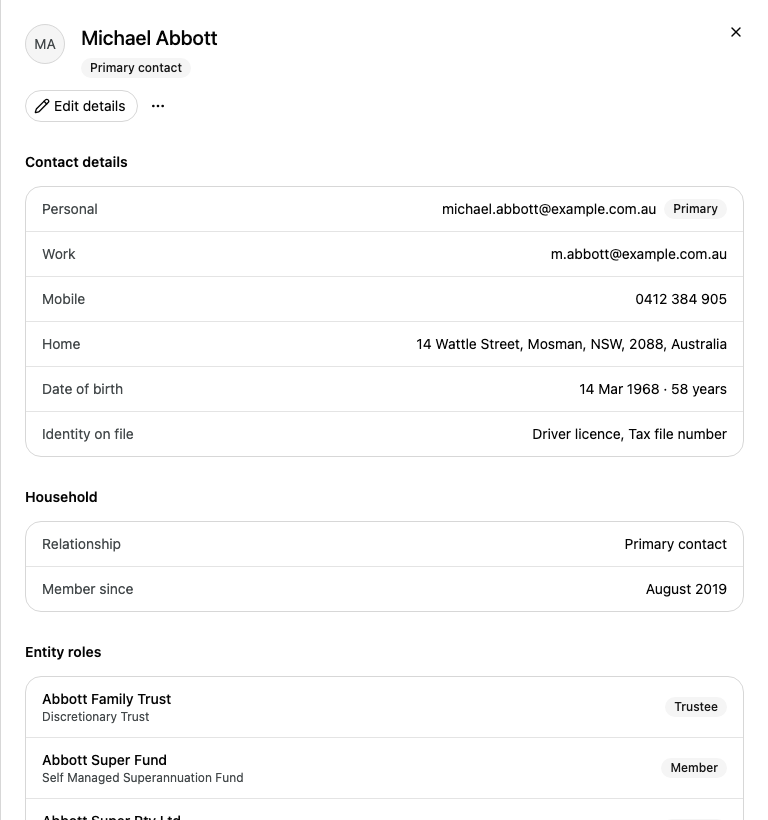
Email addresses, phone numbers, addresses, date of birth and age, and the identity documents on file. When there is more than one email address, the main one is marked Primary.
Household
The person's Relationship to the household and when they became a member.
Entity roles
The person's role in each of the household's entities. You can change a role here the same way as in the entities table.
Professional contacts
Professionals linked to the person, such as their accountant. Shows only when there are some.
Authorised access
Accounts the person can act on but does not own, and the level of access. Shows only when there are some.
To change contact details, select Edit details, make your changes, then select Save.
To change the person's relationship, select Edit in the Household section. You cannot change the primary contact's relationship, because everyone else's relationship is recorded against theirs.
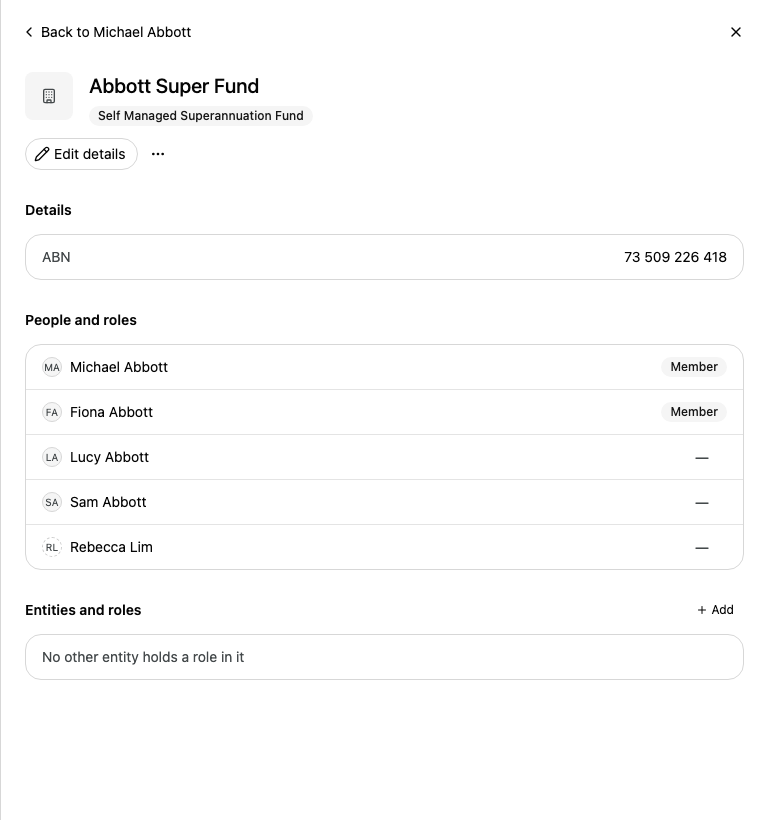
To open an entity, select its name. To come back to the person, select Back to and their name.
Remove a person from the household
Open the person's record.
Select the More actions button (three dots), then Remove from household.
Select Remove from household to confirm.
Their roles in the household's entities end too. Their contact record stays in Contacts.
Add an entity
Entities are the trusts, companies, SMSFs and other structures the household uses.
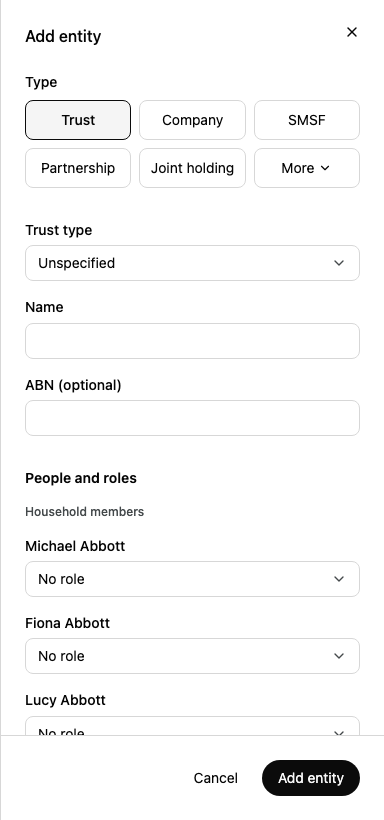
In Entities, select Add entity.
Under Type, select Trust, Company, SMSF, Partnership or Joint holding. For another type, select More, then choose the type.
If the type has kinds, choose one, for example in Trust type.
Enter the entity's Name and, if you have it, its ABN or ACN.
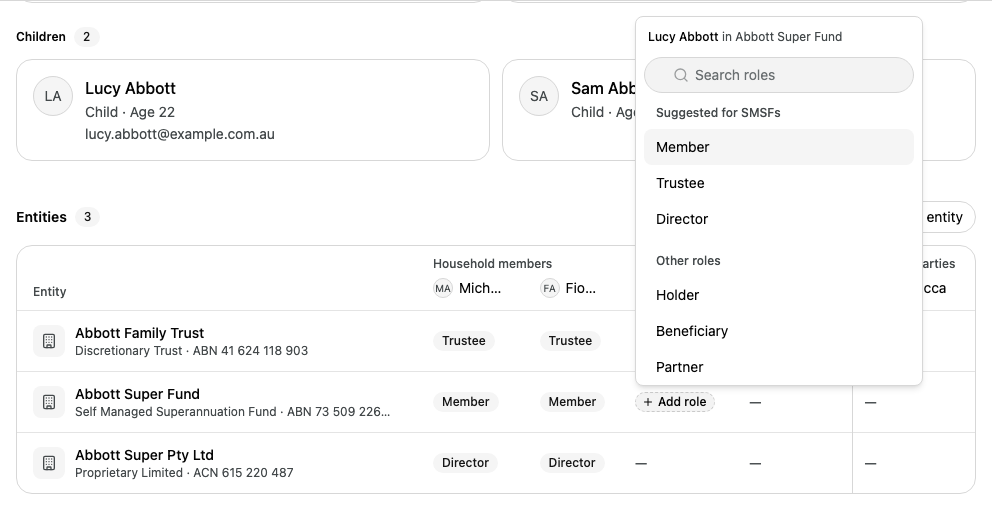
Under People and roles, choose each person's role in the entity. Leave No role for people with no role.
If the household already has an entity with the same name, Alcova shows This household already has an entity with this name. Choose a different one.
Record who holds which role in an entity
The Entities table has a row for each entity and a column for each person. Each cell shows that person's role in that entity, so you can read across a row to see who is a trustee of a trust, or down a column to see everything one person holds.
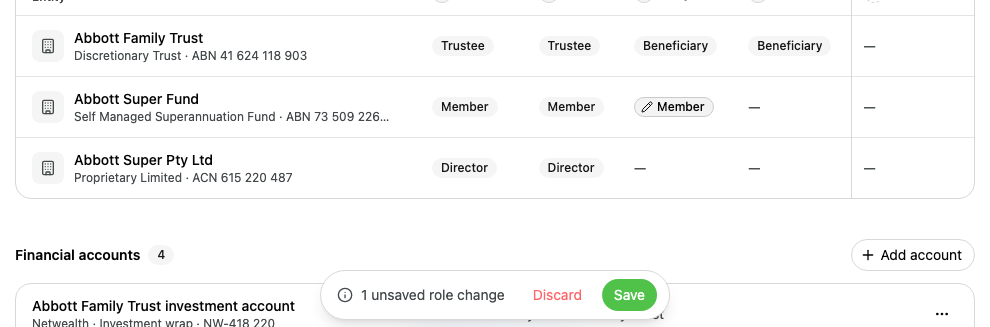
To undo all your changes, select Discard in the bar. To undo one change, select the cell, then Undo this change. To take a saved role away, select the cell, then Remove from this entity, then Save.
If the save fails, the bar shows The role changes were not saved. Try again. Your changes stay in place, so select Save again.
The table may also show these columns:
Column
What it shows
Other entities
Another entity's role in this one, such as a company that is the corporate trustee of a fund.
Not in this household
People named against an entity who are not in the household, often from an imported record.
If the tab is narrow, each entity shows as a card with its people listed down it.
Enter the account's Name and Type, for example "Super accumulation".
If you have them, enter the Institution (optional) and Account number (optional).
Under Owners, select the people and entities that hold the account.
Select Add account.
To delete an account, select the More actions button (three dots) on its row, then Delete account, then confirm. You cannot undo it.
If another account in the household has the same number, Alcova shows a message. Check the number, or leave it blank.
See the household's team
The Team section lists the colleagues at your firm with a team role on the household, in order of role, starting with the Adviser. Colleagues who have access without a team role are counted at the bottom of the list.
To change the team, select Manage access. If you cannot change it, the button says View access. Both open the Household team dialog. See Choose who works on a household.
If the household's adviser comes from a CRM and is not linked to anyone at your firm, their name shows with Not linked to anyone at your firm.