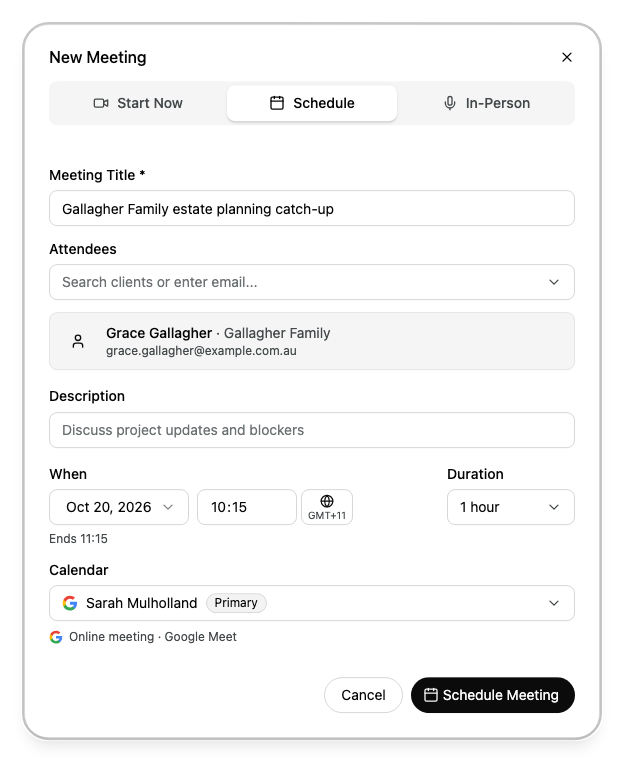
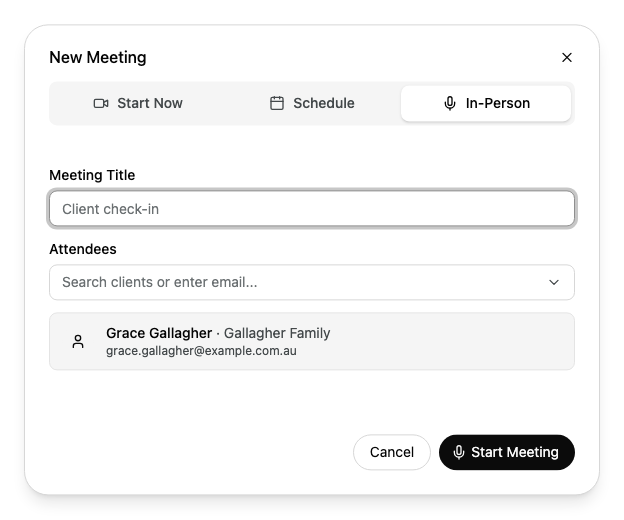
Set up a meeting from Alcova: start a video call now, schedule one for later, capture a meeting in person, or send Operator to a call you already have a link for.
Before you start
To start or schedule a video call, connect a calendar first. Alcova creates the call with the provider that matches your calendar: Google Meet for a Google calendar, Microsoft Teams for a Microsoft calendar. See Connect and choose your calendars and Connect Google Meet or Microsoft Teams.
Start a video call now
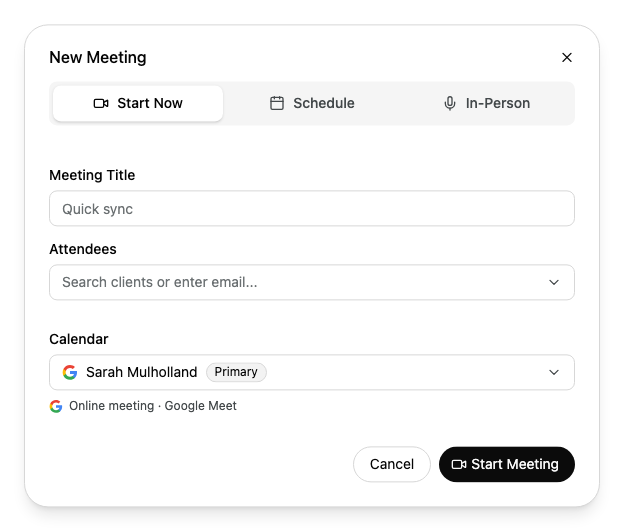
On the Meetings page, select New Meeting.
Keep Start Now selected.
Optional: in Meeting Title, enter a title.
Optional: in Attendees, add the people to invite. See Add attendees.
Check the Calendar. The line below it shows the kind of call Alcova creates, for example Online meeting · Google Meet.
Alcova creates the meeting, opens it and starts recording with your device's microphone. See Record or upload a meeting.
Add attendees
In Attendees, enter part of a client's name to search the contacts in your households. Each result shows the contact, their household and their email address. Select a contact to add them.
To invite someone who is not a contact, enter their full email address and select Invite and the address.
Attendees appear as cards below the field. To remove one, point to the card and select the X.
When an attendee is a member of a household, Alcova links the meeting to that household. See Edit or cancel a meeting.
Send Operator to a meeting link
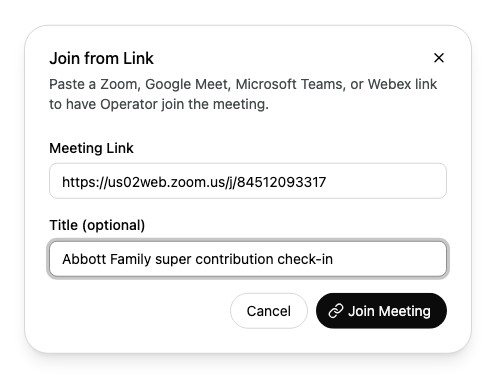
If someone sent you a link to a Zoom, Google Meet, Microsoft Teams or Webex call, you can send Operator to it.
On the Meetings page, select Join from link, the chain-link button beside New Meeting.
In Meeting Link, paste the link. It must start with https://.
Alcova opens the call in a new browser tab and opens the meeting in Alcova, where you can follow Operator's progress. See Have Operator take notes.
If something goes wrong
Additional permissions required: Alcova cannot create calls in your calendar yet. Select Grant calendar access and approve the access your calendar provider asks for.
Enter a valid Zoom, Teams, Meet, or Webex URL: check that you pasted the whole link, including https://.
Start time must be in the future: choose a later date or time.
We couldn't start the meeting or We couldn't schedule the meeting: check your connection and try again.