
Approve actions and answer questions
Operator stops and waits for you before it does some things on your behalf, such as drafting an email or changing your calendar. It also stops when it needs a detail from you. This page shows you how to respond in each case.
While Operator waits, the reply box at the bottom of the conversation is locked, and a note above it says what Operator needs. If you leave the conversation, the request waits for you. Open the conversation again to answer it.
Approve an action
When Operator wants to act, a Confirmation required card shows in the conversation. The card says what Operator wants to do. For some actions it also lists the details, such as who an email goes to and its subject.
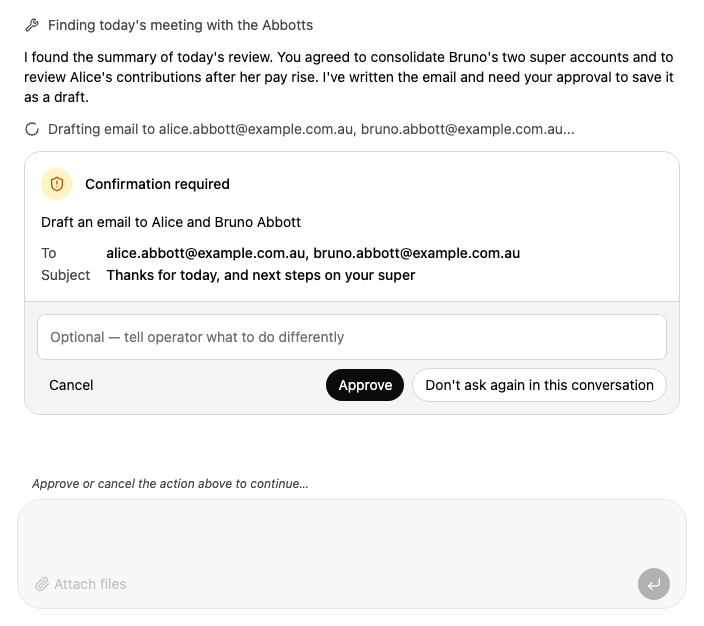
- Read the card, and check the details.
- Select one of these:
- Approve: Operator does this action once. It asks again next time.
- Don't ask again in this conversation: Operator does this action, and does not ask again before matching actions in this conversation. It still asks in your other conversations.
The card changes to show your decision, and Operator carries on.
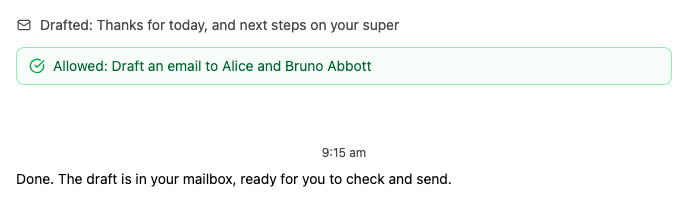
Ask Operator to do something different
- In the box under the card's details, enter what Operator should do instead. For example, "Address it to Alice only."
- Select Do this instead. This button takes the place of Approve when you enter an instruction.
Operator does not do the action as planned. It gets your instruction and carries on from there.
Cancel an action
In the card, select Cancel. Operator does not do the action.
Use the keyboard
In the box under the card's details, press ⌘Enter on a Mac, or Ctrl+Enter on Windows. If the box is empty, this approves the action once. If you entered an instruction, it sends the instruction.
Answer a question
When Operator needs a detail before it can go on, it shows a question card.
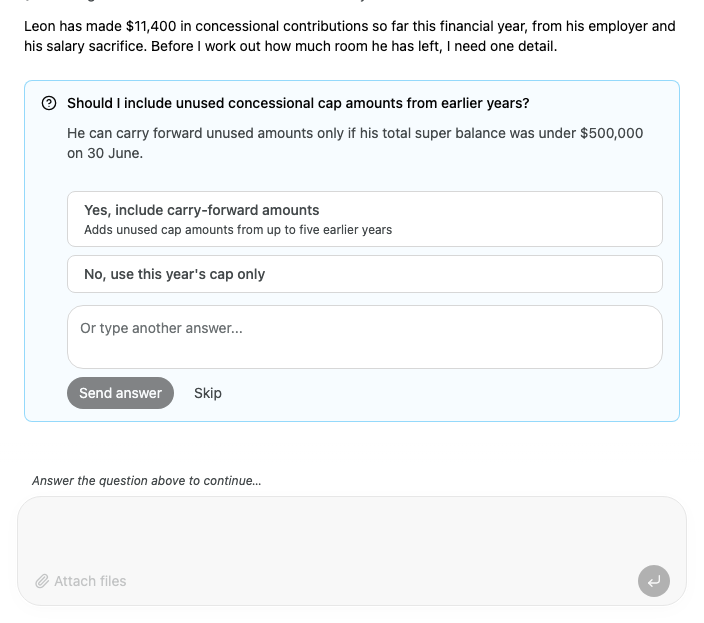
Answer in one of these ways:
- Select one of the answers on the card.
- Enter your own answer in the box, then select Send answer or press Enter. To start a new line, press Shift+Enter.
- Select Skip to go on without answering.
Some questions offer only fixed answers and Skip, with no box for your own answer.
The card then shows Answered with your answer, or Skipped, and Operator carries on.
What the card shows after you decide
| Card shows | What it means |
|---|---|
| Allowed | You approved the action once. |
| Allowed for this conversation | You approved the action, and Operator will not ask before matching actions in this conversation. |
| Cancelled | You cancelled the action. Operator did not do it. |
| Redirected | You gave Operator a different instruction. Your instruction shows under the card. |
| Answered | You answered Operator's question. Your answer shows under the card. |
| Skipped | You skipped Operator's question. |
| No longer available | Operator was no longer waiting for this decision when you made it. See below. |
If Operator asks about several actions of the same kind at once, the card shows how many, for example ×3. Your decision applies to all of them.
If something goes wrong
- Failed to send confirmations. Please try again.: Alcova could not send your decision. The card shows the buttons again. Make your choice again.
- This confirmation is no longer available. Refreshing the conversation.: Operator is no longer waiting for this decision. Alcova reloads the conversation to show where it stands. If the reply box stays locked and the note says Refresh the page to continue…, refresh your browser.