Settings

Create and manage meeting templates

Create templates that shape the meeting notes Operator writes, share them with your team, and use templates from Alcova and your colleagues.

How templates shape your notes

A template tells Operator how to structure the notes it writes for a meeting. Each template has three parts:

  • A name, such as "Annual Review" or "SMSF Strategy Meeting".
  • Context: general guidance for the whole note. Describe what the meeting is about, the focus and tone of the notes, and any compliance or formatting rules.
  • Sections: each section has a heading and a description of what to capture under it, for example "Action items: list every follow-up with an owner and a due date".

On a meeting, you choose a template when you generate notes. The menu lists My templates, then More templates for the rest. Each template you use adds its own tab of notes, named after the template, so you can write notes for one meeting from more than one template. To open this settings page from that menu, select Manage Templates.

If you edited notes and then generate them again from the same template, your edits are lost. Alcova asks you to confirm first. See Meeting notes.

Open meeting templates

  1. Open Settings. See Open settings.
  2. Under Features, select Meeting Templates.

The page is titled Note Templates and has two lists:

  • My Templates: templates you created, and templates you follow.
  • Library: templates from Alcova, and templates your colleagues shared that you do not follow yet.
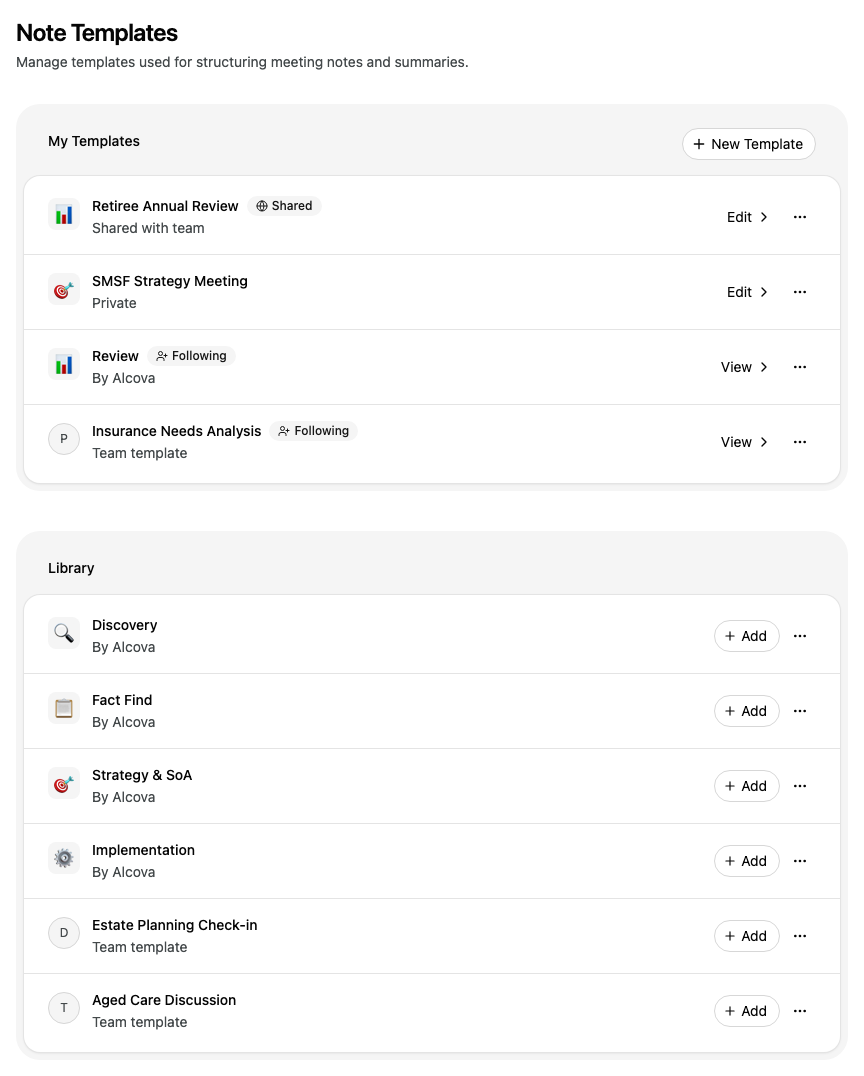
Enlarge screenshot: The Note Templates page. My Templates lists two of Sarah's own templates and two she follows. Library lists four templates by Alcova and two team templates

The text under each template's name tells you where it comes from:

Text or labelMeaning
PrivateYou created it, and only you can see it.
Shared with team and SharedYou created it and shared it with your organisation.
By AlcovaOne of Alcova's built-in templates.
Team templateA colleague created it and shared it.
FollowingYou follow this template, so it shows in My Templates. You cannot edit it.

Create a template

  1. In My Templates, select New Template.

  2. Choose how to start:

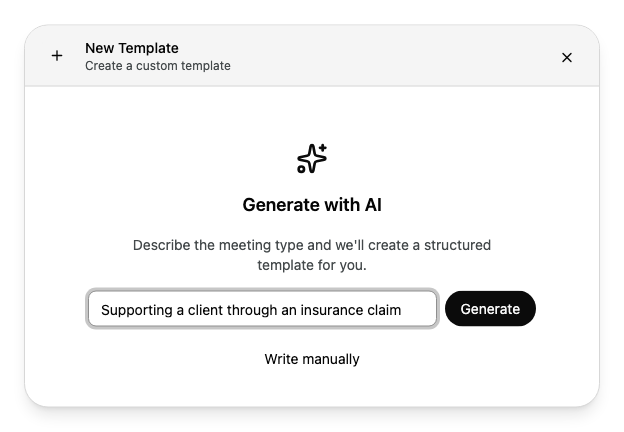
    • To have Alcova draft it, describe the meeting type, for example "Supporting a client through an insurance claim", then select Generate.
    • To start from a basic outline, select Write manually.
    Enlarge screenshot: The New Template window with Generate with AI, a description of the meeting entered, a Generate button and a Write manually option
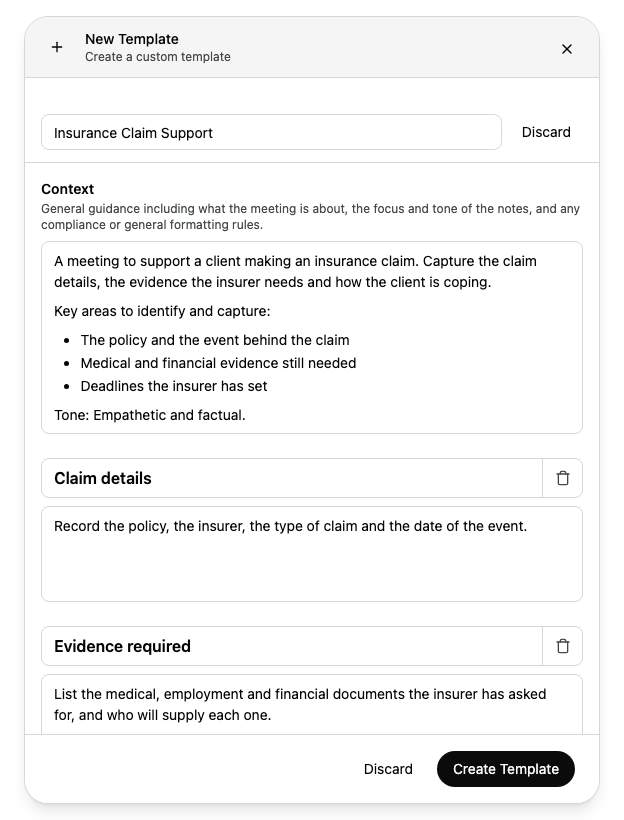
  3. Check the template name, Context and sections, and change them as you need:

    • To change text, select it and type.
    • To add a section, select Add section at the end.
    • To remove a section, select the bin button next to its heading.
    Enlarge screenshot: The New Template window with the generated Insurance Claim Support template: the name, the Context guidance and sections such as Claim details and Evidence required, with Discard and Create Template buttons
  4. Select Create Template.

The template shows in My Templates as Private. To share it, see Share a template with your team.

To throw away a new template, select Discard. If you close the window without discarding, Alcova keeps your draft until you close the browser tab.

Video: Create a note template

Fix a template that can't be saved

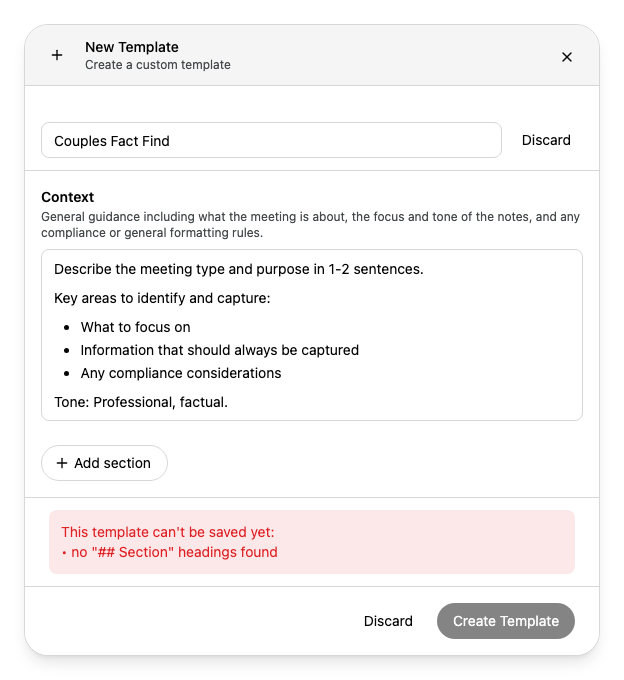
A template needs text in Context and at least one section, and every section needs a heading and a description. If something is missing, Alcova shows This template can't be saved yet: and lists the problems.

Enlarge screenshot: The New Template window after every section was removed, showing the error This template can't be saved yet: no "## Section" headings found
Problem in the listWhat to do
"# Context" section has no body textEnter guidance in Context.
no "## Section" headings foundSelect Add section and fill it in.
a section heading is emptyEnter a heading for every section.
section "…" has no body textDescribe what to capture in that section.

Create Template is unavailable until you make a change. Fix the problems, then select it again.

Share a template with your team

You can share only templates you created.

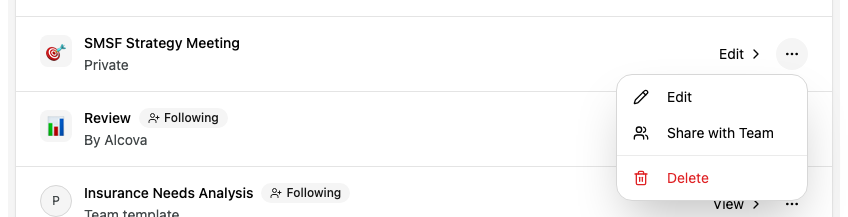
  1. Next to the template in My Templates, select the ... button.

  2. Select Share with Team.

    Enlarge screenshot: The menu for SMSF Strategy Meeting open, with Edit, Share with Team and Delete

The template now shows Shared with team. Your colleagues see it in their Library as a Team template.

To stop sharing, select the ... button, then select Make Private.

Edit a template

You can edit only templates you created.

  1. Next to the template in My Templates, select Edit. The template opens in a panel.

  2. At the top of the panel, select Edit.

  3. Change the name, Context or sections.

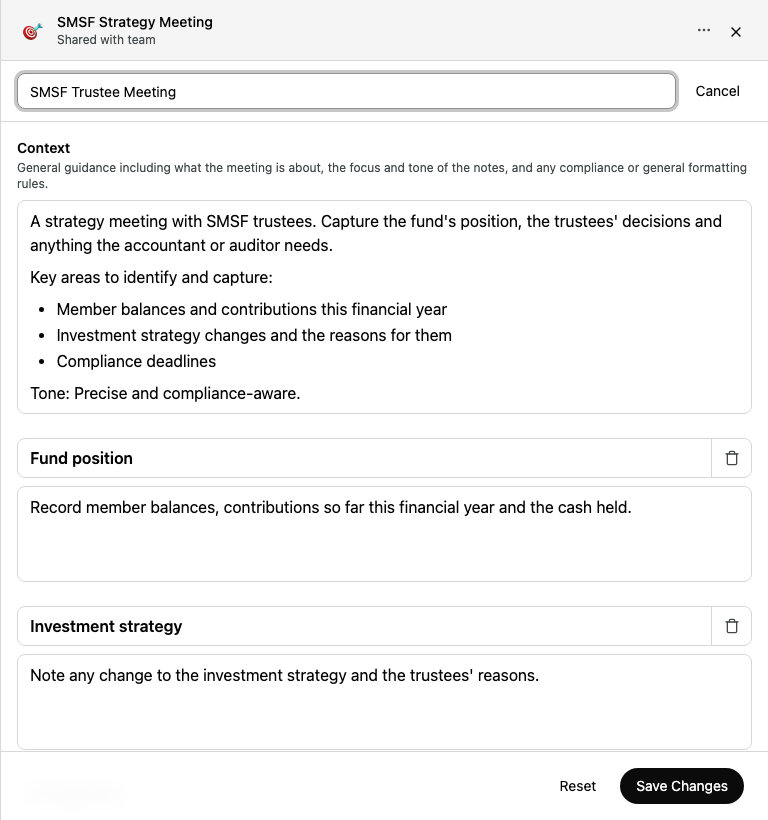
    Enlarge screenshot: The SMSF Strategy Meeting panel in edit mode, with the name changed to SMSF Trustee Meeting, the Context and sections below, and Reset and Save Changes buttons
  4. Select Save Changes.

To stop editing without saving, select Cancel. To undo your changes and keep editing, select Reset.

Change a template by asking Operator

Instead of editing a template yourself, you can tell Operator what to change. This is the quickest way when you know what you want but not where it goes in the template. For example, ask it to record at the top whether the client agreed to be recorded, never to use tables, and to follow the layout of a file note you liked.

  1. Open Operator. See Ask Operator.
  2. Name the template and describe the changes, for example "In my Wholesale Quarterly Review template, record at the top whether the client agreed to be recorded, and don't use tables."
  3. To show Operator what good notes look like, attach an example, such as a file note you wrote. Select Attach files, or drag the file onto the prompt box.
  4. Send the request.
  5. Before it changes the template, Operator asks you to approve. Select Approve. See Approve actions and answer questions.

Operator updates the template and lists what it changed. You can also ask Operator to create, copy or delete a template. It asks you to approve each change first.

Video: Improve a template with Operator

Use a template from the library

To add a template to My Templates, select Add next to it in Library.

To read a template before you add it:

  1. Select the ... button next to it, then select View.

  2. Read the template in the panel. To add it, select Follow.

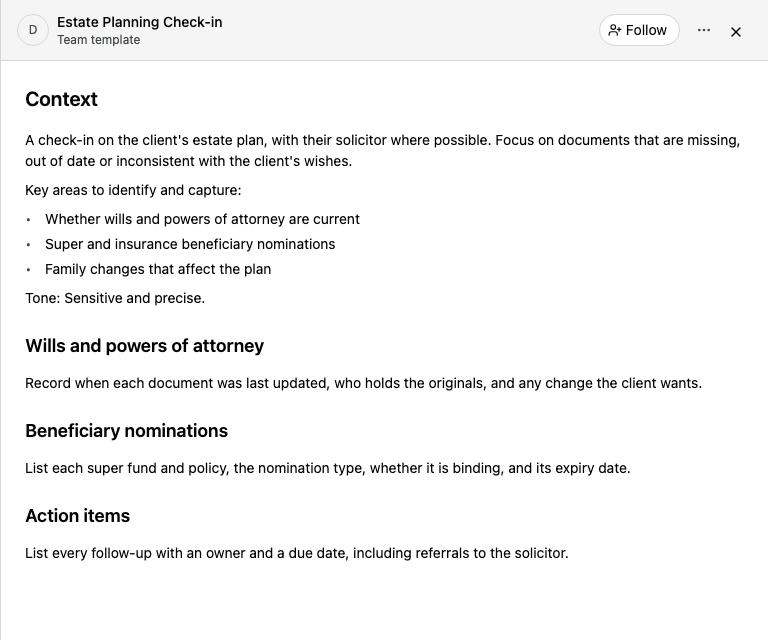
    Enlarge screenshot: The Estate Planning Check-in panel, marked Team template, with a Follow button and the template's Context and sections

The template moves to My Templates and shows Following.

To stop following a template, select the ... button next to it in My Templates, then select Remove. In the template's panel, the same option is called Unfollow. The template goes back to Library.

Copy a template

You cannot edit a template from Alcova or a colleague, but you can copy it and change the copy.

  1. Select the ... button next to the template.
  2. Select Duplicate.

A private copy named "Copy of" and the template's name shows in My Templates. You can edit it like any template you created.

Delete a template

You can delete only templates you created.

  1. Select the ... button next to the template.

  2. Select Delete.

  3. In Delete Template, select Delete.

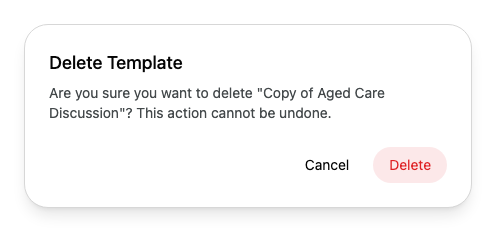
    Enlarge screenshot: The Delete Template window asking: Are you sure you want to delete "Copy of Aged Care Discussion"? This action cannot be undone

You cannot undo this.

If something goes wrong

  • Failed to generate. Please try again. Select Generate again, or select Write manually.
  • Template name is required: enter a name for the template.