
Manage your team members
Invite colleagues to your organisation, choose what they can do, and remove people who leave your firm.
Before you start
You must be an admin of your organisation to invite people, change roles or remove anyone. See Roles.
See who is in your organisation
- Open Settings. See Open settings.
- Under Organisation, select Members.
Members lists everyone in your organisation, with their email address and role. Your own row is marked You. If you are an admin, Pending Invitations appears below it.
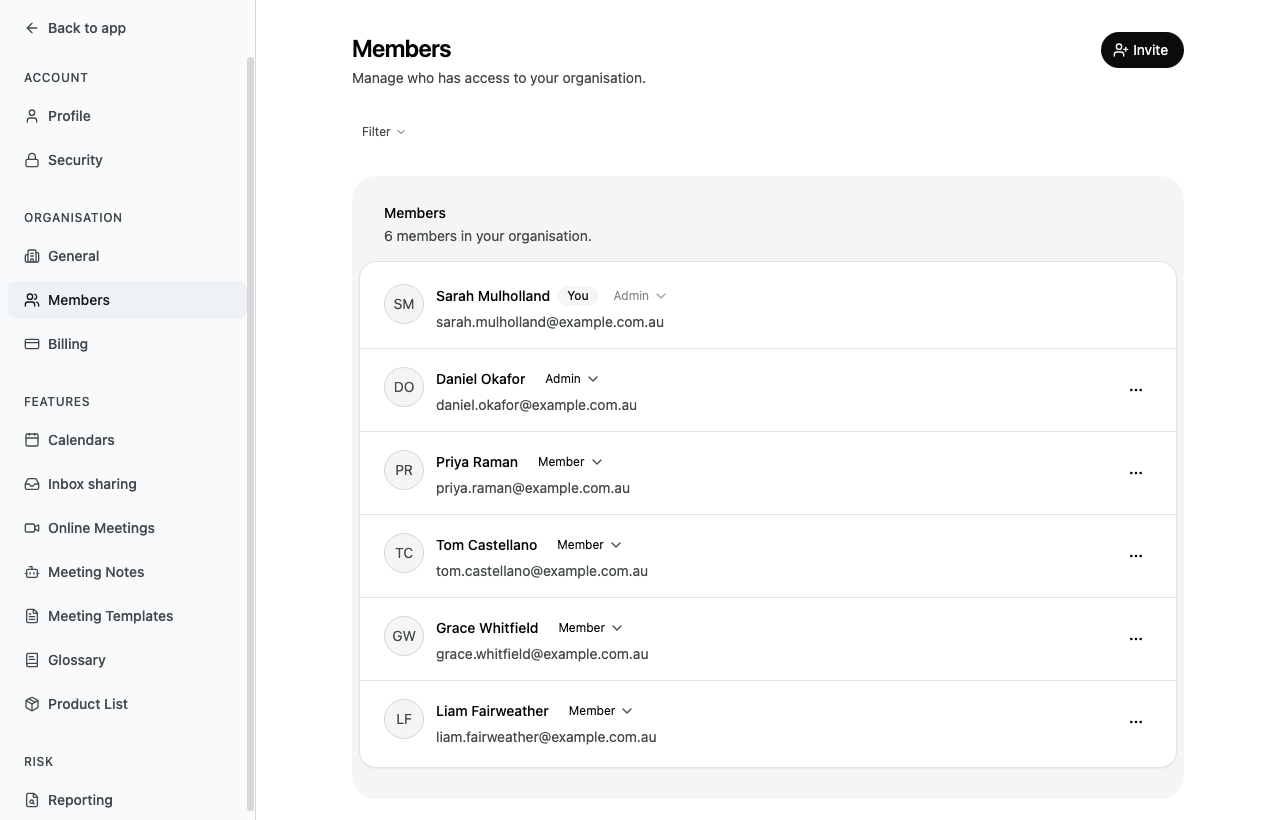
Each list shows 10 entries at a time. If there are more, use the arrows below the list to move between pages.
Find someone
Select Filter.
Select what to filter by: Name, Email, Role or Joined.
Enter or choose a value:
- For Name or Email, enter part of it and select Apply.
- For Role, select one or more roles and select Apply.
- For Joined, select before or after, then select a date.
Enlarge screenshot: 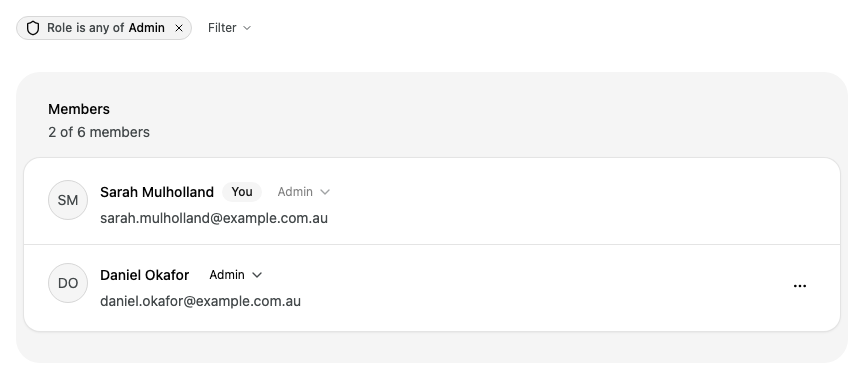
The card shows how many people match, such as 2 of 6 members. To change a filter, select it. To remove a filter, select the × on it.
Invite people
On Members, select Invite.
In Email Addresses, enter one or more addresses. Separate them with commas or put each on a new line. Alcova shows how many people it will invite.
In Role, select Member or Admin. Everyone in this invitation gets the same role.
Enlarge screenshot: 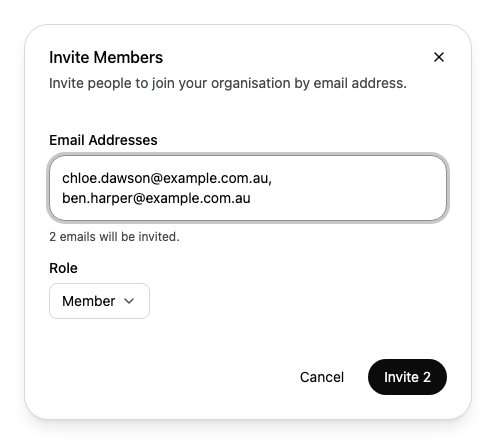
Select Invite followed by the number of people, for example Invite 2.
Alcova sends each person an email with a link to join. They appear under Pending Invitations until they accept.
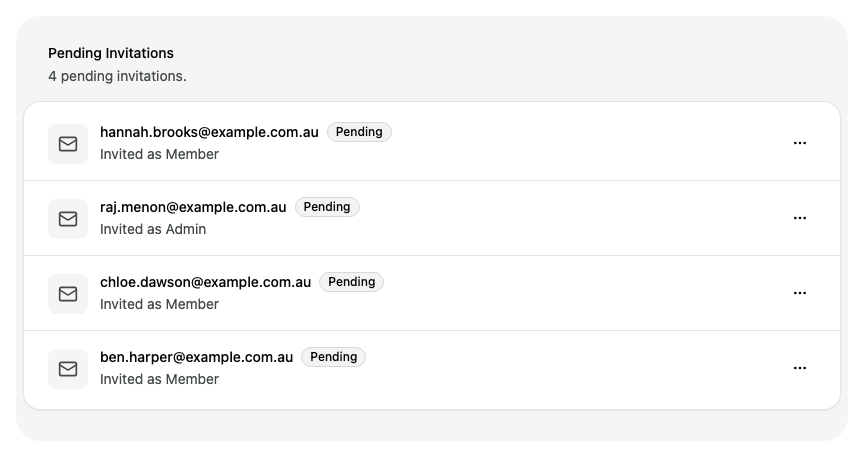
To invite people with different roles, send one invitation for each role.
When someone accepts, they move from Pending Invitations to Members. For what they see, see Joining your team.
Resend or cancel an invitation
Under Pending Invitations, next to the address, select the more menu (⋯).
Select one of these:
- Resend cancels the old invitation and sends a new email.
- Revoke cancels the invitation.
Enlarge screenshot: 
Alcova does not ask you to confirm. The change happens straight away.
Change someone's role
On Members, select the role next to the person's name.
Select Admin or Member.
Enlarge screenshot: 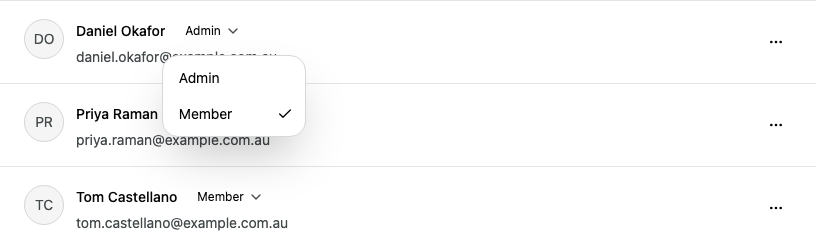
The new role applies straight away. Alcova does not ask you to confirm.
You cannot change your own role. Ask another admin to do it.
Remove someone
On Members, next to the person's name, select the more menu (⋯).
Select Remove.
Check the name in the dialog, then select Remove.
Enlarge screenshot: 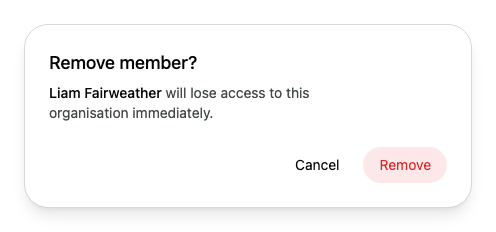
The person loses access to your organisation immediately. You cannot remove yourself.
Roles
Each person in your organisation is an Admin or a Member.
| What you can do | Admin | Member |
|---|---|---|
| Invite people, change roles and remove people | Yes | No |
| See and manage Pending Invitations | Yes | No |
| Change the organisation's name and logo in General | Yes | No |
| See Billing in settings | Yes | No |
| See Product List in settings | Yes | No |
| See the Risk pages in settings | Yes | No |
| Change your own profile, security and appearance settings | Yes | Yes |
A member's settings menu has no Billing or Product List.
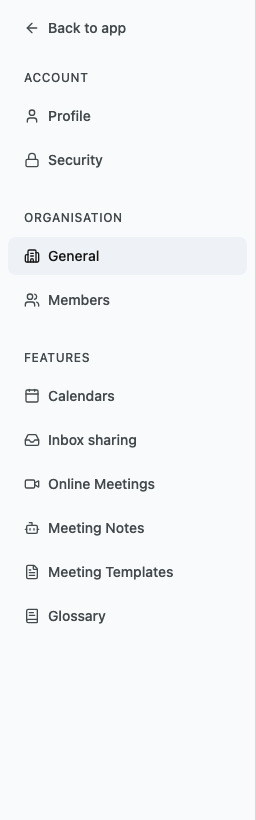
If your role does not allow you to see your organisation's members, Members shows Access Denied.
If something goes wrong
"Invited 1 of 2. Could not invite ..." Alcova sent the other invitations, but not to the addresses it names. Email Addresses now holds only those addresses. Check each one for typing errors, and check Pending Invitations in case the person already has an invitation. Correct the addresses and select Invite again. The people who were already invited do not get a second invitation.
Enlarge screenshot: 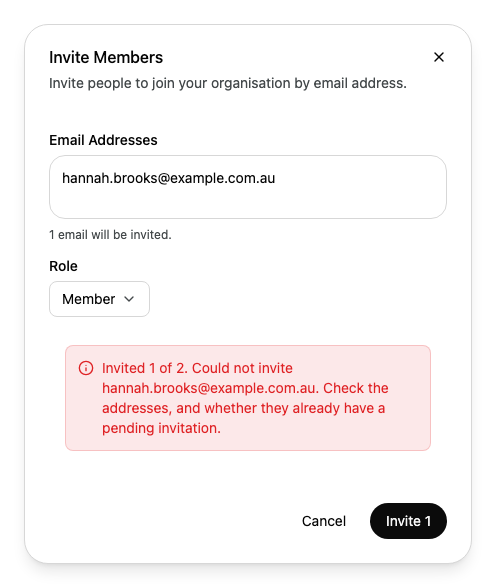
"The invitations were sent, but this list did not refresh." Reload the page to see the new invitations.
"Could not resend the invitation to ..." Alcova cancelled the old invitation but could not send the new one. Invite the person again.