Operator can join your online meetings as a notetaker. It records the call so Alcova can produce a transcript and meeting notes. This page shows you how to choose which meetings Operator joins, invite it to one meeting, send it in straight away, and remove it.
Operator joins Google Meet, Zoom, Microsoft Teams and Webex calls. For a meeting in person, record it yourself instead. See Record or upload a meeting.
The Auto record box at the top of the Meetings page sets which of your online meetings Operator joins on its own.
On the Meetings page, select the list beside Auto record.
Choose an option:
Option
Operator joins
All online meetings
Every online meeting on your calendar.
Internal meetings only
Meetings with people from your firm only.
Only when invited
Only the meetings you invite it to.
The box then shows All online, Internal only or By invitation. For more choices, such as only accepted meetings, a minimum length or email domains, select the information button beside Auto record, then More recording settings. See Choose when Operator joins your meetings.
These settings are your own. They do not change what Operator does for your colleagues.
Invite Operator to one meeting
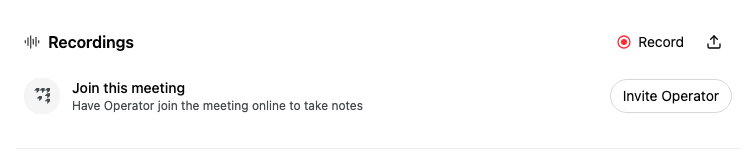
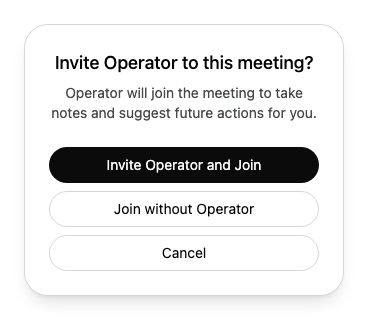
On the Meetings page, select Invite Operator on the meeting.
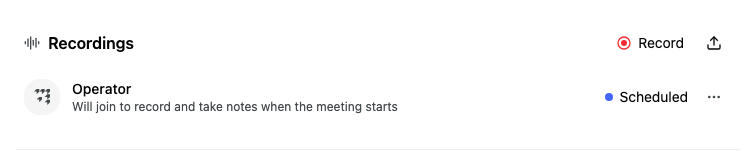
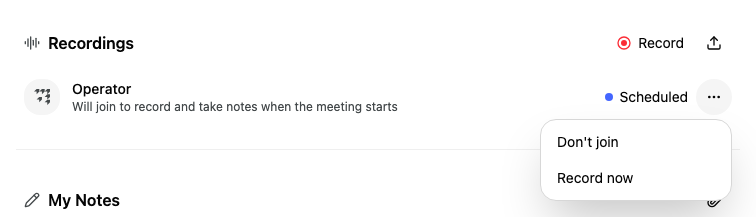
On the Meetings page, the meeting now shows Operator with a blue dot. Point to it to see when Operator joins, or why it is joining, for example because you set it to join external meetings or because someone scheduled it by hand.
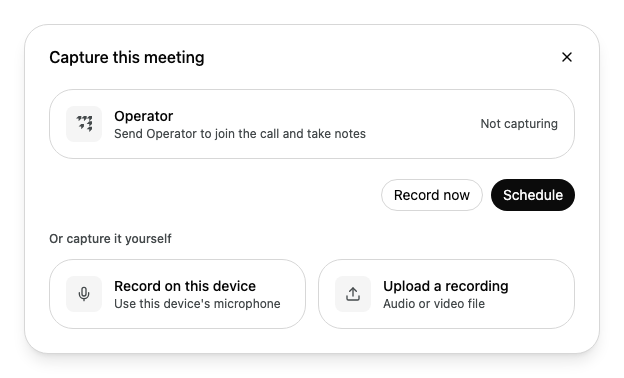
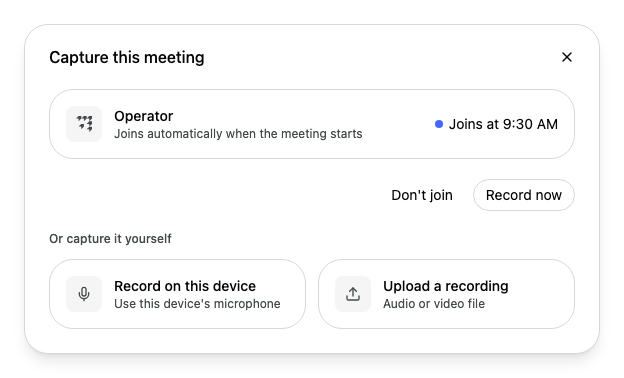
The Capture button at the top of the meeting page brings all the ways to capture a meeting together. The Operator card shows what Operator is doing and the actions you can take.
Use Record now when the call has started without Operator, or when you want Operator in the call early.
Open the meeting.
Select Capture, then Record now. If Operator is already scheduled, you can instead select the three dots on the Operator row under Recordings, then Record now.
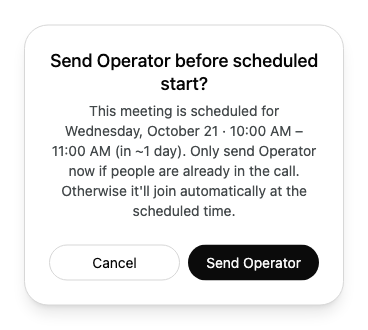
If the meeting starts more than 15 minutes from now, or ended more than 15 minutes ago, Alcova asks you to confirm. Send Operator only if people are already in the call, or still in it. Otherwise nobody is there to record.
If Operator already left the call or could not join, the dialog asks Re-invite Operator to this meeting? instead, with Re-invite Operator and Join.
The call opens in a new browser tab, and the meeting opens in Alcova.
On the meeting page, Join meeting opens the call without changing Operator.
Let Operator into the call
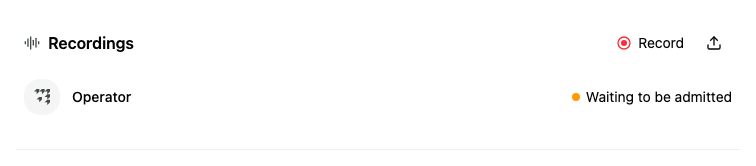
When Operator arrives, it may wait in the call's lobby or waiting room. The Operator row shows Waiting to be admitted. Admit Operator from your meeting app, the same way you admit a guest.
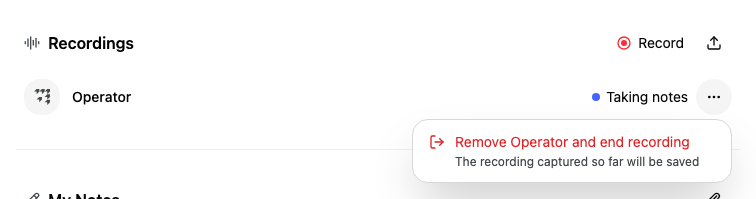
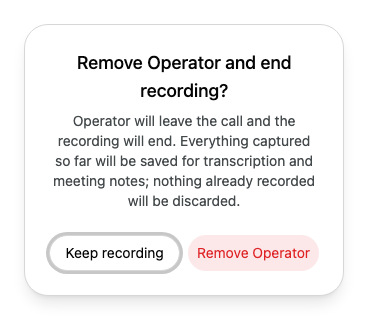
Operator leaves the call. The recording so far is kept, and Alcova uses it for the transcript and meeting notes.
You can also remove Operator from inside the call, like any other participant. Do this when someone in the meeting has not agreed to be recorded, or you no longer need notes. In Microsoft Teams:
Select People.
Point to Operator's name, then select the three dots beside it.
Select Remove from meeting.
Operator stops recording when it leaves.
Video: Remove Operator from a meeting
What happens next
When the meeting ends, Operator leaves and the Recordings section shows an Operator recording. Alcova then prepares the transcript and the meeting notes. See Read a meeting transcript and Work with meeting notes.
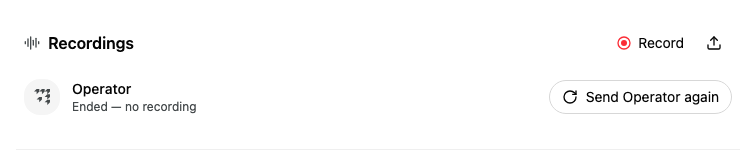
To send Operator back to the same meeting, select the three dots in the Recordings heading, then Send Operator again.
If something goes wrong
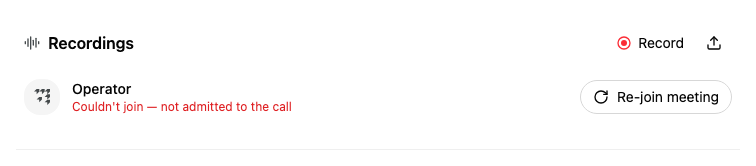
If Operator could not join, the Operator row says it was not admitted to the call. If people are still in the call, select Re-join meeting, then admit Operator.
If you see Operator could not be removed. The recording may still be running., check the call. Remove Operator from your meeting app if you need to, then try again.
If you cannot see Remove Operator and end recording, you are not the meeting's organiser, or Operator is not taking notes yet.
If the Operator card says Add a meeting link and Operator can join, the meeting has no online meeting link. Add one to the calendar invitation, or record the meeting yourself.