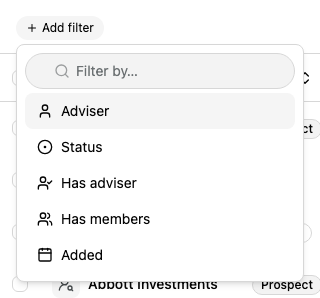
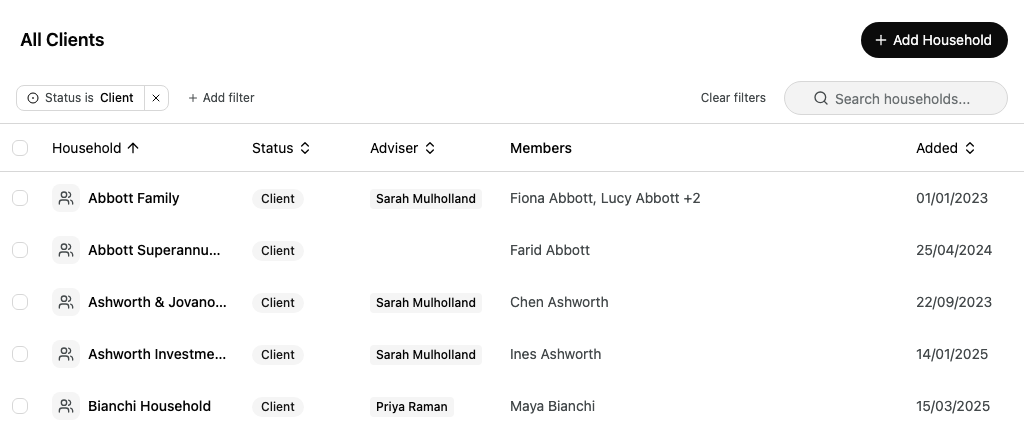
Use the All Clients list to find a household by name, by the people in it, or by its status, adviser or the date it was added.
Open the list
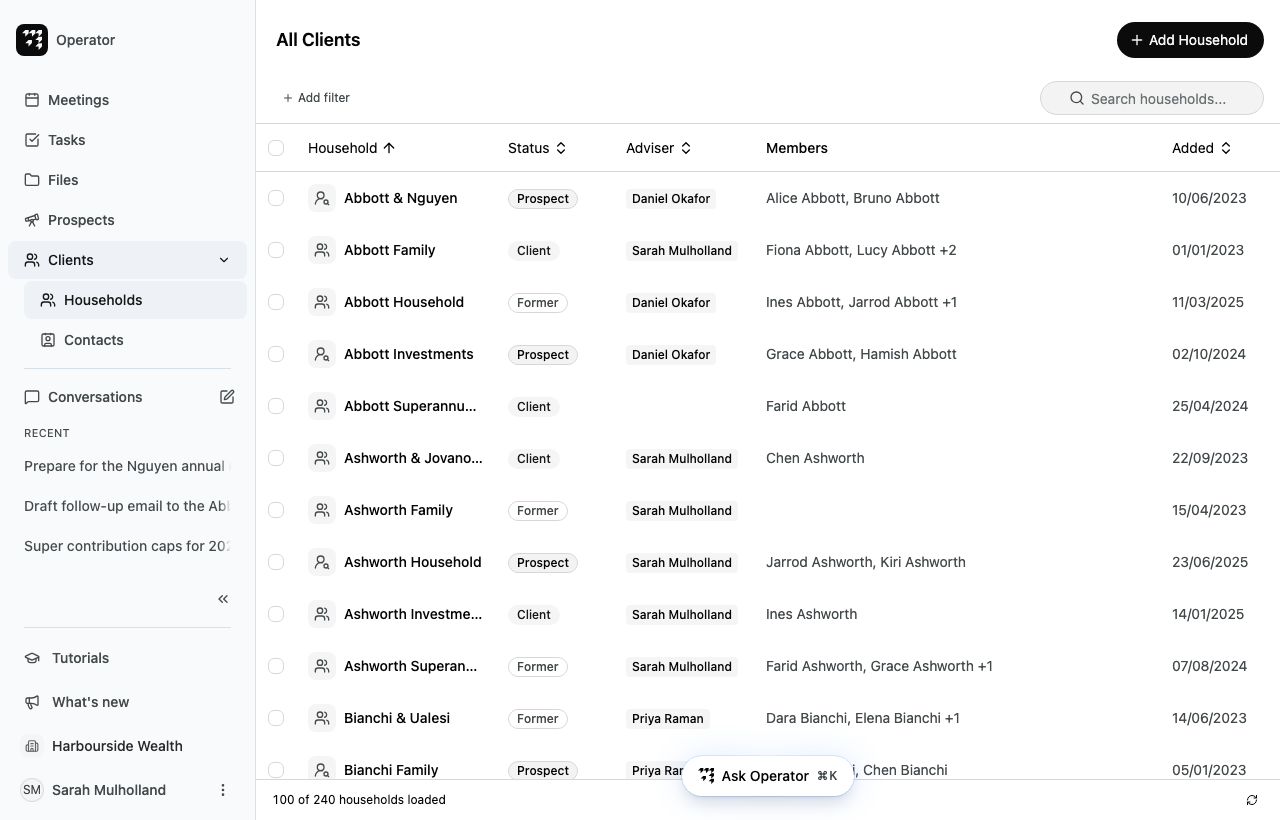
In the sidebar, select Clients, then Households.
The All Clients list shows every household you can see, in alphabetical order. Each row shows the household's status, its adviser, up to two of its members and the date it was added.
The line at the bottom of the list says how many households are loaded out of how many match, for example 100 of 240 households loaded. More households load as you scroll down. To load the list again, select the refresh button beside that line.
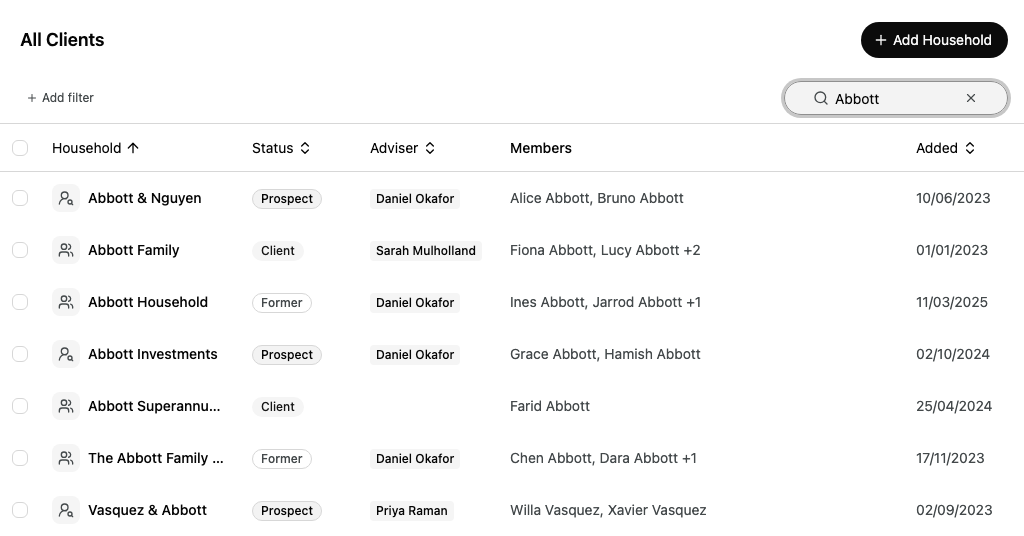
Enter part of a name in Search households.... The list shows households whose name matches, and households with a member whose name or email address matches.
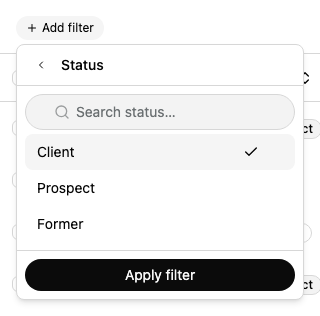
If you use more than one filter, the list shows households that match all of them.
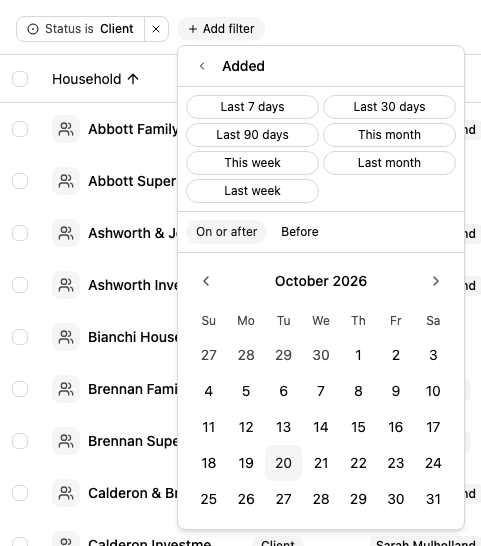
Filter by the date a household was added
The Added filter has quick choices such as Last 30 days and This month. To choose your own date, select On or after or Before, then select a day in the calendar.
To show households added between two dates, add the Added filter twice: once with On or after and once with Before. If the end date is not later than the start date, the list shows Check the date range.
Sort the list
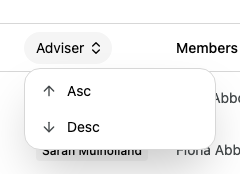
Select a column heading: Household, Status, Adviser or Added.
Select Asc for A to Z or oldest first, or Desc for Z to A or newest first.
An arrow beside the heading shows which column sorts the list and in which direction.
Share a view of the list
The search, filters and sort are part of the page address. To come back to the same view later, bookmark the page. To show a colleague the same view, send them the link.
Reference
Columns
Column
What it shows
Household
The household's name. Prospects have a different icon from other households.