Clients

See a household's portfolio

The Portfolio tab shows live valuations, asset allocation, holdings and transactions for a household's accounts, read from the platform that holds each account.

Open the portfolio

  1. Open the household. See Work with a household.
  2. Select the Portfolio tab.

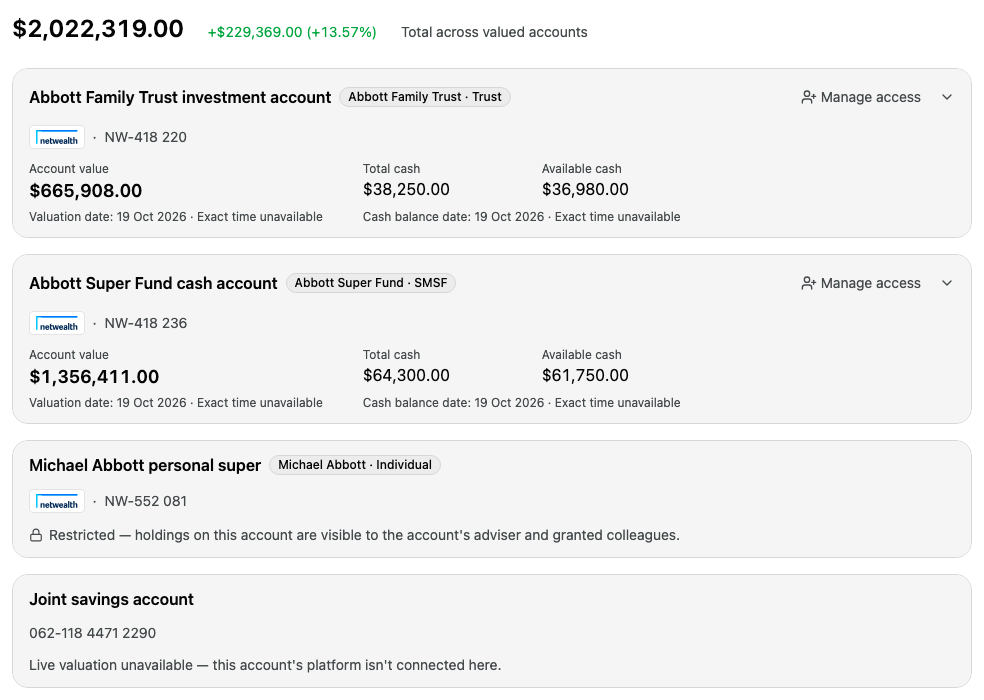
At the top is the total value of the household's valued accounts, with the total unrealised gain or loss. Below it is a card for each of the household's financial accounts.

Enlarge screenshot: The Abbott Family's portfolio: a total of $2,022,319.00 across two valued accounts, one restricted account and one account with no connected platform

Each card shows:

  • The account's name, and who owns it, for example Abbott Family Trust · Trust.
  • The platform and the account number.
  • Account value, Total cash and Available cash, each with the date the figure is from.

A dash in place of a figure means the platform did not report it. It does not mean zero.

See an account's holdings

Select the account's name. The card opens to show:

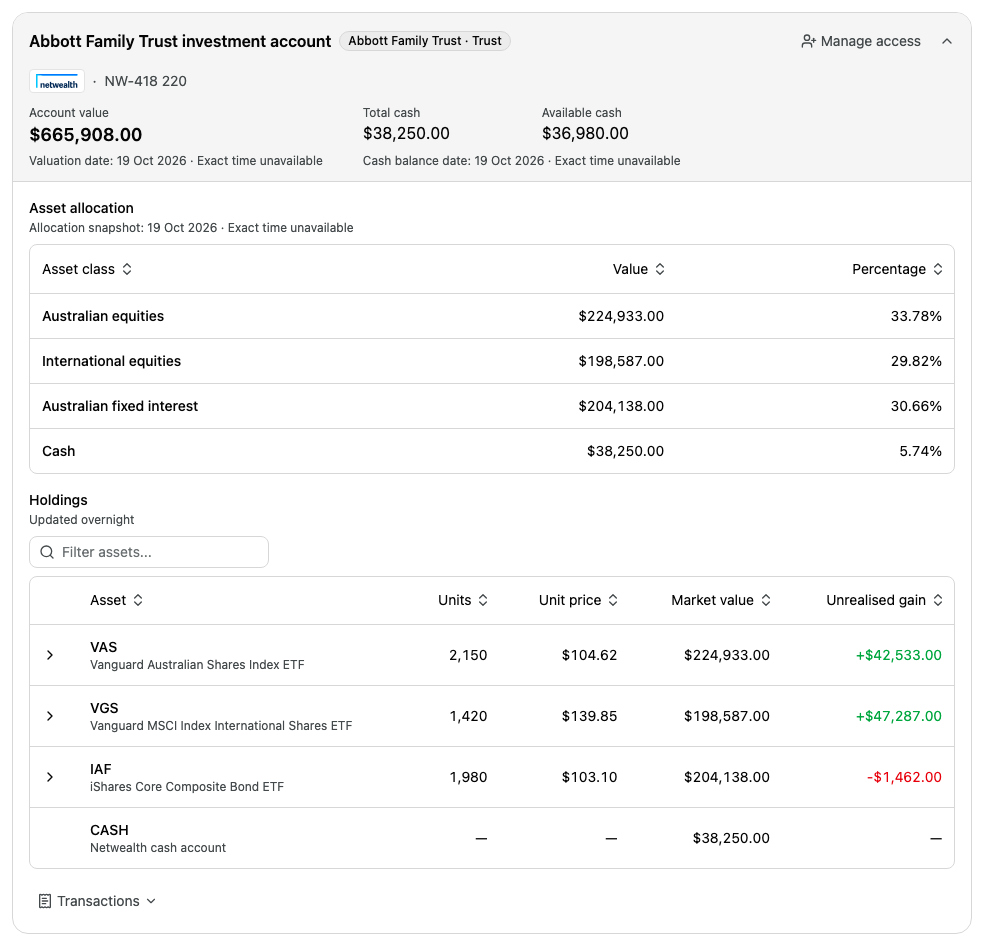
  • Asset allocation: the account's value in each asset class, and its percentage of the account.
  • Holdings: each asset, with Units, Unit price, Market value and Unrealised gain. Gains are green and losses are red.
  • Transactions: select it to see the account's pending and settled transactions.
Enlarge screenshot: The Abbott Family Trust investment account opened, with its asset allocation and four holdings
  • To find an asset, enter its code or name in Filter assets....
  • To sort the holdings, select a column heading.
  • To see when and at what cost an asset was bought, select the arrow at the start of its row. The Parcels table shows each purchase date, units, cost base and adjusted cost base.

Cash has no cost base, so its unrealised gain shows a dash.

To close the account again, select its name.

Choose who can see an account's holdings

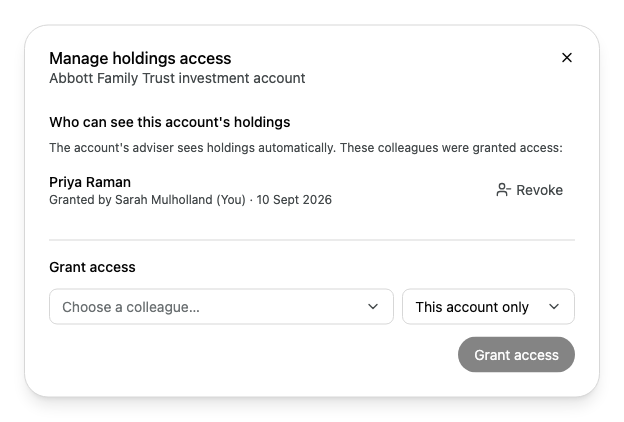
An account's holdings are visible to the account's adviser and to colleagues who have been granted access. If you are the account's adviser or an organisation admin, the card shows Manage access.

  1. On the account's card, select Manage access.

    Enlarge screenshot: The Manage holdings access dialog for the Abbott Family Trust investment account, showing that Priya Raman was granted access by Sarah Mulholland
  2. Under Grant access, select Choose a colleague…, then select a colleague. Only colleagues on the household's team are listed.

  3. Choose where to grant access: This account only, or, if you manage more than one of the household's accounts, all of them.

  4. Select Grant access.

To take access away, select Revoke beside the colleague, then Revoke access to confirm. You can grant access again at any time. You cannot revoke your own access.

If no colleagues are on the household's team, the dialog asks you to add them first. See Choose who works on a household.

Organisation admins can manage access, but they do not see an account's holdings unless they are its adviser or have been granted access.

Messages on an account

Message starts withWhat it means
RestrictedYou do not have access to this account's holdings. Ask the account's adviser, or an organisation admin, to grant you access.
Live valuation unavailable, then says the platform isn't connectedThe account is not held on a platform Alcova can read, so there is no live valuation.
Live valuation unavailable, then says the platform didn't return a valuationThe platform did not return figures for this account number.

If every account is restricted for you, a note at the top of the tab explains this.

If the tab is empty

MessageWhat it means
No financial accounts are recorded for this household.Add the household's accounts on the Members tab. See Add a financial account.
This household's portfolio isn't visible to you.You do not have access to this household's portfolio.
Portfolio data isn't available on this deployment yet.Your organisation does not have a platform connected yet.
Failed to load the portfolio.Select Try again.