Files

Upload and organise files

Add documents to Alcova and keep them in order: upload files and folders, create folders, and rename, move, copy or delete what you no longer need where it is.

Before you start

You need permission to change the folder. If you do not have it, the buttons are turned off and pointing to them shows You don't have permission to upload here or You don't have permission to create folders here.

Upload files

  1. Open the folder you want to upload to.
  2. Select Upload, then choose one or more files on your computer.

A message shows the progress, then confirms the upload, for example Uploaded "Sorensen SMSF trust deed.pdf". The files show in the folder.

Enlarge screenshot: The Sorensen Family data room with the uploaded Sorensen SMSF trust deed file and the message that confirms the upload

You can also drag files from your computer onto the folder. When Drop files or folders to upload shows, release them. On the Files page itself, open a folder first.

If a file with the same name is already in the folder, Alcova keeps both and adds a number to the new file's name.

Upload a folder

  1. Open the folder you want to upload into.

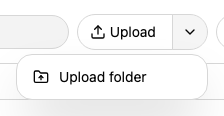
  2. Select the arrow beside Upload, then select Upload folder.

    Enlarge screenshot: The Upload button with its menu open, showing Upload folder
  3. Choose a folder on your computer.

Alcova creates the same folders inside the current folder, then uploads the files into them. You can also drag a folder from your computer onto the page.

Alcova leaves out system and temporary files, such as .DS_Store, Thumbs.db and Office files whose names start with ~$. It also leaves out folders such as .git and node_modules.

Create a folder

  1. Open the folder that will hold the new folder.
  2. Select New folder.
  3. Enter a name in Folder name, then select Create.

The new folder shows in the list.

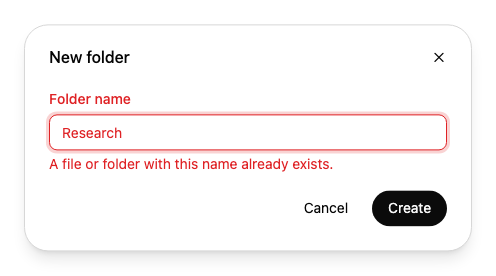
If the name is already used in this folder, the box shows A file or folder with this name already exists. Enter a different name.

Enlarge screenshot: The New folder dialog with Research entered and the message A file or folder with this name already exists

A name cannot contain a slash (/), and can be up to 255 characters long.

Rename a file or folder

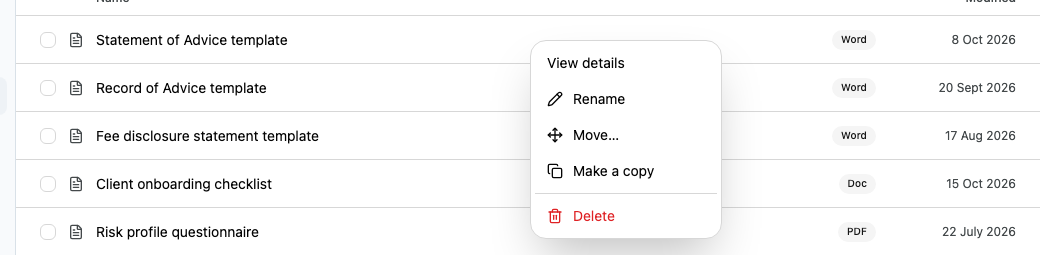
  1. Right-click the file or folder, then select Rename.

    Enlarge screenshot: The menu for a file, listing View details, Rename, Move…, Make a copy and Delete
  2. Edit the name in Name, then select Save.

For a file, the name includes its extension, such as .docx. The same naming rules apply as for a new folder.

Move files and folders

  1. Right-click the item, then select Move…. To move several items, tick them, then select Move in the bar at the bottom of the page.

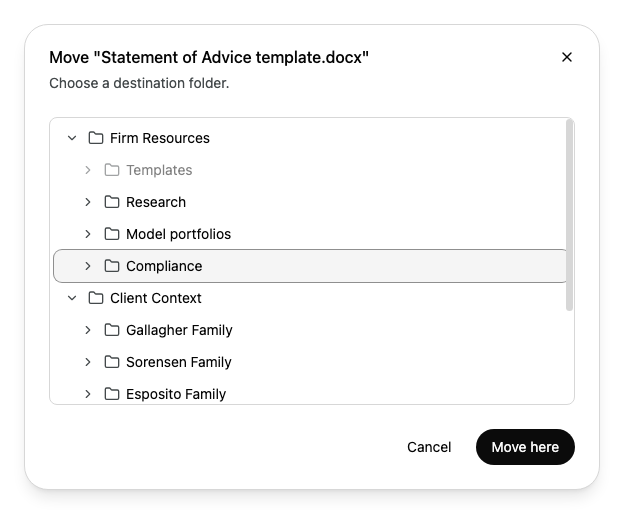
  2. Select the folder to move the items to. Select the arrow beside a folder to show the folders inside it.

    Enlarge screenshot: The Move dialog for Statement of Advice template.docx, with the Compliance folder selected under Firm Resources
  3. Select Move here.

Folders you cannot choose are greyed out. These are the folder the items are already in, and folders you do not have permission to change. A folder you are moving does not show in the list.

You can also drag items onto a folder in the list, or onto a folder in the folder path at the top of the page.

Make a copy

Right-click the file or folder, then select Make a copy.

The copy shows in the same folder. If the name is already used, Alcova adds a number to the copy's name.

Delete files and folders

  1. Right-click the item, then select Delete. To delete several items, tick them, then select Delete in the bar at the bottom of the page.


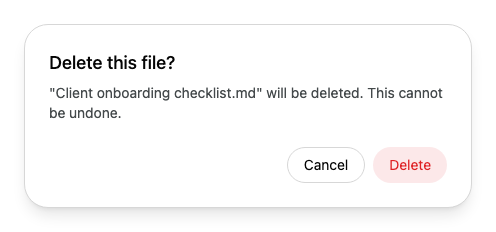
  2. Read the message, then select Delete.

    Enlarge screenshot: The Delete this file? dialog for Client onboarding checklist.md, which says it cannot be undone

Deleting a folder also deletes everything inside it. You cannot undo a delete.

Work with several items

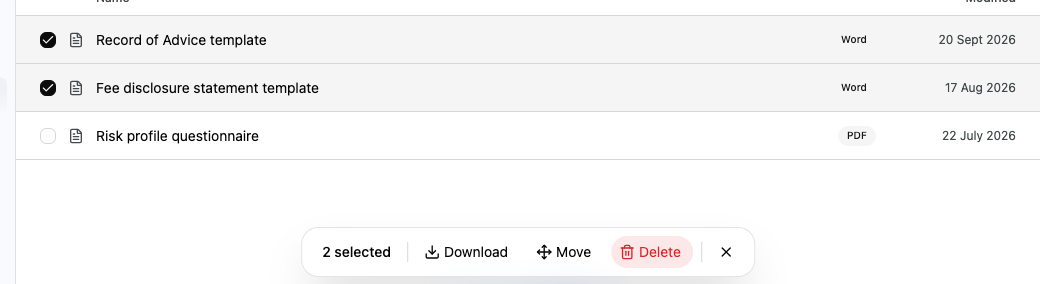
Tick the box at the start of each row you want. A bar shows at the bottom of the page with the number of items selected.

Enlarge screenshot: Two Word files ticked, and the bar with 2 selected, Download, Move and Delete
  • Download downloads the selected files as one zip file. It works for files only, up to 100 at a time.
  • Move moves the selected items to another folder.
  • Delete deletes the selected items.

To clear your selection, select the close button at the end of the bar.

If you cannot change one of the selected items, Move and Delete are turned off.

If something goes wrong

  • Upload failed. Please try again.: none of the files uploaded. Check your connection, then upload them again.
  • Uploaded 3 of 5 files; 2 failed.: some files did not upload. Upload the missing ones again.
  • You don't have permission to do that.: you do not have permission to change this folder, so the name was not saved.