Ask Operator to prepare for a meeting, draft a follow-up, model a strategy or look into your clients' portfolios. You can ask from the Operator home page or from any other page in Alcova.
Ask from the home page
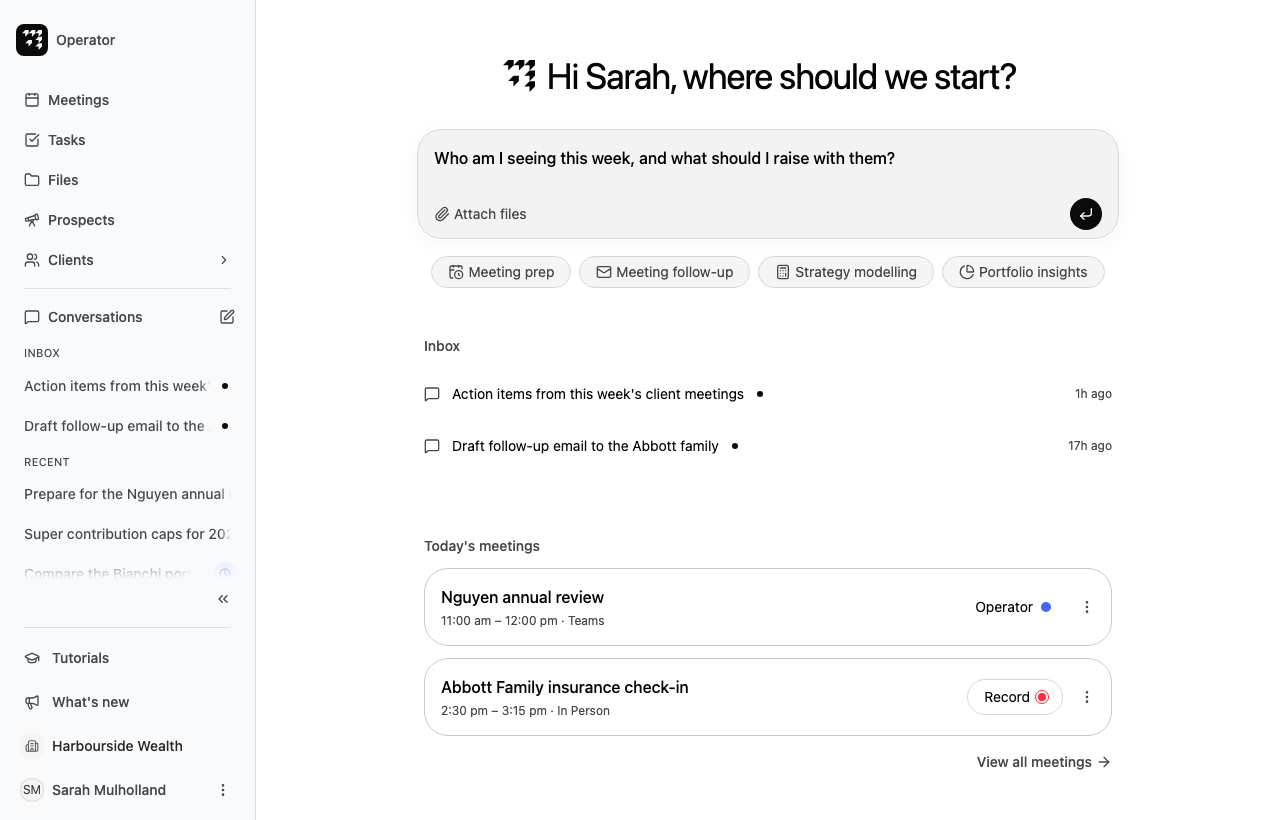
Select Operator at the top of the sidebar. The Operator home page opens.
Select the prompt box under the greeting, then enter your request. Write it as you would brief a colleague, for example "Who am I seeing this week, and what should I raise with them?"
Press Enter, or select the send button at the bottom right of the prompt box. To start a new line instead, press Shift+Enter.
Your conversation opens and Operator starts to reply.
The home page also shows:
Inbox: conversations where Operator has replied since you last opened them. This list shows only when there is something to read. Select a conversation to open it.
Today's meetings: your meetings for today. If you have none today, your next few meetings show under Upcoming. Select View all meetings to open your meetings list.
Start from a suggestion
If you are not sure what to ask, start from an example.
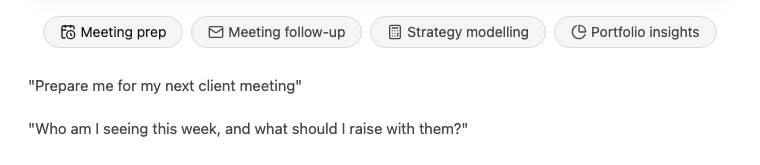
Under the prompt box, select a topic: Meeting prep, Meeting follow-up, Strategy modelling or Portfolio insights. Example requests show below the topics.
A prompt box opens at the bottom of the screen. Enter your request.
Press Enter to send it. Your conversation opens.
You can also open the prompt box in these ways:
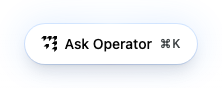
Press ⌘K on a Mac, or Ctrl K on Windows.
Select the pencil button, New conversation, next to Conversations in the sidebar.
On the Conversations page, select New.
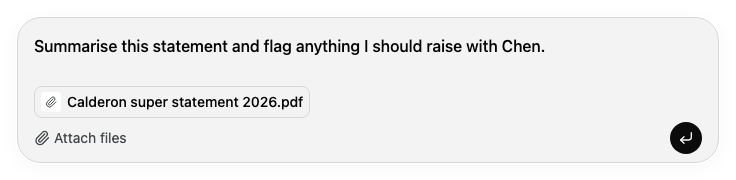
To close the prompt box without sending, press Esc or select outside it. Alcova keeps what you entered, and any files you attached, until you go to another page.
The Ask Operator button does not show on the Operator home page or in a conversation, because both already have a prompt box. It also hides while you are scrolled to the end of a page, so it never covers the last row. Scroll up to see it again.
Ask about the page you are on
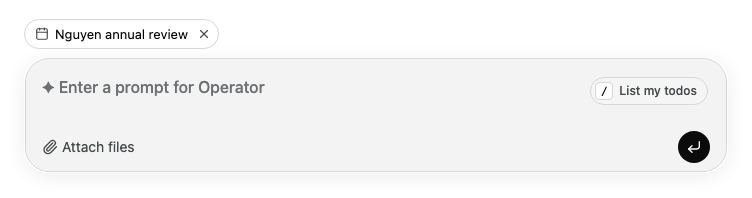
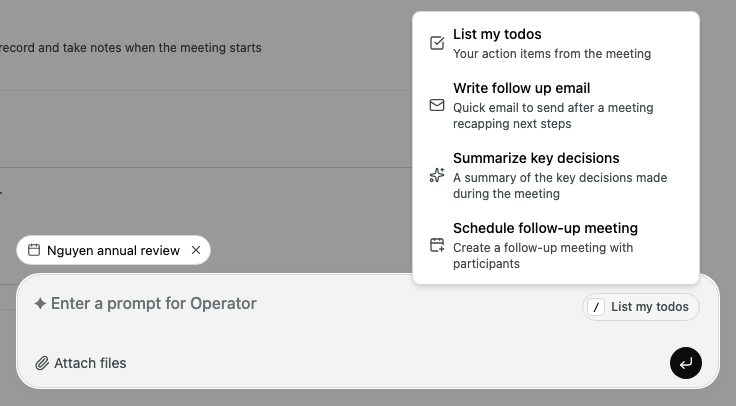
When you open the prompt box from a page about one thing, Alcova attaches that thing to your request. Operator then knows what "this meeting" or "this household" means. This works on these pages:
Page
What Alcova attaches
A meeting
The meeting
A household, on any of its tabs
The household
A contact
The contact
Files
The folder you are in, or the file you are previewing
Select a suggestion. Its request fills the prompt box, so you can change it before you send.
You can also type a slash (/) in the prompt box to open the same list.
A meeting's notes summarise what was said, but you can ask about anything in the conversation. For example, after a review with the Donnelly household, ask "When James asked why the TPD cover was only $2 million, what did I say?" Operator answers from the meeting's transcript and notes, and lists the files it used under Resources. You can keep asking in the same conversation.
Video: Ask Operator about a meeting
What happens next
Your new conversation opens and Operator replies. While it works, it shows the steps it takes. Before it does some things for you, such as drafting an email or changing your calendar, it asks you to approve them. See How Operator works and Approve actions and answer questions.
Each request starts a new conversation. To ask a follow-up about the same topic, reply in the conversation instead. See Find and manage conversations.
If something goes wrong
If Alcova cannot start the conversation, an Error message shows under the prompt box. Your request and attached files stay in the prompt box, so you can send them again.