Change a meeting's title, description, time or attendees, link it to a household, or cancel it.
Before you start
Meetings from your calendar are kept in step with the calendar event. If you did not organise the meeting, you can open Edit but not change most of its details. The sheet shows Calendar event: some fields are synced from the calendar and only the organiser can edit them.
Edit a meeting
Open the meeting.
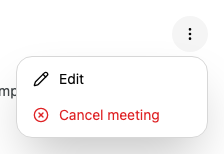
Select the three dots beside the title, then select Edit.
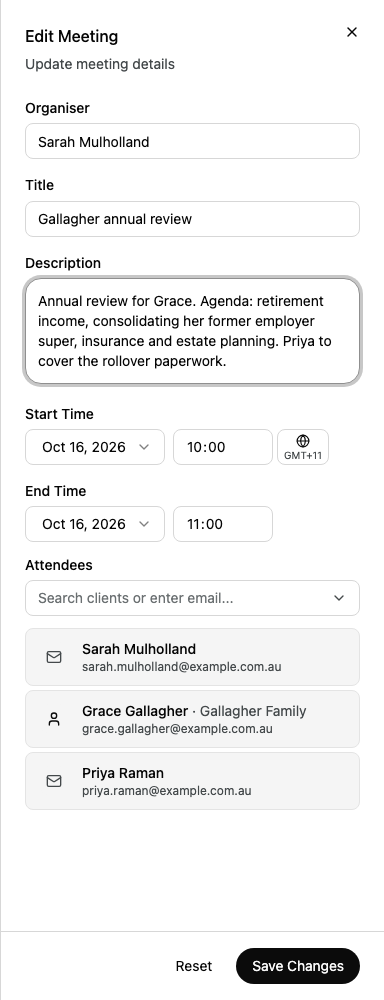
To undo your changes before you save, select Reset. To close without saving, select the X.
Organiser shows who organised the meeting. You cannot change it.
Change who is invited
In Edit Meeting, go to Attendees.
To add a client, enter part of their name and select them from the list. Each result shows the contact's household.
To add someone who is not a contact, enter their full email address and select Invite and the address.
To remove someone, point to their card and select the X.
Select Save Changes.
Link a meeting to a household
Alcova links a meeting to a household through its attendees. Add a member of the household as an attendee, and the household appears at the top of the meeting page after you save. See How a meeting links to a household.
Only the meeting's organiser can cancel it. For everyone else, Cancel meeting is unavailable and shows Only the organiser can do this.
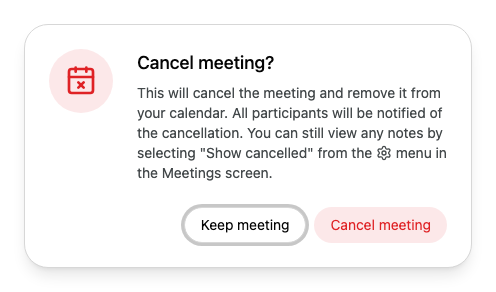
Open the meeting, select the three dots beside the title, then select Cancel meeting. On the Meetings page, you can also select the three dots on the meeting, then Cancel Meeting.
If the meeting came from your calendar, cancelling it also removes it from your calendar, and everyone invited is told it was cancelled.
If you cancelled from the meeting page, Alcova takes you back to where you came from. The meeting disappears from your list, but its notes are kept. To find it again, select the cog button on the Meetings page, then Show cancelled. See Show cancelled meetings.
To keep the meeting, select Keep meeting.
If something goes wrong
Title is required: enter a title.
End time must be after start time: change the end time.
Failed to cancel meeting. Please try again.: check your connection and try again.